
It is the year 2026. You are right in the middle of a high-stakes competitive gaming match, or perhaps you are about to submit a final project via a holographic interface, when suddenly, the connection drops. You run a quick diagnostic, and the screen flashes a familiar but frustrating message: “DNS Server Not Responding.”
Even with the lightning-fast 6G speeds and satellite-integrated web we enjoy today, this classic error still haunts us. It essentially means your device can’t communicate with the “phonebook” of the internet. Since computers talk in numbers (IP addresses) and humans talk in names (like YouTube.com), the DNS (Domain Name System) acts as the translator. When it stops responding, your computer gets lost.
If you find yourself stuck in this digital limbo, don’t panic. Here is a modern guide to getting back online.
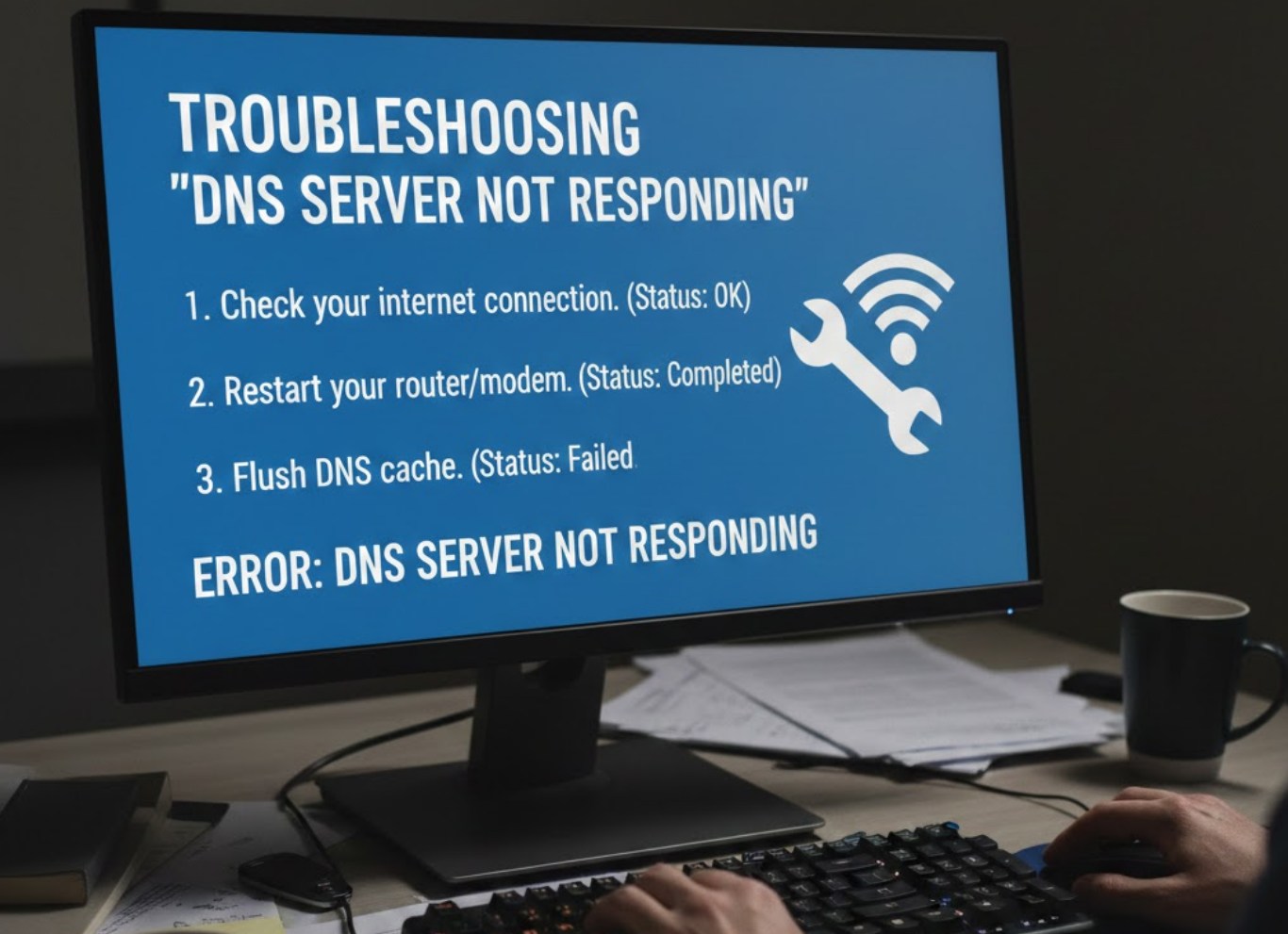
1. The “Power Cycle” Still Reigns Supreme
Even in 2026, the most effective solution is often the simplest. Before you dive into deep system settings, try a basic reset. Technology has improved, but hardware still gets “clogged” with temporary data errors.
-
- Restart your router: Most modern smart routers have a physical button or a touch interface. Unplugging it for 30 seconds allows the internal capacitors to clear and forces a fresh handshake with your internet service provider (ISP).
- Reboot your device: Whether you are using a laptop, a tablet, or a neural-link headset, a quick restart clears the active memory (RAM) and resets your network adapter.
- Check the physical connections: If you aren’t on a purely wireless satellite link, make sure your fiber-optic cables aren’t kinked or loose.
2. Flush the DNS Cache
Sometimes your computer remembers the wrong directions. Your operating system stores a “cache” of previously visited sites to speed things up. If a website changed its digital address, your computer might be trying to use an old map.
To clear this out on a modern Windows or macOS system, follow these steps:
-
- Open your Terminal or Command Prompt (type “cmd” in the search bar).
- Type the following command:
ipconfig /flushdns - Press Enter.
- You should see a message saying the DNS Resolver Cache was successfully flushed.
This forces your computer to ask the internet for brand-new directions the next time you try to load a page.
3. Switch to a Third-Party DNS Provider
By default, your device uses the DNS server provided by your ISP. These can often be slow, prone to crashing, or heavily filtered. Switching to a public DNS is one of the best ways to increase reliability and speed.
Some of the most reliable options in 2026 include:
-
- Cloudflare: 1.1.1.1 (Known for being the fastest and most private).
- Google Public DNS: 8.8.8.8 or 8.8.4.4 (Extremely reliable and widely used).
- Quad9: 9.9.9.9 (Focuses on blocking malicious websites before they even reach your screen).
To change this, go to your Network Settings, select your current Wi-Fi or Ethernet connection, look for IPv4 Properties, and manually enter the addresses listed above.
4. Update Your Network Drivers
In 2026, most updates happen automatically in the background, but sometimes a critical network driver update gets stuck. If your hardware doesn’t have the latest instructions on how to talk to the web, the DNS error is a common symptom.
-
- Right-click the Start button and select Device Manager.
- Find Network Adapters.
- Right-click your Wi-Fi or Ethernet controller and select Update Driver.
- Choose “Search automatically for drivers.”
If your computer says it is already up to date, you might want to visit the manufacturer’s website on a different device and download the latest “LAN Driver” manually.
5. Disable Secondary Connections and VPNs
With the rise of integrated security, many of us run VPNs (Virtual Private Networks) or “Privacy Shields” around the clock. While these are great for safety, they add an extra layer of complexity. If the VPN’s own DNS server goes down, your whole internet goes down with it.
Try turning off your VPN, ad-blockers, or any “Secure Web” extensions temporarily. If the internet suddenly starts working again, you know the issue lies with that specific software and not your actual connection.
6. Reset Your Network Settings
If you have tried everything and still see that “Not Responding” message, it might be time for the “Nuclear Option.” A Network Reset will remove and reinstall all your network adapters and set other networking components back to their original factory settings.
-
- Go to Settings.
- Navigate to Network & Internet.
- Look for Advanced Network Settings.
- Select Network Reset and click “Reset Now.”
Your computer will restart, and you will have to re-enter your Wi-Fi passwords, but this often fixes deep-rooted software glitches that nothing else can touch.
Final Thoughts
A “DNS Server Not Responding” error is rarely a sign of a broken computer. Usually, it is just a communication breakdown. By following these steps—starting with the simplest and moving toward the more technical—you can usually solve the problem in under ten minutes. Staying connected is more important than ever in 2026, and knowing how to fix your own tech is the ultimate superpower.
