
The world of digital content creation has moved at a lightning pace. If you look back just a few years, recording your screen at 1080p was the gold standard. But as we move through 2026, the bar has been raised significantly. We are now in the era of 4K resolution paired with a blistering 120 frames per second (FPS).
Whether you are a competitive gamer wanting to show off your flick shots in high-speed shooters or a creative professional demonstrating complex software, 4K 120FPS is the new benchmark for “pro” quality. However, capturing this much data requires more than just a decent computer; it requires the right software that can handle the massive throughput without making your PC melt.
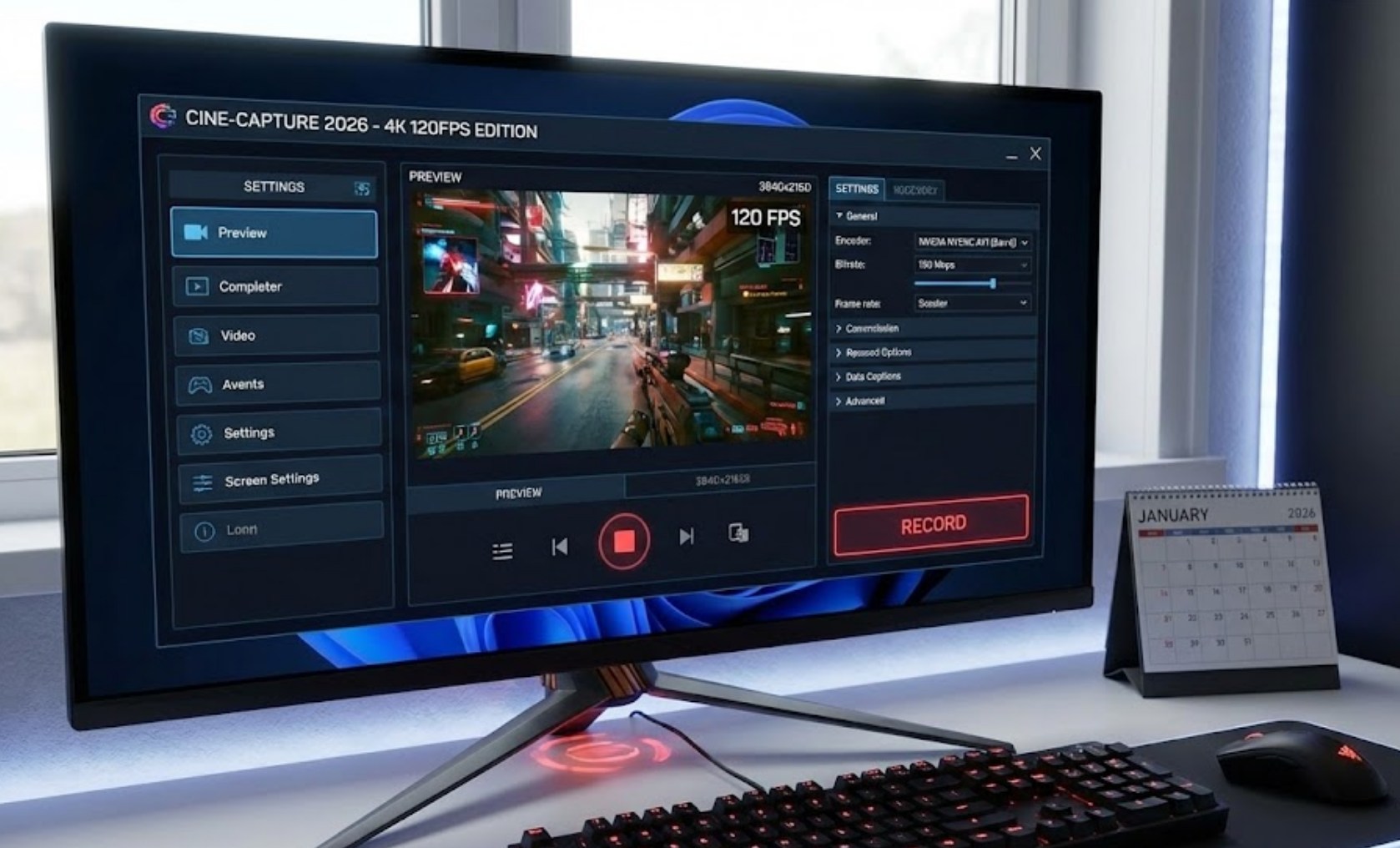
Why 4K 120FPS is a Big Deal
When you record at 4K, you are capturing four times the pixels of a standard 1080p video. When you add 120FPS to that mix, you are doubling the standard “smooth” frame rate of 60FPS. This results in footage that looks incredibly fluid, especially during fast motion. It also allows you to slow down your footage by 50% in editing while still maintaining a perfectly smooth 60FPS slow-motion effect.
To pull this off in 2026, you generally need three things:
-
- A high-end GPU: Think NVIDIA RTX 50-series or the latest AMD Radeon equivalents.
- Fast Storage: You need an NVMe Gen5 SSD because the sheer amount of data being written per second is staggering.
- Modern Codecs: Software that supports AV1 encoding is essential because it keeps file sizes manageable without losing quality.
1. OBS Studio (The Open-Source Champion)
Even in 2026, OBS Studio remains the undisputed heavyweight champion of screen recording. It is free, open-source, and has evolved to take full advantage of the latest hardware encoders.
-
- AV1 Integration: OBS has perfected its AV1 encoding support, which is vital for 4K 120FPS. It allows you to record high-quality video at a lower bitrate than the older H.264 standard.
- Customization: You can set up “Scenes” that allow you to toggle between your game, your webcam, and your overlays instantly.
- Plugin Support: The community has created specialized plugins that optimize the way OBS uses your graphics card, ensuring that the recording process doesn’t lag your game.
2. NVIDIA ShadowPlay (The Low-Impact Choice)
If you are using an NVIDIA graphics card, ShadowPlay (now part of the unified NVIDIA App) is often the most efficient way to record. Because it is baked into the hardware, it has the least impact on your actual gaming performance.
-
- Instant Replay: You can set it to constantly record in the background. If something amazing happens, you hit a hotkey and save the last five minutes in 4K 120FPS.
- NVIDIA Broadcast Integration: In 2026, this software uses AI to clean up your microphone audio and even keep your eyes centered on the camera while you record.
- Zero-Latency Capture: Because it talks directly to the GPU, there is almost no “input lag,” which is crucial for high-level gaming.
3. Action! (The High-Performance Specialist)
Mirillis Action! has long been a favorite for those who want a sleek interface and dedicated high-frame-rate support. It was one of the first programs to prioritize 120FPS and 144FPS recording.
-
- Sleek UI: Unlike OBS, which can look intimidating with all its buttons, Action! has a very modern, user-friendly design.
- Benchmarking Mode: It allows you to see how much your recording is affecting your game’s performance in real-time.
- HDR10 Support: If you are playing games in HDR, Action! captures those vibrant colors perfectly without them looking washed out in the final video.
4. Elgato 4K Capture Utility
While many people use Elgato for external capture cards, their software is also top-tier for internal recording if you use their 4K60 Pro (or the newer 2026 models). It is designed specifically for people who don’t want to mess with complicated settings. It’s a “plug-and-play” experience that handles high bitrates with ease.
How to Choose the Right Software
Selecting the best software depends on what you value most. Here is a quick breakdown to help you decide:
-
- Choose OBS Studio if you want total control, use multiple overlays, or want a completely free setup.
- Choose NVIDIA ShadowPlay if you want the simplest experience with the least amount of “lag” while playing.
- Choose Action! if you want a balance of high-end performance and a beautiful, easy-to-use interface.
- Choose Elgato if you are using their specific hardware and want a stable, professional ecosystem.
Final Thoughts on Storage
Before you hit that record button, remember that 4K 120FPS files are massive. A ten-minute clip can easily take up 20GB to 50GB of space depending on your bitrate. In 2026, the best practice is to record your raw footage to a dedicated “scratch drive” (an SSD used only for recording) and then move the finished, edited files to a larger hard drive or cloud storage.
Capturing the future in 4K at 120FPS is an exciting way to share your digital experiences. With the right software and a bit of practice, your videos will look so crisp that viewers will feel like they are sitting right there at the monitor with you.
