
Have you ever wondered if you could talk to an AI without needing an internet connection? Most of us are used to ChatGPT, Claude, or Gemini, but those systems live in massive data centers owned by tech giants. Every time you ask them a question, your data travels across the web, gets processed on a distant server, and comes back to you.
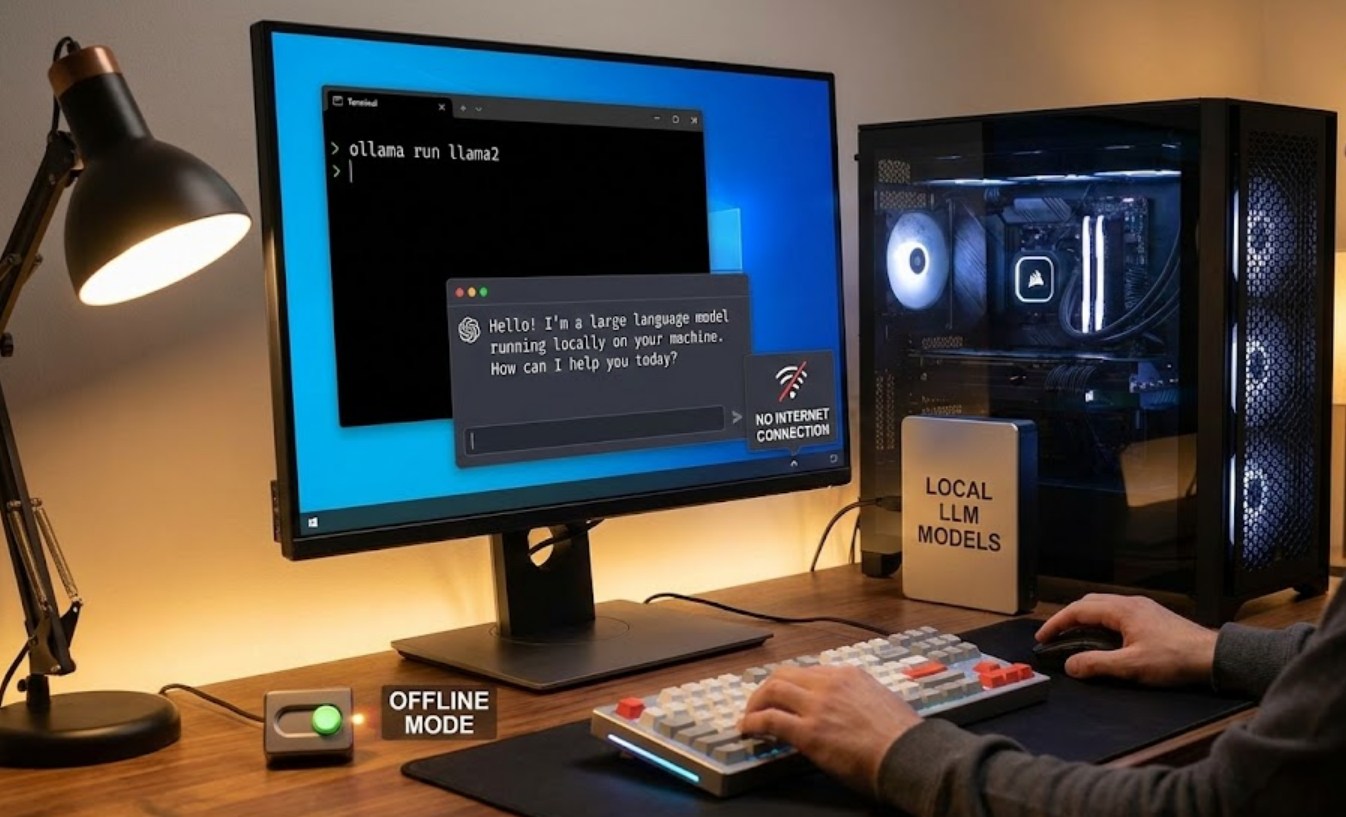
But what if you could put that entire “brain” onto your own laptop or desktop? Running a Local Large Language Model (LLM) means the AI lives entirely on your hardware. It doesn’t need Wi-Fi, it doesn’t track your data, and it works even if the power grid goes down (as long as your battery lasts).
Why Would You Run AI Locally?
Before we dive into the “how,” let’s talk about the “why.” Running an AI locally offers three major advantages:
-
- Total Privacy: When you use a web-based AI, the company often uses your chats to train their next model. When you run it locally, your conversations never leave your room.
- No Subscriptions: You don’t have to pay $20 a month for “Pro” features. Once you have the hardware, the software and the models are free.
- Customization: You can choose different “personalities” or specialized models for coding, creative writing, or roleplay without any filters or restrictions.
The Hardware: Does Your PC Have the Muscle?
Running an AI is like playing a high-end video game. It requires a lot of processing power. While you don’t need a NASA supercomputer, there are some minimum requirements to keep things running smoothly:
-
- RAM (Memory): This is the most important part. You generally need at least 8GB of RAM, but 16GB or 32GB is the “sweet spot” for most users.
- Graphics Card (GPU): If you have an Nvidia card (like an RTX 3060 or better), the AI will run much faster. If you have a Mac with an M1, M2, or M3 chip, you’re in luck—those are actually fantastic for local AI.
- Storage Space: AI models are large files. You’ll need anywhere from 4GB to 20GB of free space for each model you want to try.
The Easiest Way to Start: LM Studio
The easiest way for a beginner to get started is a program called LM Studio. It’s a clean, user-friendly app that handles all the complicated technical stuff for you. It works on Windows, Mac, and Linux.
Here is how to set it up:
-
- Download and Install: Go to the official LM Studio website and download the installer for your operating system.
- Search for a Model: Open the app and use the search bar. Try searching for “Llama 3” (by Meta) or “Mistral.” These are two of the best “all-purpose” brains available right now.
- Check Compatibility: On the right side of the screen, the app will tell you if a model is “Likely to fit” or “Too large” for your computer’s memory. Always pick one that fits!
- Download: Click the download button for a “Quantized” version (this is just a fancy word for a compressed version that runs faster).
- Start Chatting: Once the download finishes, click the “AI Chat” icon on the left sidebar, select your model at the top, and start typing.
Another Great Option: GPT4All
If LM Studio feels a bit too “techy,” you might prefer GPT4All. This software is designed to be as simple as possible. It even allows you to point the AI at your own local documents (like your school notes or a PDF) so you can ask the AI questions about them without uploading those files to the cloud.
Understanding “Models” and “Quantization”
When you start browsing for local AI, you’ll see a lot of strange names and numbers like “Llama-3-8B-Q4_K_M.” Don’t let this scare you away. It’s actually quite simple once you break it down:
-
- The Name (Llama-3): This is the brand of the AI.
- The Parameters (8B): This stands for 8 Billion. It refers to how many “connections” the AI has. A 7B or 8B model is perfect for home computers. A 70B model is much smarter but requires an incredibly expensive PC.
- The Quantization (Q4, Q5, etc.): This tells you how much the AI has been compressed. A “Q4” model is like a high-quality MP3—it’s smaller and faster than the original, but it still sounds (or thinks) great.
Is This Legal and Safe?
Yes! Most of these models are “Open Weights,” meaning the creators (like Meta or Mistral) have released them for the public to download and use for free. As long as you download the software from official sites, it is just as safe as downloading a game or a web browser.
The Future in Your Hands
Learning to run AI locally is a great skill to have. It takes you from being a mere consumer of technology to someone who understands how the “engine” works. Whether you want a private tutor that doesn’t track your questions, or you just want to experiment with the cutting edge of technology, running a local LLM is the best way to do it.
The best part? You can turn off your Wi-Fi, go to a cabin in the woods, and you’ll still have the world’s most advanced digital assistant right there on your screen.
