
We have all been there. You are working on a massive history project or a lab report that took hours to finish. You go to clean up your digital workspace, clicking through folders and hitting “delete” on old drafts, when suddenly your stomach drops. You realize you just sent the final version of your assignment straight into the digital void.
Before you slam your laptop shut in frustration, take a deep breath. One of the best things about using cloud storage platforms like Google Drive is that “deleted” rarely means “gone forever”—at least not immediately. Cloud services are designed with human error in mind, offering several safety nets to catch your files before they vanish into the ether.
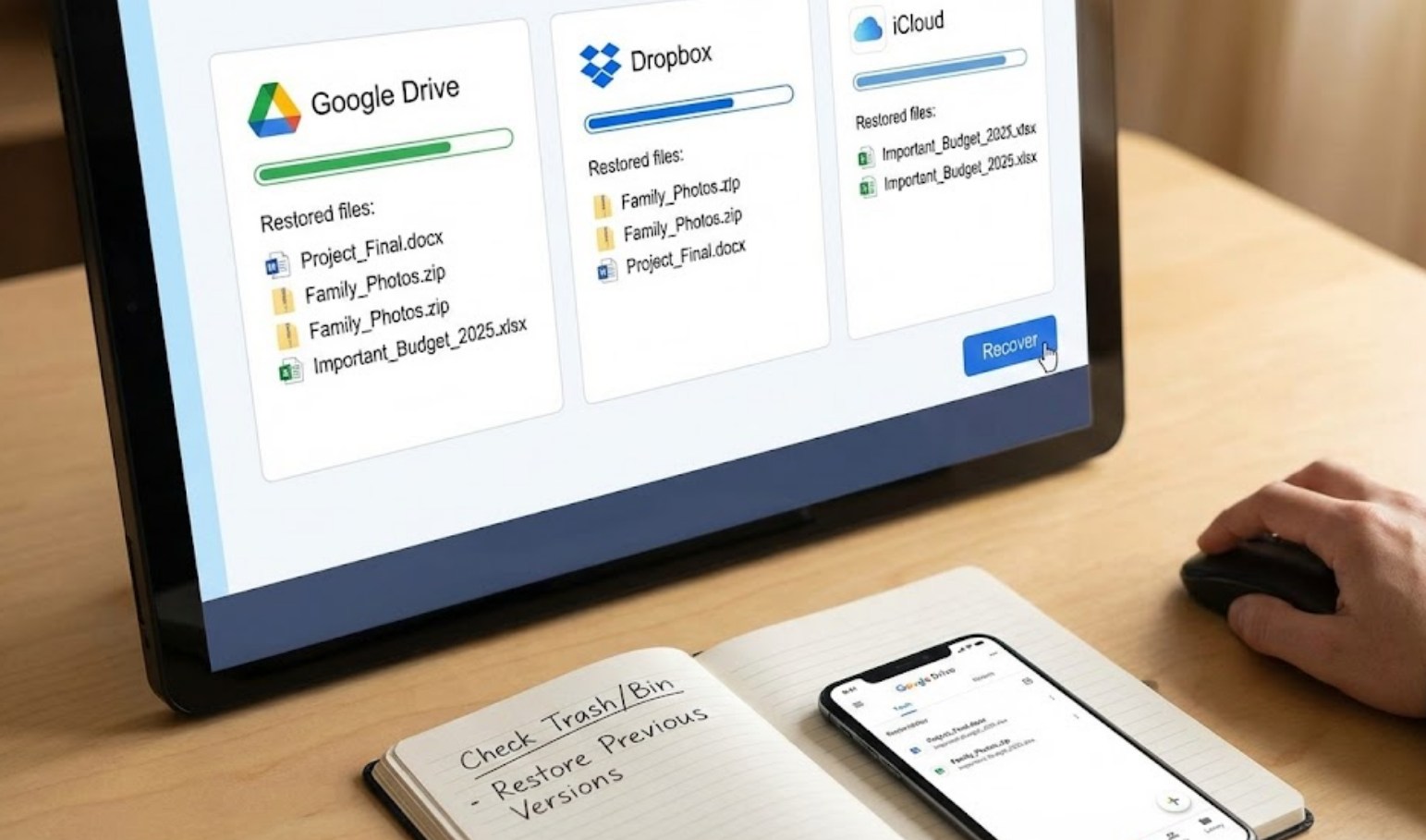
Step 1: Check the Digital Trash Bin
The most common way files disappear is that they are simply moved to the Trash (or Bin). Think of this like the physical trash can next to your desk; the paper is inside it, but the janitor hasn’t come by to empty it yet. In Google Drive, files stay in the Trash for 30 days before they are permanently deleted automatically.
To get your file back:
-
- Open your Drive on a computer.Look at the sidebar on the left and click on Trash.
- Scroll through the files or use the search bar at the top to find your missing document.
- Right-click the file and select Restore.
Once you do this, the file will jump right back to its original location. If you can’t remember where that was, you can simply search for the file name in the main search bar, and it should reappear.
Step 2: Recovering Files on a Mobile Device
Sometimes, you’re working on the go. If you are using a phone or tablet, the process is slightly different but just as easy.
-
- Open the Drive app.
- Tap the three horizontal lines (the “hamburger” menu) in the top left corner.
- Select Trash.
- Find your file and tap the three dots next to the file name.
- Select Restore.
It is important to remember that the 30-day rule applies here too. If you deleted a file two months ago and haven’t looked for it until now, the Trash bin has likely been emptied.
Step 3: Use the “Version History” Feature
Sometimes the file hasn’t been deleted, but the content inside it has. Maybe you accidentally highlighted everything and hit backspace, then closed the tab. Or perhaps a group project partner accidentally erased your entire section of a presentation.
This is where Version History becomes a life-saver. Google Drive tracks every major change made to a document. To travel back in time:
-
- Open the file in question.
- Go to the top menu and click File, then hover over Version history, and select See version history.
- A panel will open on the right showing a timeline of when the file was edited and by whom.
- Click through the timestamps to find the version where your work was still there.
- Click Restore this version at the top of the screen.
Step 4: Check with the “Owner” of the File
If you were working on a shared folder or a group project and the file suddenly vanished, you might not have deleted it at all. If the person who created the file (the “Owner”) deletes it, it disappears for everyone else too.
In this case, you need to contact the person who started the document. They will need to check their own Trash bin using the steps mentioned above. If they “removed” you from the file instead of deleting it, the file still exists; you just no longer have permission to see it. A quick text or email to your teammate can usually solve this in seconds.
Step 5: The “Admin” Last Resort
If you are using an account provided by your school, you have an extra layer of protection. School accounts are part of a “Workspace,” which is managed by IT administrators. Even if you empty your Trash, the school’s IT department often has an additional 25-day window where they can recover deleted files from the server.
If a file is truly critical and you’ve cleared your Trash, reach out to your school’s tech support or your teacher. They can often put in a request to the admin to pull the file back from the “permanent” deletion phase.
How to Prevent Future Disasters
While knowing how to recover files is great, not losing them in the first place is even better. You can stay organized and safe by following a few simple habits:
-
- Don’t Name Everything “Untitled”: Use clear names like “Biology_Lab_Final_March12” so you don’t delete it thinking it’s a blank draft.
- Star Your Important Files: Use the “Star” feature for current projects so they stay in a dedicated folder.
- Check Before Emptying: Never click “Empty Trash” unless you have double-checked that there is nothing important hiding in there.
Technology can be stressful when it doesn’t work the way we want, but cloud storage is generally on your side. Next time a file goes missing, don’t panic—just start at the Trash and work your way through the steps. Chances are, your work is just a few clicks away.
