
We all have that one “junk drawer” in our house. You know the one—it’s filled with old charging cables that don’t fit anything, a few mystery batteries, and likely, an old tablet. Maybe it’s an early-generation iPad or an Android tablet that’s just a bit too sluggish for the latest high-end mobile games.
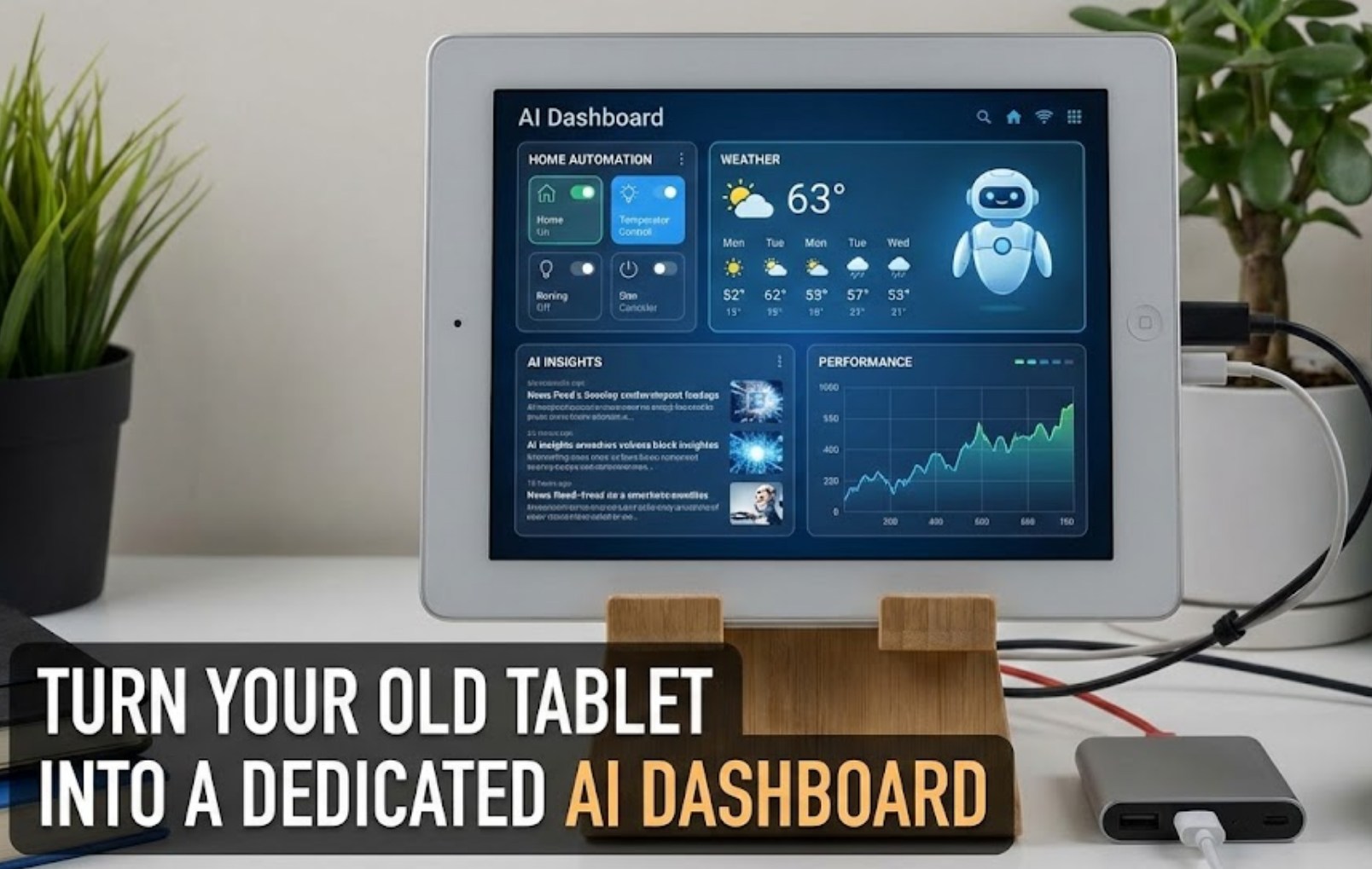
Instead of letting that hardware sit there gathering dust until the battery eventually swells, you can give it a second life. In the age of artificial intelligence, that “obsolete” slab of glass can be transformed into a high-tech, dedicated AI dashboard. Imagine having a permanent, always-on “brain” sitting on your desk that helps you study, brainstorm, and organize your life without you having to flip through tabs on your main computer.
Why Go Dedicated?
You might wonder why you’d need a separate device when you can just open a tab for ChatGPT or Claude on your laptop. The answer is focus. When you’re in the middle of writing a paper or coding a project, switching tabs to ask an AI a question is a recipe for distraction. Before you know it, you’ve checked YouTube, scrolled through Discord, and forgotten what you were working on.
A dedicated dashboard acts like a peripheral for your brain. It stays in its lane, providing information at a glance while your main screen stays dedicated to your primary work. Plus, it just looks incredibly cool—very “sci-fi command center.”
Step 1: The Clean Slate
Before you start installing apps, you need to optimize the hardware. Old tablets struggle because they are bogged down by years of cached data and background apps.
-
- Factory Reset: Start fresh. Wipe the device completely to get rid of any old junk.
-
- Update the OS: Install the latest software update the device will allow. Even if it can’t run the newest version of iOS or Android, get it as current as possible.
-
- Strip the Bloat: If you didn’t factory reset, delete every single app that isn’t essential. No Netflix, no Instagram, no games. This device has one job now.
Step 2: Choosing Your AI “Brain”
The heart of your dashboard will be the AI service you choose to display. You have a few great options depending on what you need most:
-
- ChatGPT (The All-Rounder): The official app is sleek and supports voice mode. If your tablet is new enough to run the app, this is the easiest route.
- Claude (The Writer’s Choice): If you do a lot of creative writing or complex analysis, keeping a browser window open to Claude.ai is a great move. It tends to feel a bit more “human” in its responses.
- Perplexity (The Research Hub): If you want your dashboard to act as a real-time encyclopedia, Perplexity is the way to go. It cites its sources and searches the live internet, making it perfect for fact-checking on the fly.
- Custom Web Dashboards: If you’re feeling tech-savvy, you can use a site like DAKboard or MagicMirror to create a layout that includes an AI chat window alongside your calendar and a weather widget.
Step 3: Setting Up the “Command Center”
To make the tablet feel like a real dashboard rather than just a handheld device, you need to change how it behaves.
Manage Your Display Settings
Go into your settings and set the “Auto-Lock” or “Screen Timeout” to “Never.” You want this screen to stay awake as long as it’s plugged in. On an iPad, you can find this under Display & Brightness. On Android, it’s usually under Display Settings, though some older models might require a “Keep Screen On” app from the Play Store.
The Power Factor
Since the screen will be on constantly, the battery will drain fast. You’ll want to keep it permanently plugged into a power source. Try to find a long, braided charging cable that can be neatly routed behind your desk to keep the setup looking clean.
Ergonomics and Placement
Don’t just lay it flat on the desk. Grab a cheap tablet stand or even use some Command strips to wall-mount it right at eye level next to your monitor. Positioning is everything; it should be close enough to touch but far enough away that it doesn’t clutter your mouse space.
Step 4: Maximizing Functionality
Now that the hardware is set up, it’s time to make it useful. Here are a few ways to utilize your new AI station:
-
- The “Rubber Duck”: In programming, “rubber ducking” is the act of explaining your code to a literal rubber duck to find bugs. Use your AI dashboard as that duck. Talk through your logic out loud using the voice-to-text feature.
-
- The Instant Thesaurus: Keep a prompt ready like, “Give me five sophisticated synonyms for the word I’m about to type.”
-
- The Summarizer: If you have a long PDF for class, open it on the tablet and ask the AI to pull out the three most important points while you take notes on your laptop.
The Bottom Line
Turning an old tablet into an AI dashboard is more than just a fun weekend DIY project; it’s a way to practice “sustainable tech.” Instead of contributing to the growing problem of electronic waste, you are repurposing high-quality hardware for the cutting edge of modern software.
By the time you’re finished, you won’t see an “old iPad” anymore. You’ll see a dedicated, always-ready assistant that helps you work faster, learn better, and stay focused. It’s a simple upgrade that makes your entire desk setup feel like it’s stepped straight out of the future.
