
Have you ever walked past your computer late at night and noticed the glowing RGB lights or felt a wave of heat radiating from the tower? Even when you aren’t actively playing a high-intensity game or editing a video, your PC is constantly pulling energy from the wall. In an era where we are more conscious than ever about our environmental footprint and the rising cost of electricity, understanding exactly how much power your computer uses is the first step toward becoming a more responsible tech user.
Why Does Power Consumption Matter?
Most of us think of our computers as static devices—they’re either on or off. However, a PC is a dynamic machine. A high-end gaming desktop can pull as much power as a small refrigerator when running at full throttle, while a laptop might use less than a standard lightbulb. Monitoring this usage isn’t just for “tech geeks”; it’s for anyone who wants to extend the lifespan of their components and save a bit of money.
When your components draw more power, they generate more heat. Excessive heat is the number one enemy of electronics, often leading to “thermal throttling” (where your computer slows down to protect itself) or even permanent hardware failure. By keeping an eye on your wattage, you can ensure your system is running efficiently.
How to Check Your PC’s Energy Appetite
You don’t need to be an electrician to figure out what’s happening inside your case. There are two main ways to monitor power: through software and through hardware.
1. Software Tools (The Easy Way)
Several free programs can give you a real-time look at what your components are doing. These tools read the sensors built into your motherboard, CPU, and GPU.
-
- HWMonitor: This is a classic tool that lists every piece of hardware in your system and shows the exact wattage each part is drawing.
- Open Hardware Monitor: Similar to HWMonitor, but it’s open-source and allows you to see graphs of your power usage over time.
- Task Manager (Windows): While it doesn’t show exact watts, the “Power Usage” column in the Processes tab tells you which apps are “Very High” energy hogs.
2. Hardware Monitors (The Accurate Way)
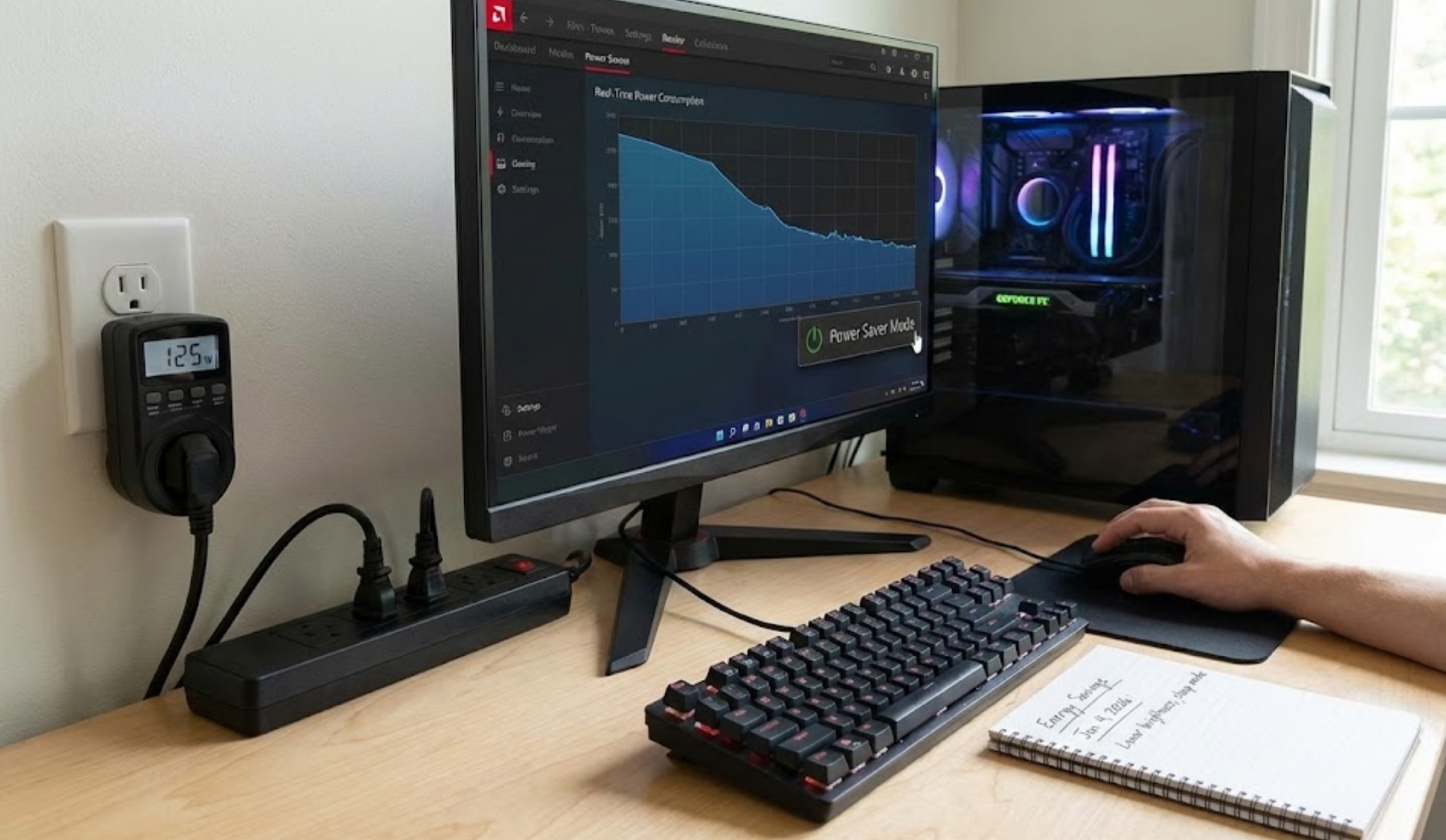
Software is great, but it sometimes misses the power used by fans, RGB strips, or the power supply’s own inefficiency. For the most accurate reading, you can use a “Kill-A-Watt” or a similar plug-in power meter. You simply plug the meter into the wall outlet, and then plug your PC into the meter. It will show you exactly how many watts the entire setup—monitor and all—is pulling in real-time.
Simple Steps to Cut Down Your Energy Bill
Once you start monitoring, you might be shocked to see how much energy is wasted when you aren’t even using the computer. Here are some effective strategies to trim the fat:
-
- Adjust Your Power Plan: Windows and macOS have built-in power saving modes. Switching from “High Performance” to “Balanced” can significantly reduce power draw during basic tasks like browsing the web.
- Use Sleep and Hibernate Correctly:
- Sleep mode keeps your RAM active so you can wake the PC instantly, but it still draws a small amount of power.
- Hibernate saves your open programs to the hard drive and turns the power off completely. If you’re stepping away for more than an hour, Hibernate is the way to go.
- Manage Your GPU: If you have a powerful graphics card, it is likely the biggest energy consumer in your house besides the AC or the oven. Using “V-Sync” in games to cap your frame rate can prevent your GPU from working harder than it needs to.
- Tweak Your Peripheral Habits: Unplug USB devices you aren’t using, and turn off your monitor when you walk away. Even a monitor on “standby” consumes “phantom power.”
The “Ghost in the Machine”: Phantom Loads
One of the most overlooked aspects of energy conservation is the “phantom load.” This refers to the electricity drawn by electronic devices even when they are turned off. Most modern power supplies continue to draw a few watts as long as they are plugged in. While 2 or 3 watts doesn’t sound like much, if you multiply that by 24 hours a day, 365 days a year, it adds up. Using a power strip with an on/off switch allows you to completely “air-gap” your computer from the grid at night, ensuring that zero energy is being wasted.
Making an Impact
When we talk about saving energy, it’s easy to feel like one person’s computer doesn’t make a difference. However, think about the millions of computers running globally. Small changes in how we manage our personal tech can lead to massive collective energy savings.
Monitoring your PC power consumption turns an invisible cost into a visible one. It challenges you to think about how you interact with your devices. Is that extra 5% brightness on your monitor worth the extra heat? Do you really need your PC to stay on while you go to dinner? By asking these questions, you become more than just a consumer; you become a smart, sustainable user of technology. Not only will your PC run cooler and last longer, but you’ll also be doing a favor for the planet—and your wallet.
