
We’ve all been there—right in the middle of a crucial project, a deep dive into a research paper, or an intense movie marathon, and the dreaded “10% battery remaining” notification pops up. For those of us using modern laptops equipped with OLED (Organic Light Emitting Diode) screens, that battery life is both a blessing and a bit of a mystery.
OLED screens are famous for their jaw-dropping colors and deep, true blacks. But because of how they work, they interact with your battery differently than the older LCD screens you might be used to. If you want your laptop to survive a full day of classes and still have enough juice for a YouTube session at night, you need a strategy.
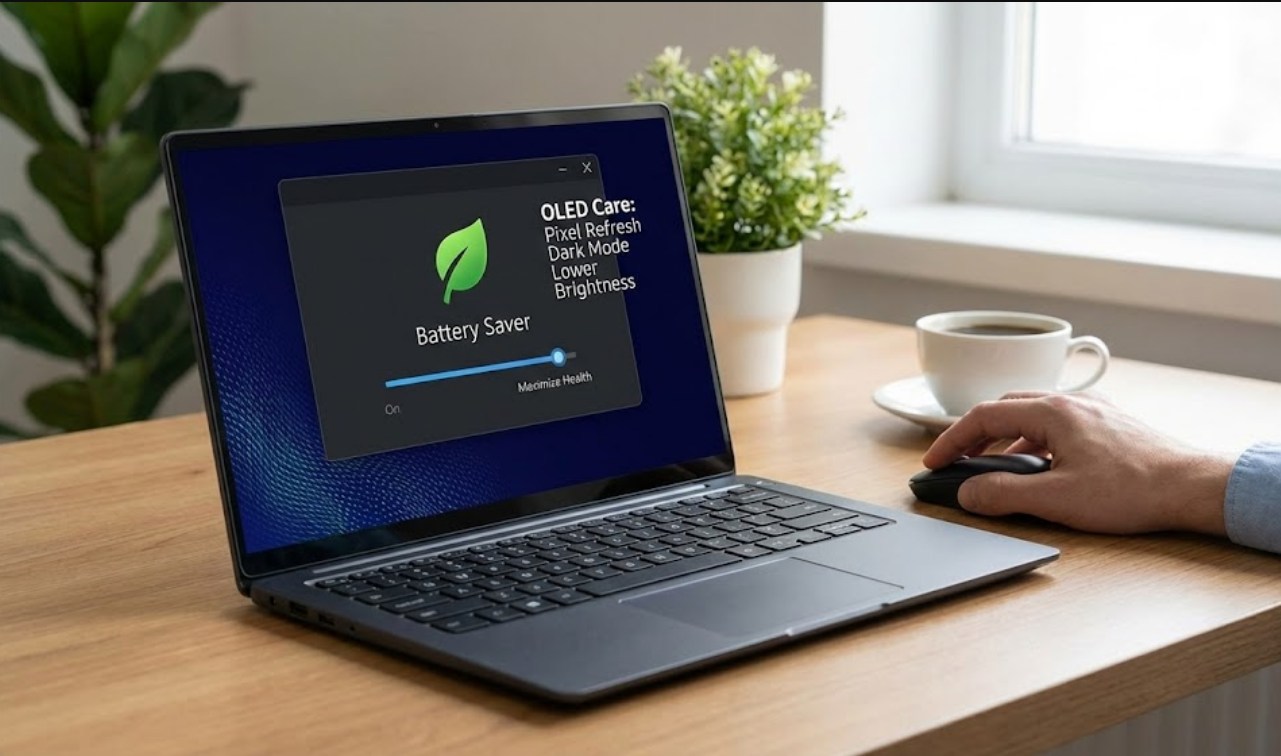
The Secret Power of the OLED Pixel
To master your battery life, you first have to understand what makes OLED special. On a standard LCD screen, there is a giant backlight behind the panel that stays on no matter what color is showing. On an OLED screen, every single pixel is its own light source.
When a pixel needs to show black, it simply turns off. It’s not “pretending” to be black; it is literally dead air. This is your greatest advantage. Every time you see black on your screen, that part of the display is using zero power.
Optimize Your Visual Environment
Since “black equals power saved,” your settings are your first line of defense. Making a few small tweaks to how your laptop looks can add an extra hour or two to your daily runtime.
-
- Go Dark or Go Home: Switch your operating system to “Dark Mode.” This applies to Windows, macOS, and even individual apps like Chrome or Discord. The more black space on your screen, the less work your battery has to do.
- Pick a “Void” Wallpaper: That high-res photo of a sunset is pretty, but it’s draining your juice. A solid black wallpaper or a dark-themed abstract image is the best way to keep your pixels at rest while you’re on the desktop.
- Manage Your Brightness: OLED screens can get incredibly bright, which is great for outdoor use but a killer for battery health. Keeping your brightness between 40% and 60% is usually the sweet spot for visibility and efficiency.
- Shorten the Screen Timeout: Because OLEDs can suffer from “burn-in” (where a ghost image stays on the screen forever), setting your screen to turn off after two or three minutes of inactivity saves both the battery and the longevity of the panel.
Charging Habits That Actually Matter
Most people think you should charge a laptop to 100% and run it down to 0%. In reality, that is one of the worst things you can do for a modern lithium-ion battery. These batteries are a bit like athletes; they don’t like being pushed to their absolute limits.
-
- The 20-80 Rule: Try to keep your battery percentage between 20% and 80%. Charging to 100% creates “voltage stress,” which wears out the battery chemicals faster over time. Many laptops now have a “Battery Health” setting that automatically stops the charge at 80%—turn this on!
- Avoid the Heat: Heat is the silent killer of electronics. If you’re using your laptop on a bed or a fuzzy carpet, you’re blocking the fans. This makes the battery get hot, and a hot battery degrades much faster than a cool one. Stick to hard surfaces like a desk or a laptop stand.
- Use the Right Brick: It’s tempting to use a cheap, third-party charger if you lose yours, but these often have “dirty” power delivery that can fluctuate and damage the battery’s internal cells. Stick to the original charger or a high-quality, certified USB-C PD (Power Delivery) charger.
Taming the Software Vampires
Even with the perfect screen settings, your battery will tank if your software is running wild. Some apps are “vampires”—they sit in the background and suck life out of your system without you even realizing it.
Check your task manager or activity monitor to see what’s running. Do you really need five different game launchers, Spotify, and forty Chrome tabs open while you’re writing an essay? Probably not. Chrome, in particular, is notorious for eating up RAM and power. Try using the “Efficiency Mode” in your browser or switch to a more power-friendly browser like Microsoft Edge or Safari when you’re away from a wall outlet.
The Long Game
Battery longevity is a marathon, not a sprint. To keep your laptop off the “life support” of a charger years from now, adopt an OLED-friendly dark mode and consistent power habits today. Your laptop is a tool designed to empower your work; keep it sharp by preventing heat buildup and giving your pixels a break. Take care of the hardware now, and it will carry the load for years to come.
