
In the fast-moving world of artificial intelligence, speed is more than just a convenience—it is a competitive advantage. Whether you are using ChatGPT to help structure an essay, utilizing Midjourney to generate digital art, or using Claude to analyze a complex data set, the way you interact with your computer determines your productivity. Most people rely on their mouse to click through menus, but true power users know that the keyboard is where the real magic happens.
Mastering keyboard shortcuts allows you to stay in a “flow state.” This is that psychological zone where you are so focused on your work that time seems to disappear. Every time you take your hand off the keyboard to grab the mouse, you break that focus. By learning the following shortcuts, you can keep your hands in place and your mind on the creative process.
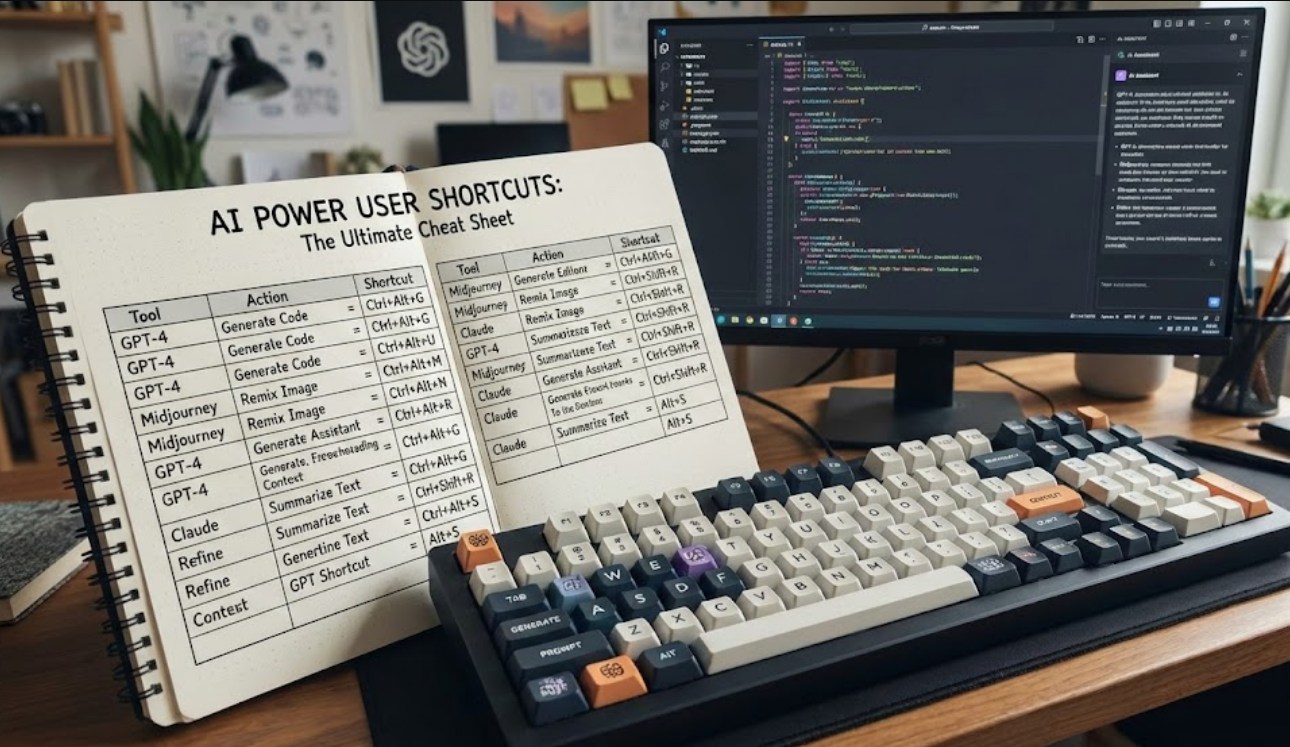
The Foundation: General Navigation
Before diving into specific AI tools, you must master the shortcuts that help you move between applications. Since most AI tools are web-based or require moving text between windows, these system-level commands are essential.
-
- Alt + Tab (Windows) or Command + Tab (Mac): This is the ultimate “context switcher.” It allows you to jump instantly between your browser where the AI lives and the document where you are taking notes.
- Ctrl + L (Windows) or Command + L (Mac): This highlights the address bar in your browser. If you need to jump to a different AI tool quickly, hit this shortcut and start typing the URL.
- Ctrl + F (Windows) or Command + F (Mac): AI responses can be incredibly long. Instead of scrolling for five minutes to find a specific keyword, use this to jump straight to the information you need.
- Ctrl + Shift + T (Windows) or Command + Shift + T (Mac): We have all been there—you accidentally close the tab containing a brilliant AI response you hadn’t saved yet. This shortcut brings that closed tab back from the dead.
Prompt Engineering Shortcuts
Writing a prompt is like coding in plain English. To get the best results, you need to structure your instructions clearly. These shortcuts help you edit and format your prompts without the frustration of clicking back and forth.
-
- Shift + Enter: This is the most important shortcut for any AI user. In almost every AI chat interface, hitting “Enter” sends the message. If you want to start a new paragraph or add bullet points to your prompt, hold Shift while pressing Enter. This allows you to build complex, multi-part instructions.
- Ctrl + Backspace (Windows) or Option + Delete (Mac): Instead of deleting one character at a time, this deletes the entire word behind the cursor. It makes rewriting prompts significantly faster.
- Ctrl + Home/End (Windows) or Command + Up/Down (Mac): If you have written a massive prompt and need to go back to the top to add a “System Instruction,” these keys jump you to the very beginning or end of the text box instantly.
Browser Mastery for AI Interfaces
Most AI power users spend their time in Chrome, Safari, or Edge. Navigating these environments efficiently can save you hours over a week of work.
-
- Ctrl + T / Ctrl + W: Open a new tab or close the current one.
- Ctrl + [Number 1-9]: If you have ChatGPT in your first tab and Gemini in your second, you can jump between them by pressing Ctrl + 1 or Ctrl + 2. This is perfect for “cross-checking” answers from different models.
- Ctrl + R: Refresh the page. Sometimes an AI interface glitches or hangs; a quick refresh usually clears the pipes.
Advanced Clipboard Management
AI work often involves “Lego-style” building—copying a piece of text from one place, a prompt from another, and a code snippet from a third. Standard copying and pasting (Ctrl + C and Ctrl + V) is fine, but power users go a step further.
On Windows, pressing Win + V opens your clipboard history. This allows you to see the last 25 things you copied. Instead of going back and forth between tabs five times to copy five different paragraphs, you can copy them all in a row and then paste them one by one into your AI prompt. Mac users can achieve similar results using third-party apps like Maccy or Pastebot.
Why It Matters
When you use these shortcuts, you aren’t just saving seconds; you are reducing “cognitive load.” Your brain only has a certain amount of energy each day. If you spend that energy navigating menus and moving your mouse, you have less energy left for the actual “thinking” part of AI interaction.
The goal is to make the computer an extension of your thoughts. When you decide you need a new paragraph, your fingers should hit Shift + Enter automatically, without you even thinking about the keys. This level of mastery transforms the AI from a tool you “use” into a partner you “work with.”
Start by picking three shortcuts from this list. Use them exclusively for one week until they become muscle memory. Once you don’t have to think about them anymore, add three more. Before you know it, you’ll be navigating the digital landscape at a speed that makes you look like a professional developer, even if you’re just finishing up a history project.
