
Your iPhone is arguably the most powerful tool you carry in your pocket every day. It’s your camera, your social hub, your GPS, and your gaming console all rolled into one. However, straight out of the box, Apple enables a variety of settings that aren’t necessarily there for your benefit. Some of these features are designed to help Apple’s developers, while others are meant to make advertisers happy.
If you’ve noticed your battery dying before dinner or you feel like your phone is “listening” to you a little too closely, it might be time to do a quick settings audit. Here are eight iPhone features you should consider turning off right now to reclaim your privacy and save your battery life.
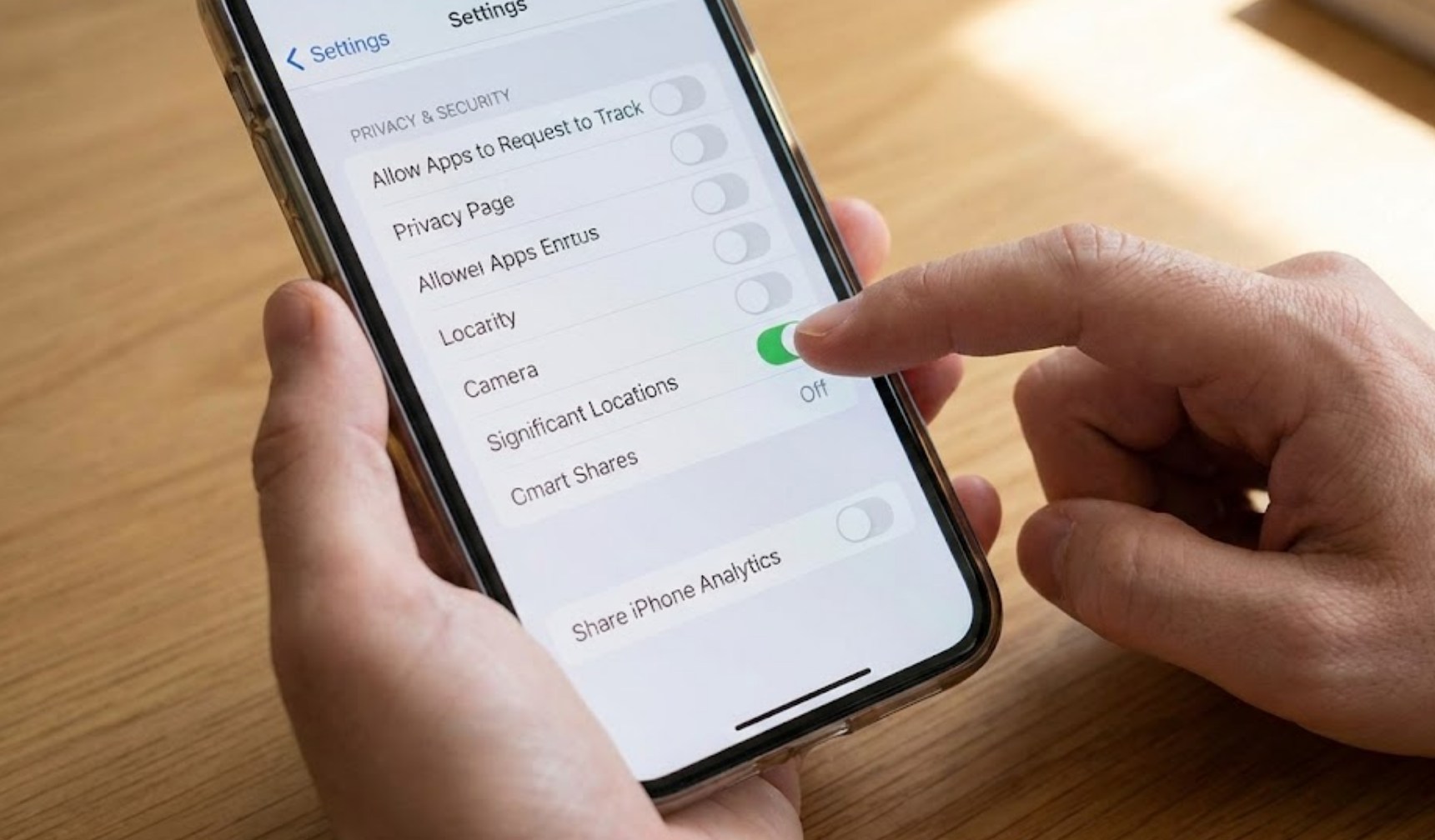
1. Significant Locations
Deep within your privacy settings is a feature called “Significant Locations.” This allows your iPhone to track and record the places you visit most often—like your house, your school, or your favorite coffee shop—to provide “location-based suggestions.” While Apple claims this data is encrypted, many find it incredibly “creepy” that their phone maintains a detailed map of their daily routine.
To turn this off, go to Settings > Privacy & Security > Location Services > System Services > Significant Locations. You might be surprised to see a list of everywhere you’ve been lately. Clearing this history and toggling it off is a huge win for personal privacy.
2. Background App Refresh
Have you ever wondered why your battery drops 10% while your phone is just sitting in your pocket? Background App Refresh is often the culprit. This feature allows apps like Instagram, Snapchat, and YouTube to constantly check for new content even when you aren’t using them.
While it’s nice to have your feed ready the second you open an app, it puts a massive strain on your battery and data plan. You don’t have to turn it off for everything, but you should definitely curate the list.
-
- Settings > General > Background App Refresh.
- Switch it to “Wi-Fi” only or turn it off entirely for apps you don’t need instant updates from.
3. iPhone Analytics & Improvements
When you first set up your phone, Apple asks if you want to share data to help them improve their products. If you said yes, your phone is constantly sending logs about how you use your device back to the mothership. While this helps Apple fix bugs, it also uses your processing power and battery. You aren’t getting paid to be a software tester, so there is no reason to keep this on.
-
- Go to Settings.
- Tap Privacy & Security.
- Scroll to the bottom and select Analytics & Improvements.
- Toggle off Share iPhone Analytics.
4. Personalized Ads
Ever talked about a specific pair of shoes and then saw an ad for them ten minutes later? While Apple doesn’t “listen” through the microphone for ads, they do track your behavior in the App Store and News app to create a profile of your interests. You can’t stop ads entirely, but you can stop Apple from tracking your specific habits to target you. Simply go to Settings > Privacy & Security > Apple Advertising and turn off Personalized Ads.
5. Wi-Fi Assist
This is a sneaky feature that can cost you money if you have a limited data plan. Wi-Fi Assist automatically switches your phone to cellular data if your Wi-Fi connection is weak. If you’re at the back of a classroom or in a bedroom where the Wi-Fi signal is “one bar,” your phone will start burning through your 5G/LTE without telling you.
-
- Why turn it off? To prevent unexpected data overages.
- Where to find it: Settings > Cellular > scroll all the way to the bottom.
6. Raise to Wake
Raise to Wake is the feature that turns your screen on every time you pick up your phone or even just tilt it. While it’s meant to be a shortcut, it often leads to the screen turning on in your hand while you’re walking or sitting in your pocket. This unnecessary screen time adds up and drains your battery throughout the day. You can easily see your notifications by just tapping the screen anyway, so having it turn on automatically is overkill. Turn it off in Settings > Display & Brightness.
7. Pre-load Top Hit in Safari
When you type a search into Safari, your iPhone automatically starts loading the first result before you even click on it. This is designed to make the web feel faster, but it has two major downsides:
-
- It uses data for websites you might not even intend to visit.
- It allows websites to plant cookies on your browser before you’ve even decided to visit them.
- By turning this off in Settings > Safari, you save data and keep your browsing history a little cleaner.
8. In-App Ratings and Reviews
We’ve all been there: you’re in the middle of an intense game or reading an interesting article when a pop-up appears asking, “Enjoying this app? Rate us!” It’s distracting and annoying. Fortunately, Apple provides a way to block these requests globally. Go to Settings > App Store and toggle off In-App Ratings & Reviews. You’ll never be pestered by those pop-ups again.
The Bottom Line
Taking ten minutes to go through these settings won’t just make your phone feel more private; it will noticeably extend your battery life and save your data for the things that actually matter—like streaming music or scrolling through your actual interests. Your phone should work for you, not the other way around. Once you’ve flipped these switches, you can get back to using your iPhone without the constant background noise of tracking and battery drain.
