
Have you ever found yourself staring at a massive spreadsheet, repeating the same task over and over? Maybe you’re tracking your sports team’s stats, organizing a club fundraiser, or just trying to manage a mountain of homework. Copying, pasting, and formatting can feel like a chore. But what if you could teach your spreadsheet to do all that work for you?
This is where Google Apps Script comes in. Think of it as a secret language that lets you talk to Google Sheets and tell it exactly what to do. It’s a powerful tool that turns a simple table into a smart, automated assistant.
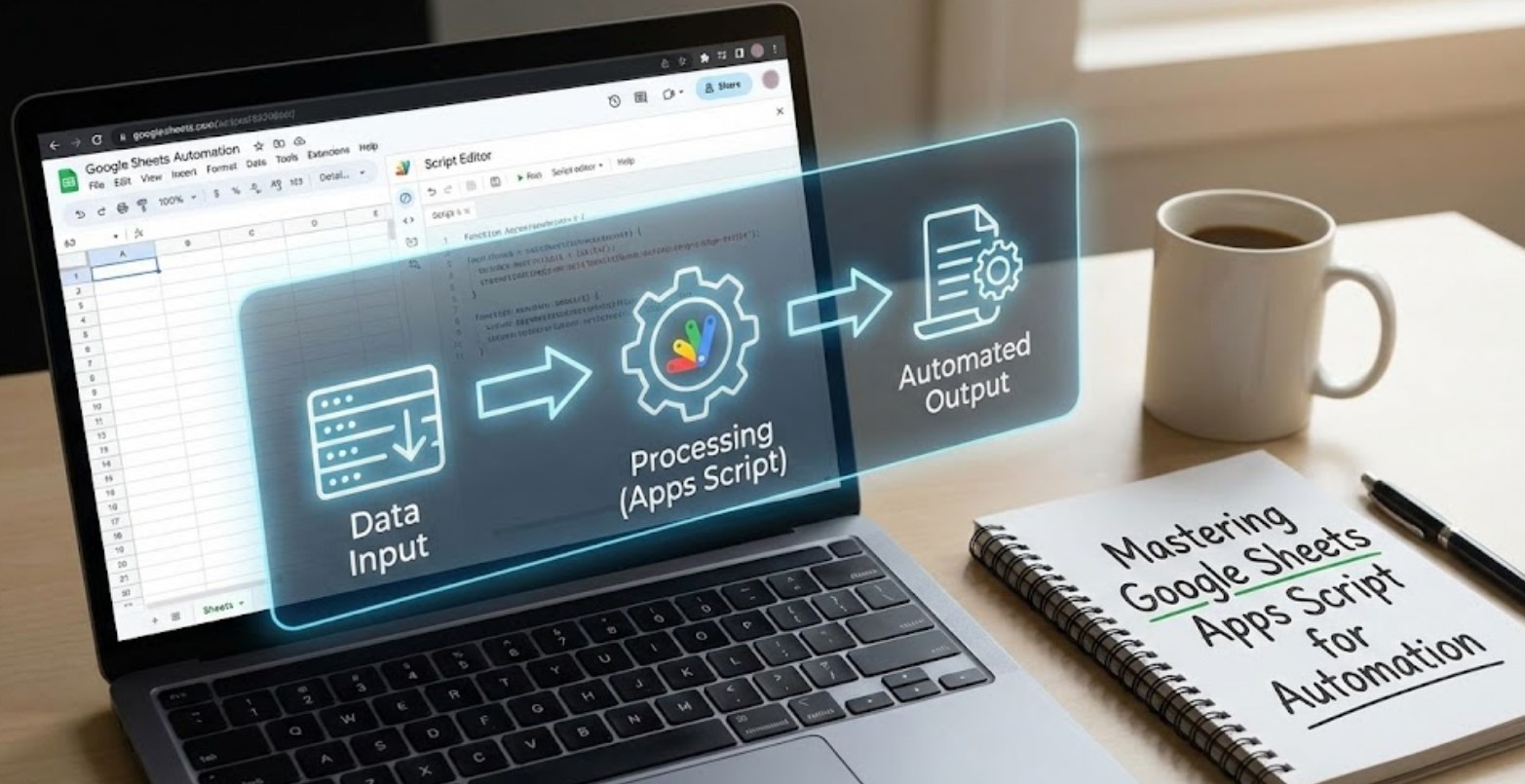
What is Google Apps Script?
Google Apps Script is a cloud-based scripting language based on JavaScript. Don’t let the word “coding” intimidate you. You don’t need to be a computer scientist to get started. If you can follow a recipe or write a set of instructions, you can script.
When you use Apps Script, you are essentially writing “macros” on steroids. While a standard macro records your mouse clicks, a script allows you to build custom functions, create buttons, and even send emails automatically based on the data in your cells.
Setting Up Your Workspace
Getting started is surprisingly easy. You don’t need to download any expensive software or install complex plugins. Everything happens right inside your web browser.
-
- Open any Google Sheet.
- In the top menu, click on Extensions.
- Select Apps Script.
- A new tab will open with a code editor. This is your “control room.”
In this window, you’ll see a default function called myFunction(). This is your blank canvas.
The Building Blocks of Automation
To master automation, you need to understand how the script “sees” your spreadsheet. Imagine the spreadsheet is a big house. To change something, the script needs to know which room (Sheet) and which drawer (Cell) to look in.
-
- SpreadsheetApp: This is the main command that tells the script we are talking to Google Sheets.
- getActiveSpreadsheet(): This tells the script to look at the file you are currently working on.
- getActiveSheet(): This narrows it down to the specific tab you have open.
- getRange(): This points to specific cells (like “A1” or “B2:B10”).
- setValue(): This is the command that actually writes data into a cell.
Practical Ways to Use Scripts
You might be wondering, “What can I actually do with this?” Here are a few ways automation can save you hours of time:
-
- Automatic Formatting: You can write a script that scans your sheet and turns every row with a “Completed” status green, while turning “Overdue” rows red.
- Custom Formulas: If Google Sheets doesn’t have a built-in math function you need, you can create your own. For example, you could write a function called
=CALCULATE_GPA()that does the math for you. - Data Cleaning: Scripts can automatically remove duplicate entries or fix capitalization errors in a long list of names.
- Email Notifications: Imagine a sign-up sheet for a volunteer event. You can set up a script that sends a “Thank You” email to every person as soon as they add their name to the list.
Why Learn This Now?
Learning to automate isn’t just about saving time on a spreadsheet; it’s about changing how you solve problems. In the modern world, the people who stand out are the ones who can find ways to work smarter, not harder.
When you learn Apps Script, you are learning the fundamentals of JavaScript, which is one of the most popular programming languages in the world. It’s like learning to drive a car; once you understand the basics, you can apply those skills to almost any other vehicle.
Your First Script: The “Hello World” of Sheets
If you want to try it right now, copy this simple code into your Apps Script editor:
javascript
function sayHello() {
var sheet = SpreadsheetApp.getActiveSheet();
sheet.getRange("A1").setValue("Hello, Automation!");
}
When you click the “Run” button, go back to your spreadsheet. You’ll see that cell A1 has been filled instantly. It’s a small step, but it’s the beginning of your journey into programming.
Tips for Success
As you start experimenting, keep these three things in mind:
-
- Google is your friend: If you get stuck, thousands of people have probably had the same problem. Searching for “How to send email from Google Sheets script” will give you dozens of helpful tutorials.
- Start Small: Don’t try to build a complex system on day one. Start by automating one small task, like clearing a column of data with one click.
- Don’t Fear the Error: You will see red error messages. That’s okay! Debugging—finding out what went wrong—is where the real learning happens.
Mastering Google Apps Script is like finding a shortcut in a video game. It takes a little effort to learn the path, but once you do, you’ll be moving faster than everyone else. So, open up a sheet, head to the Extensions menu, and start building your own digital tools today.
