
Imagine you have a physical diary where you write down every thought, secret, and plan. You wouldn’t leave it wide open on a cafeteria table, right? You would probably keep it under a lock or hide it somewhere safe.
In today’s world, your phone and laptop are your digital diaries. They hold your photos, your private messages, your location history, and even your bank info. Encryption is the digital version of that lock and key. It’s a way of scrambling your data so that only you—the person with the “key”—can read it. If someone steals your phone or intercepts your messages, all they see is a giant pile of gibberish.
The good news is that you don’t need to be a computer genius to protect yourself. You can encrypt your entire digital life in just three simple steps.
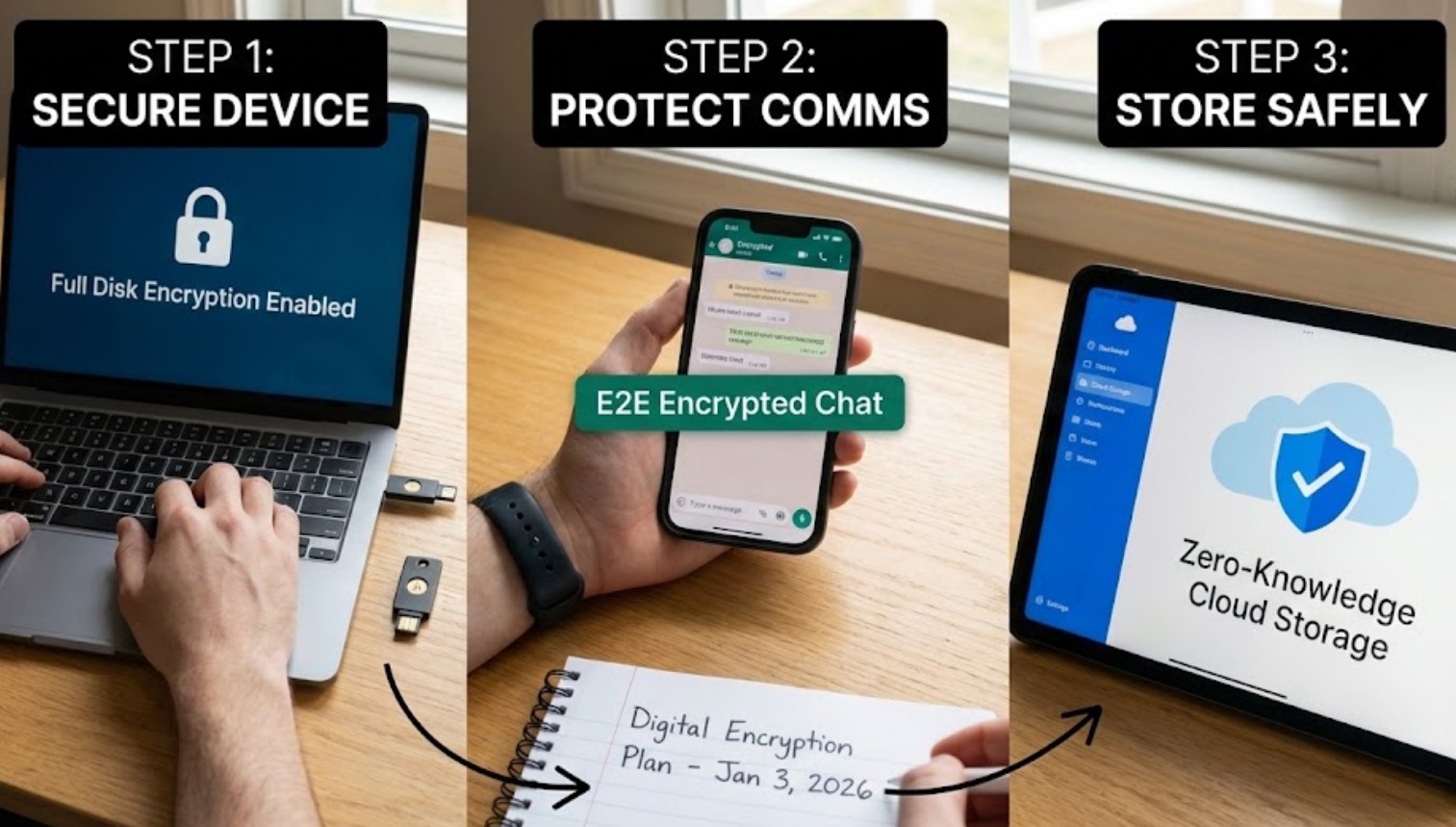
Step 1: Lock the Front Door (Device Encryption)
The most important place to start is with the devices you carry every day. If you lose your phone on the bus or leave your laptop at a coffee shop, you don’t want a stranger browsing through your files.
For most modern smartphones, encryption is actually turned on by default, but there is a catch: it only works if you have a secure lock screen.
-
- On iPhones: Go to Settings > FaceID & Passcode. Make sure a passcode is turned on. At the bottom of that menu, you should see a message that says “Data protection is enabled.”
- On Androids: Most new Android phones are encrypted automatically. Check under Settings > Security > Advanced > Encryption & Credentials to make sure it says “Encrypted.”
- Windows users: Search for “BitLocker” in your start menu. If your version of Windows supports it, turn it on. If not, look for “Device Encryption” in your settings.
- On Laptops: This is where many people forget to lock up.
- Mac users: Go to System Settings > Privacy & Security > FileVault. Turn FileVault on. This ensures that if someone steals your MacBook, they can’t access your hard drive without your password.
Step 2: Secure Your Conversations (End-to-End Encryption)
When you send a normal text message (SMS), it’s like sending a postcard. Anyone who handles that postcard—like your phone company or a hacker snooping on the Wi-Fi—can read what’s written on it.
To fix this, you need to use apps that feature “End-to-End Encryption” (E2EE). This means the message is scrambled on your phone, stays scrambled while it travels through the internet, and is only unscrambled when it reaches your friend’s phone.
Which apps should you use?
-
- Signal: Widely considered the gold standard for privacy. It’s free, easy to use, and encrypts everything from texts to video calls.
- WhatsApp: It also uses E2EE for all messages. While it’s owned by Meta, the actual content of your texts remains private.
- iMessage: This is encrypted, but only if you are texting other iPhone users (the blue bubbles). If the bubble is green, it’s a standard SMS and is not encrypted.
Beyond messaging, you should also encrypt your web browsing. Look for the little padlock icon in your browser’s address bar. This indicates “HTTPS,” which means the connection between your computer and the website is encrypted. To make this easier, you can use a browser like Brave or install an extension like “HTTPS Everywhere.”
Step 3: Use a Master Key (Password Managers & MFA)
You probably have dozens of accounts: Instagram, TikTok, email, school portals, and gaming sites. Using the same password for all of them is a huge mistake. If one site gets hacked, the hackers will try that same password on every other site you use.
The solution is a password manager. Think of this as a digital vault that creates long, complex passwords for you and remembers them so you don’t have to.
-
- Why use one? It allows you to have a unique, 20-character password for every site. You only have to remember one “Master Password” to unlock the vault.
- Popular options: Bitwarden, 1Password, and even the built-in Keychain on Apple devices or Google Password Manager are great starts.
Finally, add a second layer of protection called Multi-Factor Authentication (MFA). Even if a hacker guesses your password, they still can’t get in without a second “key”—usually a code sent to an app on your phone.
-
- Download an authenticator app (like Google Authenticator or Raivo OTP).
- Go to the security settings of your most important accounts (email and social media).
- Turn on “Two-Factor Authentication” and link it to your app.
Why This Matters
Encryption isn’t about having something to hide; it’s about having something to protect. In a world where data breaches happen every day, taking these three steps puts you in control of your own information. It turns your digital life from an open book into a locked vault, giving you the peace of mind to explore the internet safely. It only takes a few minutes to set up, but the protection it provides lasts a lifetime.
