
Whether you are finishing a late-night essay, scrolling through social media at 2:00 AM, or just trying to save your battery life, there is one feature that has become a literal life-saver: Dark Mode. Gone are the days when every screen had to be a blinding shade of “surgical suite white.” Today, the “dark side” is not just an aesthetic choice; it is a way to make technology easier on your eyes and more efficient for your devices.
Enabling a system-wide dark mode means you don’t have to manually change the settings in every single app. Once you flip the switch, your menus, folders, and most compatible applications will automatically take on a sleek, dark gray or black background. Here is how you can achieve the ultimate dark aesthetic across all your devices.
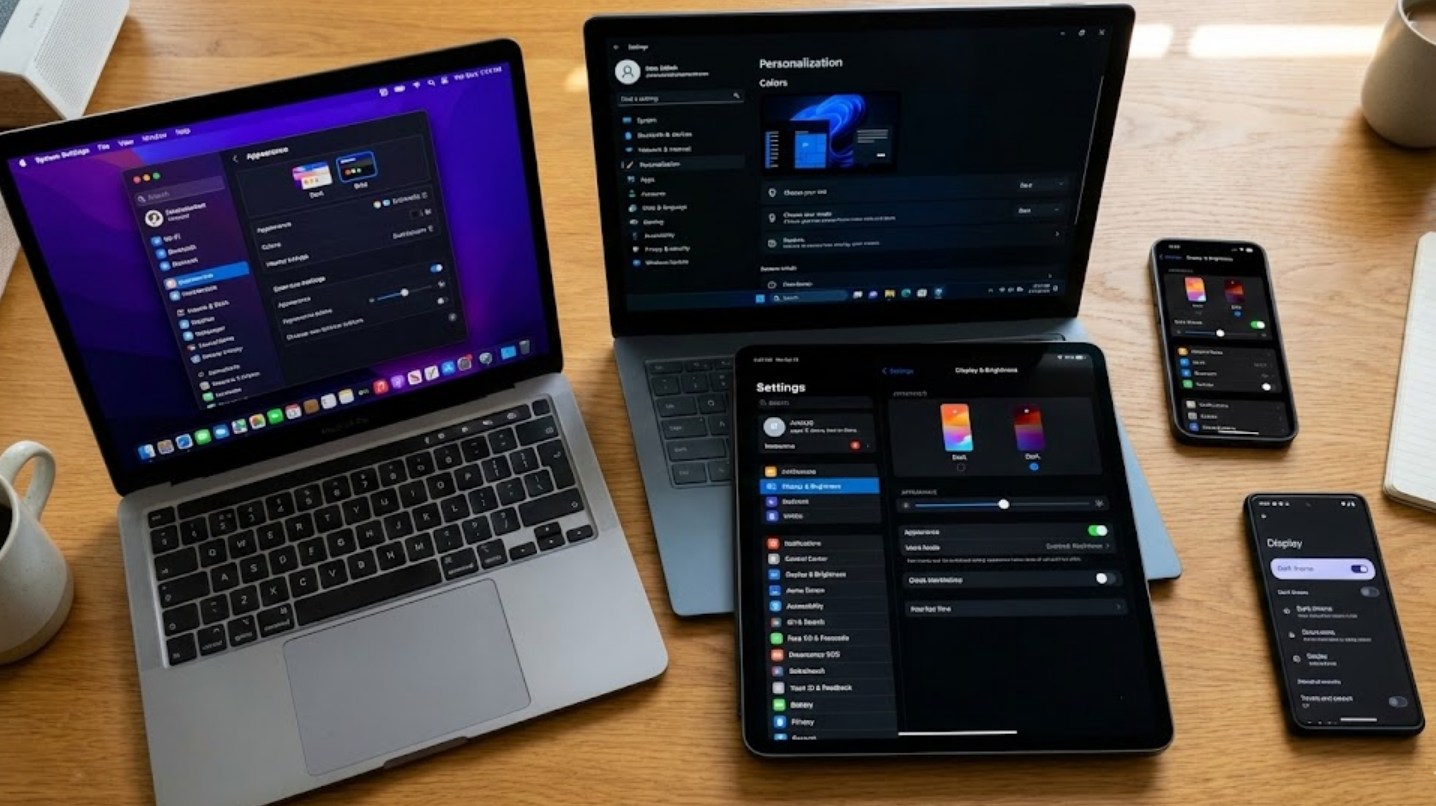
Why Make the Switch?
Before we dive into the “how,” it is worth looking at the “why.” Switching to a darker interface offers several benefits:
-
- Reduced Eye Strain: Bright white light can cause digital eye strain, especially in low-light environments.
- Better Sleep: Blue light from bright screens can mess with your circadian rhythm, making it harder to fall asleep after using your phone.
- Battery Savings: If your phone or laptop has an OLED or AMOLED screen, dark mode actually saves battery because the pixels turn off completely to display true black.
- The Aesthetic: Let’s be honest—it just looks cooler.
Windows 10 and 11
Most laptops and desktop PCs use Windows, and Microsoft has made it very easy to go dark.
- Click on the Start Menu and select the Settings (gear icon).
- Navigate to Personalization.
- On the left-hand sidebar, click on Colors.
- Under the “Choose your mode” dropdown menu, select Dark.
If you want to get fancy, you can choose “Custom.” This allows you to keep your taskbar dark while keeping your apps light, or vice versa. Windows 11 also offers specific “Themes” that come with pre-set dark wallpapers and accent colors that look incredibly polished.
macOS (MacBooks and iMacs)
Apple introduced a system-wide dark mode with macOS Mojave, and it has only improved since then.
- Click the Apple Menu in the top-left corner of your screen.
- Select System Settings (or System Preferences).
- Find the Appearance tab.
- You will see three options: Light, Dark, and Auto.
- Click Dark to lock it in, or Auto if you want your Mac to shift from light to dark based on the time of day in your local area.
iOS and iPadOS (iPhone and iPad)
If you’re an iPhone user, you probably already know how blinding a notification can be in the middle of the night.
-
- Open the Settings app.
- Scroll down to Display & Brightness.
- Tap Dark at the top of the screen.
- Pro Tip: You can add a Dark Mode toggle to your Control Center (the menu you swipe down from the top right). Go to Settings > Control Center and add “Dark Mode” to your shortcuts.
Android Devices
Because there are so many different brands of Android phones (Samsung, Google, OnePlus, etc.), the steps might vary slightly, but the general path is the same.
- Go to Settings.
- Tap on Display.
- Look for Dark Theme or Night Mode and toggle it on.
Most modern Android phones also allow you to schedule this. You can set it to turn on at sunset and turn off at sunrise, which is a great way to help your eyes transition as the day ends.
Web Browsers: The Final Frontier
Even with system-wide settings enabled, some websites still insist on being bright white. You can fix this by using browser features or extensions.
- Google Chrome: You can download an extension called “Dark Reader.” it analyzes websites and automatically creates a high-quality dark version of that site.
- Forcing Chrome Dark Mode: If you’re feeling tech-savvy, type
chrome://flagsinto your URL bar and search for “Auto Dark Mode for Web Contents.” Enabling this will force every website to go dark, though it can sometimes make images look a bit weird. - Safari: On a Mac, Safari will generally follow your system settings. On an iPhone, you can use the “Reader View” on many articles to switch to a black background for easier reading.
A Note on App-Specific Settings
While system-wide settings cover about 90% of your experience, a few apps like to go rogue. Apps like Snapchat, Instagram, and Discord usually have their own “Appearance” settings within the app’s internal menu. If an app stays light after you’ve changed your system settings, head into that specific app’s settings and look for “Theme” or “Appearance.”
Wrapping Up
Transitioning to dark mode is one of the easiest ways to customize your tech experience. It’s better for your eyes, better for your battery, and gives your devices a unified, professional look. Once you make the switch, going back to a bright white screen will feel like staring directly into a lightbulb. Take five minutes today to flip these switches—your eyes will thank you later.
