
While most people associate Discord with late-night gaming sessions, meme-sharing, or streaming movies with friends, it is actually one of the most powerful productivity tools available today. If you are juggling club projects, study groups, or even a part-time job, Discord offers a level of customization that apps like Slack or Microsoft Teams often lack.
The secret to a successful productivity server is structure. Without a plan, a server quickly becomes a chaotic mess of notifications and unorganized chatter. Here is how you can transform Discord from a distraction into your ultimate focus hub.
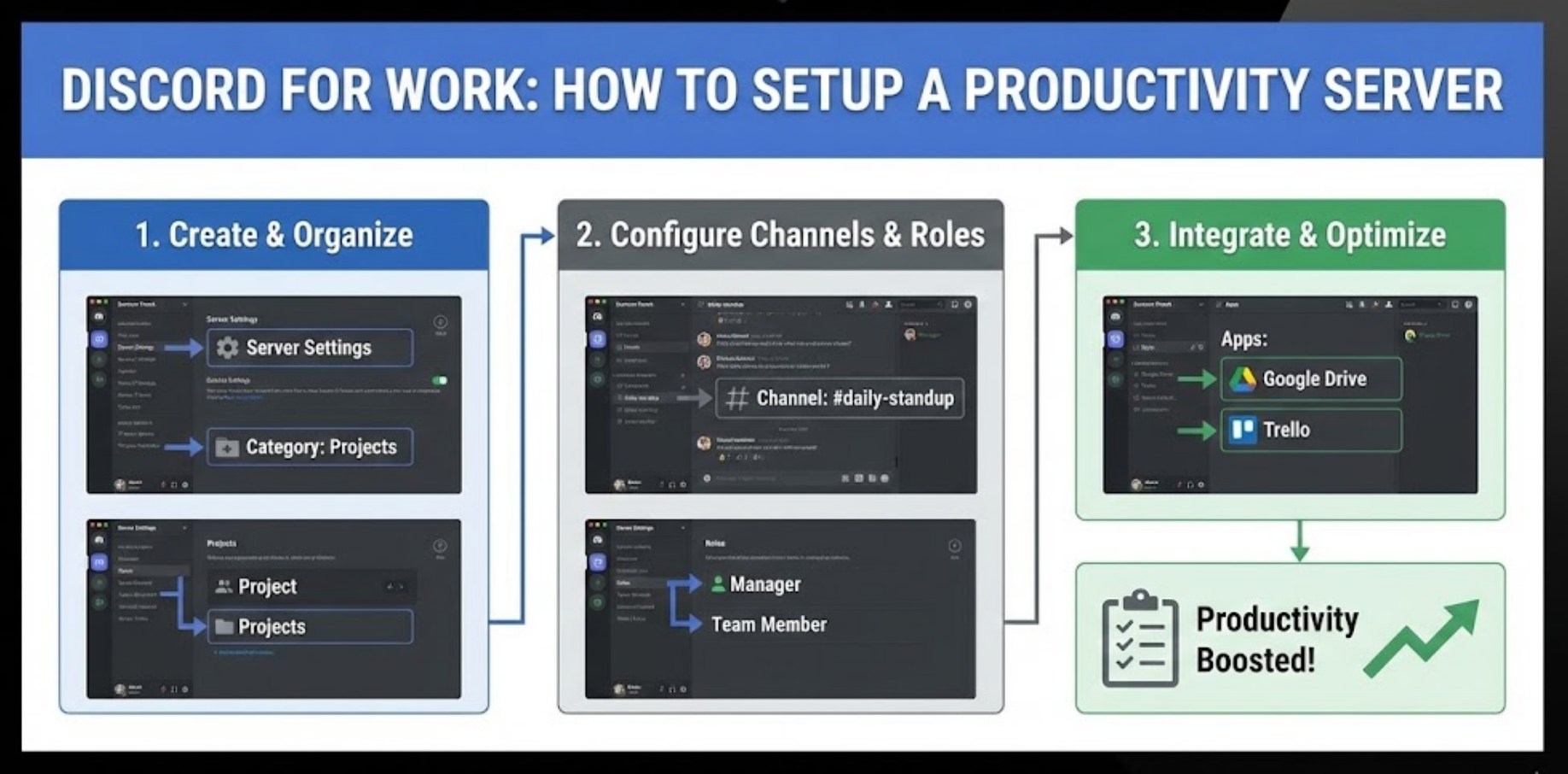
The Foundation: Creating Your Space
Starting a server is easy, but starting it right requires a bit of thought. When you hit the “plus” icon to create a new server, you might be tempted to use a template. While templates are okay, building from scratch allows you to tailor the environment to your specific workflow.
-
- Pick a Clean Name: Give your server a clear, professional name. Instead of “Study Stuff,” try “Project Alpha Workspace” or “Academic Success Hub.”
- Set a Theme: Use a recognizable icon. A simple logo or a color-coded image helps you find the server quickly in your sidebar.
- Establish Rules: Even if it’s just for a few friends, having a
#ruleschannel ensures everyone knows that this is a place for work, not just casual hanging out.
Organizing with Channels and Categories
The biggest mistake people make is having too many channels visible at once. To stay productive, you need to categorize your tasks. Think of categories as the “folders” of your digital office.
Essential Categories to Include:
-
- Information Hub: This is for permanent data. Create channels like
#announcements,#resources, and#links. - Active Workspaces: This is where the magic happens. Use specific channels for different subjects or project phases, such as
#brainstorming,#drafts, and#final-review. - Voice Lounges: Not all voice channels should be for talking. Create a “Deep Work” voice channel where everyone stays muted but stays on camera to stay accountable.
- The Break Room: It’s important to have a dedicated spot for off-topic talk. This keeps the work channels clean and professional.
- Information Hub: This is for permanent data. Create channels like
Managing Roles for Clarity
Roles are not just about who has “admin” powers; they are about organization. By using roles effectively, you can mention specific groups of people without bothering everyone in the server.
-
- Define Responsibilities: Create roles like “Project Lead,” “Editor,” or “Researcher.”
- Color Coding: Assign different colors to roles so you can instantly see who is online and what their specialty is.
- Permission Tiers: Ensure that only the necessary people can delete messages or change settings. This prevents accidental deletions of important work.
Using Bots to Automate Your Workflow
One of Discord’s best features is its compatibility with bots. You don’t need to be a coder to use them; most are “plug and play.” For a productivity server, focus on bots that help you manage time or organize files.
-
- Apollo: Great for scheduling meetings and setting event reminders.
- Sesame: Excellent for “checking in” and “checking out” of work sessions to track how much time you’ve spent on a project.
- Pomodoro Bots: These bots run timers (25 minutes of work followed by 5 minutes of rest) directly in your voice channel to help the group maintain focus.
- Google Drive Integrations: These allow you to receive notifications whenever a shared document is updated.
Mastering Notification Settings
The biggest threat to productivity is the constant “ping” of notifications. To make your server a true focus zone, you must encourage everyone to manage their alerts.
Go to the Notification Settings for the server and set it to “@mentions only.” This ensures that you only get a buzz when someone specifically needs your attention, rather than every time a random link is posted. Additionally, encourage the use of “Threads” for side conversations. Threads allow you to discuss a specific detail of a project without cluttering the main text channel, and users can choose to leave the thread once their part is done.
The Culture of Productivity
Building the server is only half the battle; the other half is how you use it. To keep the energy focused, treat the server like a digital library. When you are in a work channel, keep the conversation related to the task at hand. If a conversation starts to veer into what happened at lunch, politely move it to the #break-room.
By taking the time to set up roles, organize channels logically, and integrate helpful bots, you turn a social app into a professional command center. It simplifies communication, keeps all your files in one place, and—most importantly—helps you get your work done faster so you can get back to what you actually enjoy doing.
