
In the world of gaming, few things are more frustrating than holding a controller you love but being unable to use it on the console you own. Maybe you’re a die-hard fan of the PlayStation 5’s haptic triggers, but your friends are all playing on the Xbox Series X. Or perhaps you’ve spent a small fortune on a custom “pro” controller for your PC, only to find it’s essentially a paperweight when you try to plug it into your Nintendo Switch.
As we move through 2026, the walls between these “gaming ecosystems” are still standing, but they’ve become much easier to climb. If you’re tired of being restricted by the plastic in your hands, this guide will show you exactly how to bridge the gap and use any controller on any console.
Why Do These Restrictions Exist?
Before we dive into the “how,” it’s worth understanding the “why.” Console manufacturers like Sony, Microsoft, and Nintendo use proprietary communication protocols. It’s not just about the plug fitting into the port; it’s about the software “handshake” that happens between the device and the console. Without the right digital handshake, the console simply ignores the controller.
However, third-party developers have spent years cracking these codes, leading to a golden age of compatibility.
Method 1: The Magic of Hardware Adapters
The most reliable way to connect a “foreign” controller to your console is through a USB adapter, often called a “dongle.” By 2026, these devices have become incredibly small and offer near-zero latency (lag).
Top brands to look for include:
-
- 8BitDo: Known for their sleek designs and massive compatibility. Their adapters are perfect for using almost any Bluetooth controller on the Switch or PC.
- Mayflash: These are the “Swiss Army Knives” of adapters. They often support older hardware, like using a GameCube controller on an Xbox.
- Brook Wingman Series: Widely considered the gold standard for competitive play. They make specific converters for every major console transition (e.g., Xbox controller to PS5).
How to use them:
-
- Plug the adapter into the USB port of your console.
- Press the pairing button on the adapter until the light flashes.
- Put your controller into pairing mode (usually by holding the “Sync” or “Share” button).
- Wait for the lights to turn solid, indicating a successful handshake.
Method 2: Remote Play and “Pass-Through” Software
If you don’t want to buy a physical adapter, you can often use a PC or a smartphone as a middleman. Most consoles now have robust “Remote Play” apps. By connecting your controller to your phone or laptop via Bluetooth, you can stream your console’s video to that device and control it with whatever gamepad you prefer.
While this used to be laggy, the 2026 versions of these apps have improved significantly. This is a great “free” way to test out different setups.
Method 3: The Cloud Gaming Loophole
Cloud gaming services (like Xbox Cloud Gaming or NVIDIA GeForce Now) have completely changed the rules. If you are playing a game via the cloud on your smart TV or tablet, the “console” is actually a server miles away. These servers are designed to be “input agnostic,” meaning they don’t care if you’re using a generic Bluetooth controller, a PlayStation DualSense, or even a keyboard and mouse.
Critical Considerations Before You Switch
While connecting a controller is easier than ever, it isn’t always a perfect one-to-one experience. Here are a few things to keep in mind:
-
- Missing Features: If you use an Xbox controller on a PlayStation, you will lose out on the touchpad functionality and the built-in speaker. Similarly, using a PlayStation controller on a Switch might mean you lose the “HD Rumble” or motion controls in specific games.
- Button Mapping: The “A, B, X, Y” layout on a Nintendo Switch is mirrored compared to the Xbox. When the screen says “Press A,” your brain might instinctively hit the wrong button. Most high-end adapters allow you to “remap” buttons via a mobile app to fix this.
- Firmware Updates: Consoles receive updates frequently. Sometimes, an update will block a third-party adapter. Always make sure your adapter’s firmware is up to date by plugging it into a PC once a month.
The Pro Player’s Secret: Custom Hubs
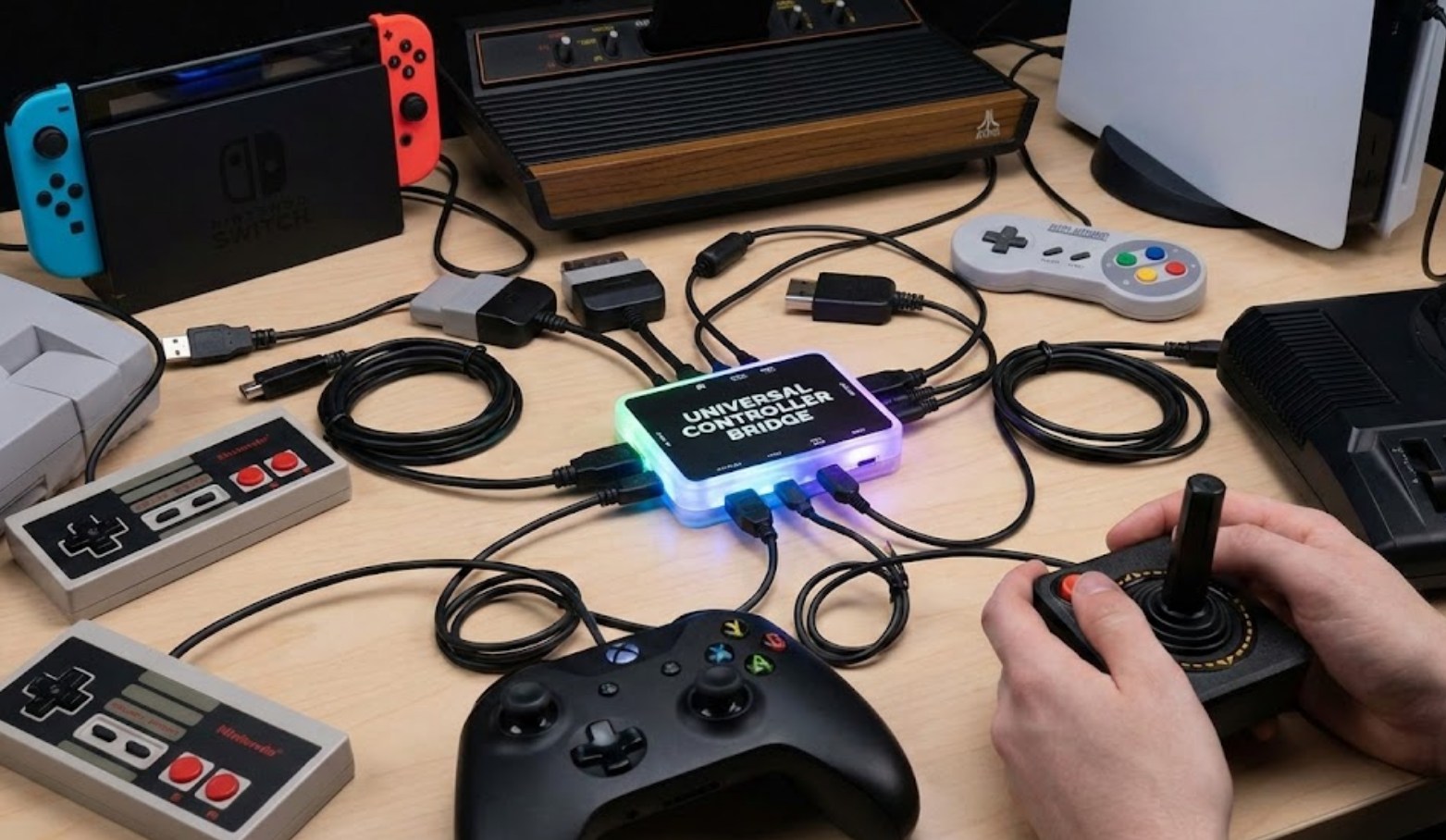
For those who are serious about their setup, “Controller Hubs” have become popular in 2026. These are small boxes that sit on your desk and allow you to plug in multiple controllers and output them to different consoles with the flip of a switch. This is the ultimate solution for gamers who jump between systems constantly and want to maintain the same “muscle memory” regardless of the platform.
Final Thoughts
Gaming is about comfort and performance. You shouldn’t be forced to use a controller that gives you hand cramps just because of the logo on your console. By using the hardware adapters or software workarounds mentioned above, you can finally build the perfect gaming setup that works for you, not the manufacturers. Whether it’s the clicky buttons of an Xbox pad or the ergonomic grip of a PlayStation controller, the choice is finally in your hands.
