
We have all been there: you are right in the middle of an intense mobile game or scrolling through a long article for a project when a massive, unskippable video ad takes over your entire screen. It is loud, it is distracting, and it feels like it is eating up your data and battery life. While Google’s Android 15 and the upcoming Android 16 are designed to be faster and more efficient, they are still built by a company that makes a massive portion of its revenue from advertising. This means that by default, your phone is an open door for advertisers.
Fortunately, you do not have to be a professional coder or a “tech guru” to take back control of your device. There are several ways to block ads across your entire system—not just in your web browser, but inside most of your apps as well.
The Magic of Private DNS
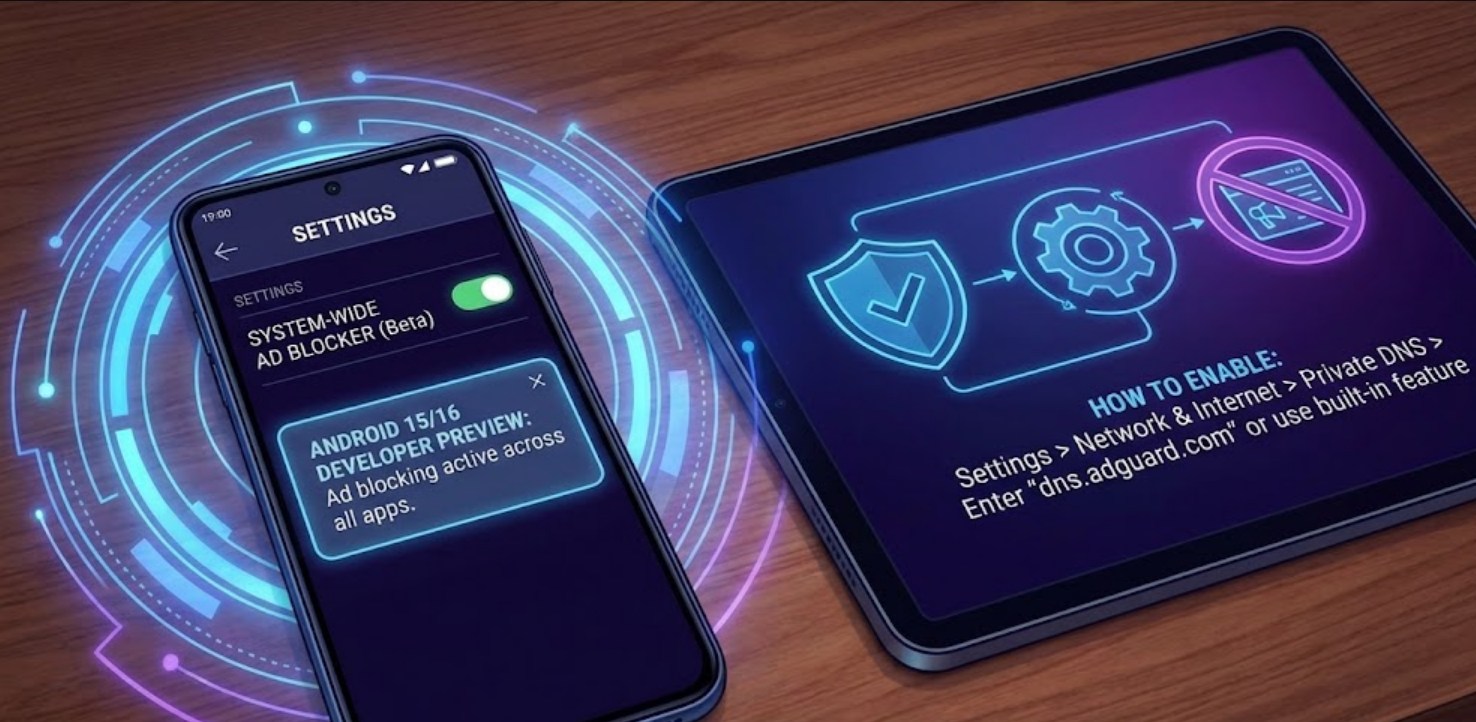
The most effective and simplest way to block ads on modern Android versions is through a feature called Private DNS. To understand how this works, think of DNS (Domain Name System) as the “phone book” of the internet. Every time an app tries to load an ad, it looks up the address of that ad server. By using a filtering DNS, your phone checks that “phone book” and simply refuses to connect to any address known for serving ads.
Setting this up on Android 15 or 16 takes less than two minutes:
-
- Open your Settings app.
- Tap on Network & Internet (sometimes labeled as Connections).
- Scroll down and select Private DNS.
- Change the setting from “Automatic” to Private DNS provider hostname.
- In the text box that appears, type in:
dns.adguard.comorp2.freedns.controld.com. - Hit Save.
Once you do this, your phone will begin filtering traffic at the system level. You will notice that many “free-to-play” games that usually bombard you with banners will suddenly have empty spaces where the ads used to be.
Why You Should Consider System-Wide Blocking
Blocking ads is about more than just avoiding annoyance. It actually changes the way your phone performs on a daily basis. When you stop your phone from downloading ad content, you are essentially streamlining your entire mobile experience.
-
- Data Savings: Video ads are heavy files. If you are on a limited data plan, those unskippable 30-second clips can eat through your gigabytes faster than you realize. Blocking them keeps that data for things you actually want to do.
-
- Battery Longevity: Your phone’s processor has to work to render and play ads. By cutting them out, your CPU does less work, which can lead to a noticeable boost in battery life throughout the school day.
-
- Security and Privacy: Many ads contain trackers that follow your activity across different apps to build a profile of your habits. Some malicious ads (known as “malvertising”) can even try to trick you into downloading malware. A DNS filter acts as a first line of defense against these threats.
-
- Faster Loading Times: Websites often feel “heavy” because they are waiting for ten different ad networks to load before showing you the actual text. Without those distractions, pages snap into view much faster.
Using Specialized Browsers
While a Private DNS handles most things, some ads are “hard-coded” into platforms like YouTube or certain social media sites. To tackle these, you might want to look beyond the default Google Chrome browser. Since Chrome is a Google product, it is naturally more permissive of the company’s own ad network.
Consider trying these alternatives:
-
- Brave Browser: This is built on the same engine as Chrome (so it feels very familiar), but it has a built-in “Shield” that blocks trackers and ads automatically. It is arguably the fastest way to get a clean browsing experience without changing any settings.
- Firefox with uBlock Origin: If you want total control, download Firefox from the Play Store. Unlike Chrome, the mobile version of Firefox allows you to install “Add-ons.” The uBlock Origin extension is widely considered the best ad blocker in the world.
- Vivaldi: This is another great alternative that offers a highly customizable interface and a very robust built-in ad blocker.
The Downside of Ad Blocking
It is worth noting that the internet is largely “free” because of ads. Many of your favorite independent creators, tech blogs, and app developers rely on that revenue to keep their services running. When you block ads, you are technically consuming their content without giving them the “payment” of an ad view.
If there is a specific website or a small developer you really want to support, you can usually “whitelist” them or turn off your ad blocker specifically for their site. Finding a balance between a clean experience and supporting the creators you love is a good habit to develop.
Final Thoughts
Taking control of your Android 15 or 16 device does not require complex rooting or voiding your warranty. By simply switching your Private DNS and being more intentional about the browser you use, you can eliminate about 90% of the digital clutter that slows you down. Your phone will be faster, your battery will last longer, and your focus will stay where it belongs—on the content you actually want to see.
