
Imagine a world where you never have to remember a complex string of capital letters, numbers, and symbols just to check your email or finish a school project. For years, we have been told that a long, complicated password is our only line of defense against hackers. While passwords are still important, the way we access our devices is changing. Windows Hello is at the forefront of this shift, offering a faster and more secure way to log into your computer using your own body.
What Exactly is Windows Hello?
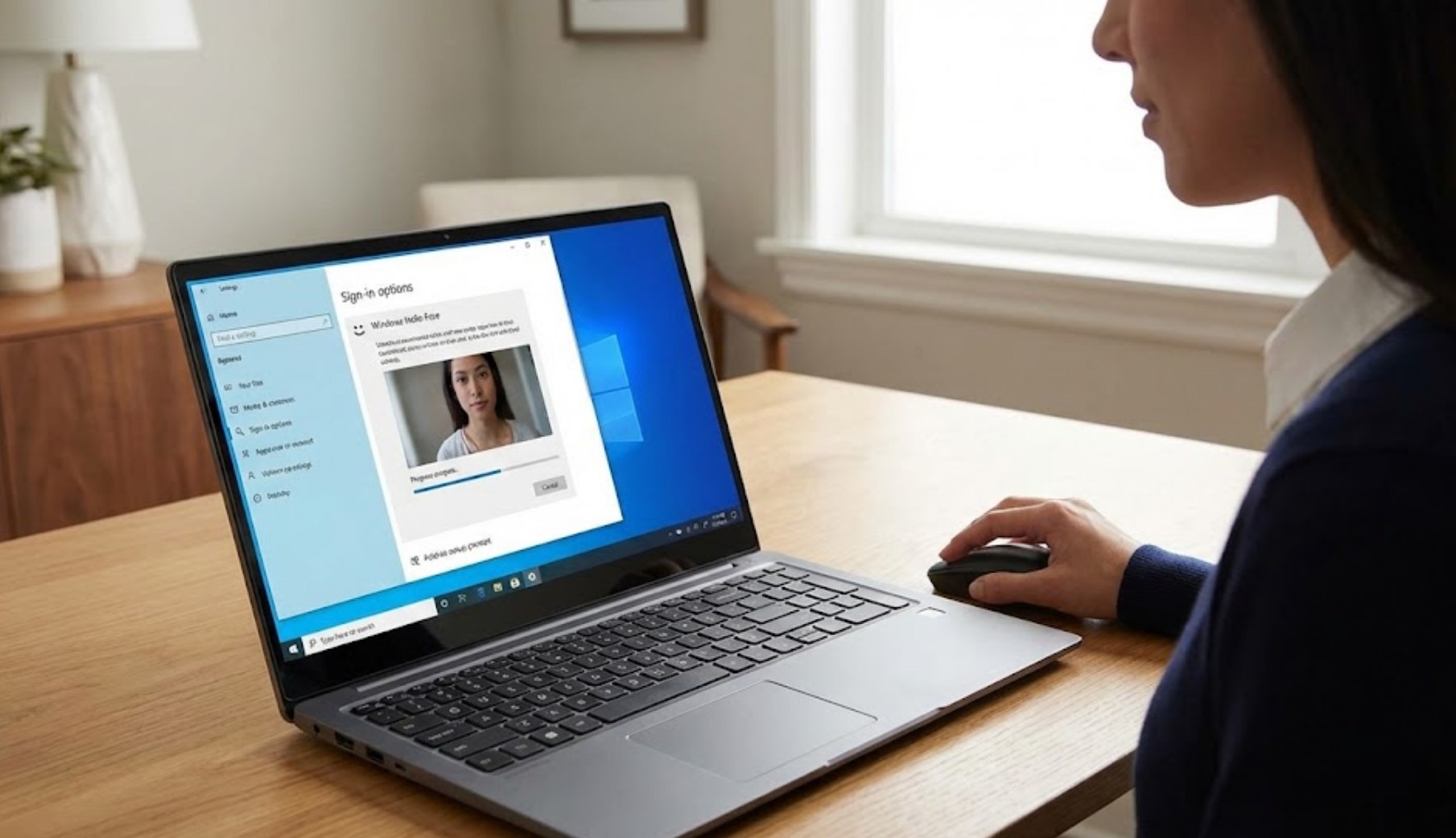
Windows Hello is a biometric security feature built into Windows 10 and 11. Biometrics is just a fancy word for using your unique physical characteristics—like your face or your fingerprint—to prove you are who you say you are. Instead of typing a password that someone could guess or steal, you simply look at your webcam or touch a sensor.
The beauty of this system is that it’s not just about speed; it is actually significantly more secure than a standard password. Most hackers steal passwords through “phishing” or large-scale data breaches. Since your face and fingerprints stay with you, they are much harder for a remote hacker to get their hands on.
Is My Face Being Stored in the Cloud?
One of the biggest concerns people have when they hear “facial recognition” is privacy. You might wonder if Microsoft is keeping a giant library of everyone’s faces on their servers. The answer is a firm “no.”
Windows Hello handles your data in a very specific way to keep you safe:
-
- Local Storage: Your biometric data is never sent to the internet. It is encrypted and stored only on your specific device.
- Data Representation: The system doesn’t actually store a “photo” of you. Instead, it creates a complex mathematical representation of your features. Even if someone were to break into your computer’s storage, they wouldn’t find a picture—just a bunch of useless code.
- The TPM Chip: Windows uses a piece of hardware called a Trusted Platform Module (TPM) to store these keys. This is a physical chip on your motherboard designed to resist tampering.
Setting Up Windows Hello Safely
If you’re ready to ditch the password and embrace the future, setting up Windows Hello is straightforward. Before you start, ensure your laptop or desktop has a compatible webcam (one with infrared sensors) or a fingerprint reader.
-
- Open Settings: Click on the Start menu and select the gear icon to open your Settings.
- Navigate to Accounts: From the main menu, look for the “Accounts” section.
- Find Sign-in Options: On the sidebar, click on “Sign-in options.” Here, you will see the different ways you can log in.
- Choose Your Method: You will see options for “Facial recognition (Windows Hello)” or “Fingerprint recognition (Windows Hello).” Click the one you want to use.
- The PIN Requirement: Before you scan your face or finger, Windows will ask you to set up a PIN. This is a mandatory backup. If you’re wearing a mask or the lighting is too dark for the camera to see you, the PIN is how you get in.
- The Scan: Follow the on-screen prompts. If you’re using facial recognition, look directly at the camera and keep your head still. If you’re using a fingerprint, lift and rest your finger on the sensor multiple times until the “map” is complete.
Pro-Tips for Better Security
To make sure your biometric setup is as robust as possible, keep these tips in mind:
-
- Improve Recognition: If you wear glasses, use the “Improve recognition” button in the settings. This allows the computer to scan you both with and without your glasses on.
- Clean Your Hardware: A smudge on your webcam or a greasy fingerprint sensor can lead to login failures. A quick wipe with a microfiber cloth goes a long way.
- The PIN Matters: Since your PIN is the backup, don’t make it something obvious like “1234” or your birth year. Treat it like a secret code.
- Security Key Alternative: If your computer doesn’t have a camera or fingerprint reader, you can buy a physical USB security key (like a YubiKey) that works with Windows Hello.
Why This Matters for You
In the digital age, your computer is essentially your life. It holds your schoolwork, your photos, and your access to social media. Relying solely on a password is like using a wooden bolt on a front door; it works, but it’s not the strongest option. By using Windows Hello, you are adding a layer of “multi-factor” style protection that is incredibly difficult to bypass.
Moreover, it changes your relationship with your device. Instead of the frustration of mistyping a password three times in a row when you’re in a rush, your computer welcomes you the moment you sit down. It’s a seamless blend of high-end security and ultimate convenience. As long as you follow the basic steps to set it up correctly and keep your hardware clean, you’re taking a massive step toward a safer digital life.
