
Imagine you’ve just finished editing a hype video for your creative arts class, or perhaps you’ve found the perfect stream of a long-awaited game tournament. You’re staring at your 13-inch laptop screen, squinting at the details, while a massive, 55-inch 4K Smart TV sits just a few feet away, completely dark. In the past, you would have had to go on a scavenger hunt for an HDMI cable, hope it was long enough to reach the couch, and then deal with the physical clutter of wires.
Thankfully, those days are largely over. Wireless display technology has matured to the point where “casting” your PC to a TV is no longer a futuristic dream—it’s a built-in feature of most modern devices. Whether you want to turn your living room into a private cinema or use a secondary screen to finish a research paper, here is everything you need to know about mastering the art of the wireless cast.
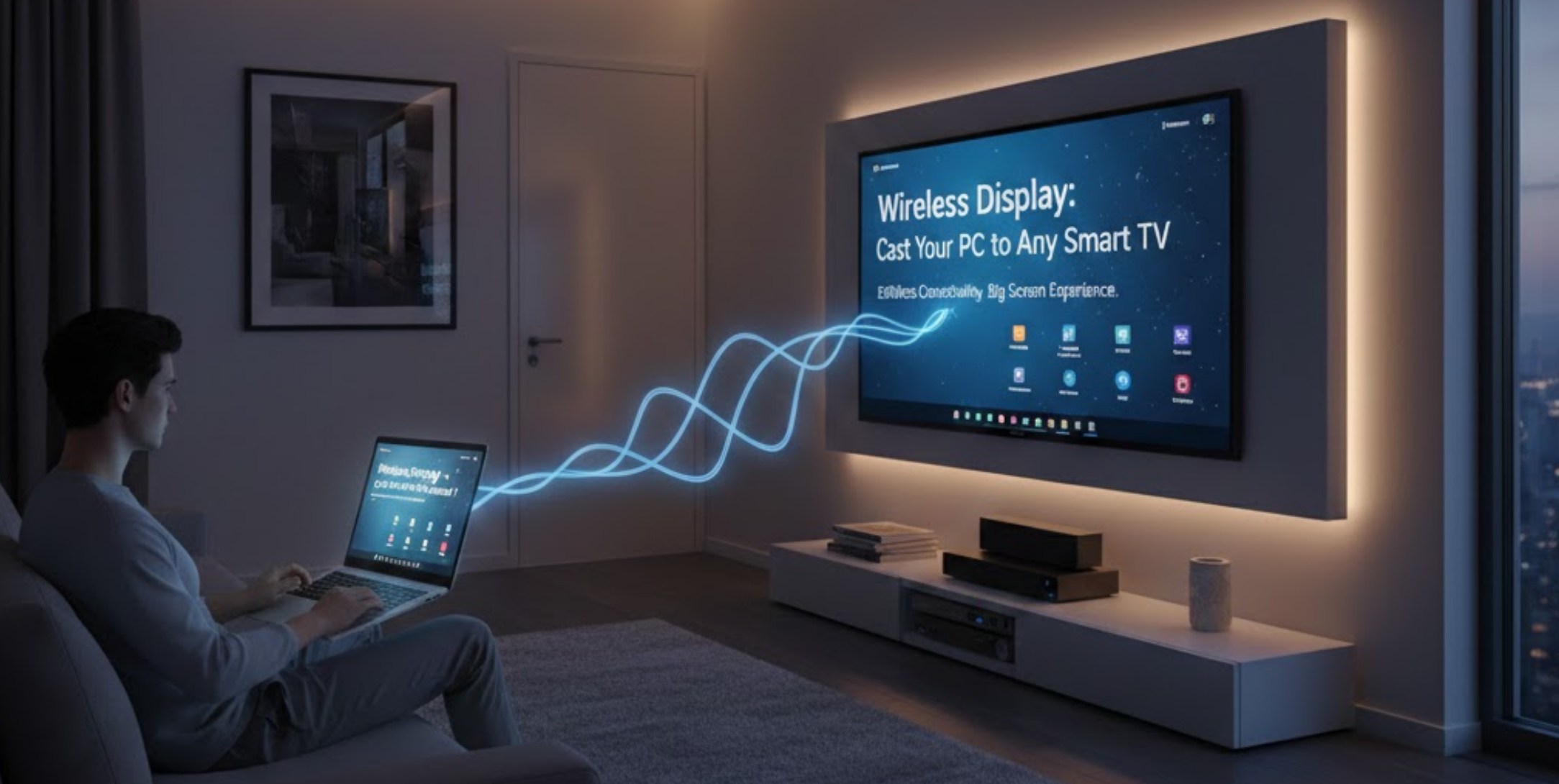
Understanding the Magic: How It Works
At its core, wireless casting (often referred to as Screen Mirroring or Miracast) works by sending a video and audio signal over your local Wi-Fi network. Instead of bits of data traveling through a copper wire, they travel through the air as radio waves. Most Windows computers use a standard called Miracast, while Apple devices use AirPlay. Many Smart TVs are now “cross-platform,” meaning they can accept signals from almost any device you own.
Before you start, there is one golden rule: Both your PC and your Smart TV must be connected to the same Wi-Fi network. If your computer is on “Home_Wi-Fi” and your TV is logged into a guest network, they won’t be able to “see” each other.
How to Connect Your Windows PC to a Smart TV
Windows 10 and 11 have made this process incredibly simple. You don’t usually need to download extra software; the tools are already waiting for you in your settings.
-
- Prepare the TV: Turn on your Smart TV and ensure it is connected to your Wi-Fi. Some TVs require you to open a specific “Screen Mirroring” or “Device Connector” app, while others stay ready in the background.
- Open the Cast Menu: On your PC, press the Windows Key + K on your keyboard. This is the “Connect” shortcut.
- Search for Devices: A sidebar will appear on the right side of your screen showing all available displays. Wait a few seconds for your TV’s name to pop up.
- Pairing: Click on your TV’s name. Your TV might show a PIN code or ask you to “Allow” the connection using your remote.
- Adjust the View: Once connected, you can change how the screen looks by pressing Windows Key + P. You can choose to “Duplicate” (see the same thing on both) or “Extend” (use the TV as a second, separate monitor).
Why Wireless is Better Than Wired (And When It’s Not)
There are several reasons why ditching the cables is a game-changer for your setup:
-
- Freedom of Movement: You can sit on your bed or the couch with your laptop on your lap, controlling the TV from across the room.
- No Hardware Limits: You don’t have to worry about whether your laptop has a full-sized HDMI port or if you need a USB-C dongle.
- Aesthetic Appeal: Your room looks cleaner without cables snaking across the floor, which is a big plus if you’re trying to keep a minimalist desk setup.
However, there is a catch: Latency. Because the data is being compressed and sent over the air, there is a tiny delay (input lag). This is fine for watching movies or showing a PowerPoint, but it might be frustrating for fast-paced gaming where every millisecond counts.
Troubleshooting Common Issues
Sometimes, technology refuses to cooperate. If your PC can’t find your TV, don’t panic. Check these common fixes:
-
- Update Your Drivers: If your graphics driver is outdated, the wireless display feature might glitch. Check “Windows Update” in your settings.
- Check the Frequency: If your router has two bands (2.4GHz and 5GHz), try putting both devices on the 5GHz band. It’s faster and suffers from less interference.
- Restart Everything: It sounds cliché, but restarting both your laptop and your TV clears out temporary software bugs that might be blocking the handshake between the two devices.
- Firewall Settings: Occasionally, an aggressive antivirus or firewall might block the connection. Check your security settings to ensure “Wireless Display” is allowed.
Getting More Done with “Extend” Mode
The coolest way to use a wireless display isn’t just for movies; it’s for productivity. When you choose the Extend option, your TV acts like a second desk. You can have a research article open on your laptop screen while you type your essay on the big TV screen. Or, you can have a Discord chat open on one side while you work on a project on the other. This setup mimics a professional office environment and can actually help you get your work done faster because you aren’t constantly switching between tabs.
Casting your PC to a Smart TV is a simple skill that makes your digital life much more flexible. Once you get the hang of it, you’ll find yourself using it for everything from group study sessions to late-night YouTube marathons. Just remember to keep your devices updated, stay on the same Wi-Fi, and enjoy the view!
