
Imagine the scene: you’ve saved up for months, or perhaps you just received a brand-new laptop for the start of the school year. You unbox it, peel off the plastic film, and press the power button for the first time. You’re expecting a lightning-fast experience, but as soon as the desktop loads, you see icons for random puzzle games, “limited time” antivirus trials, and three different music players you’ll never use.
This digital clutter is known as bloatware. It’s the collection of pre-installed apps and software that manufacturers cram onto your device before it even leaves the factory. While it might seem like a minor annoyance, bloatware can actually have a significant impact on how your laptop performs during a long study session or a gaming marathon.
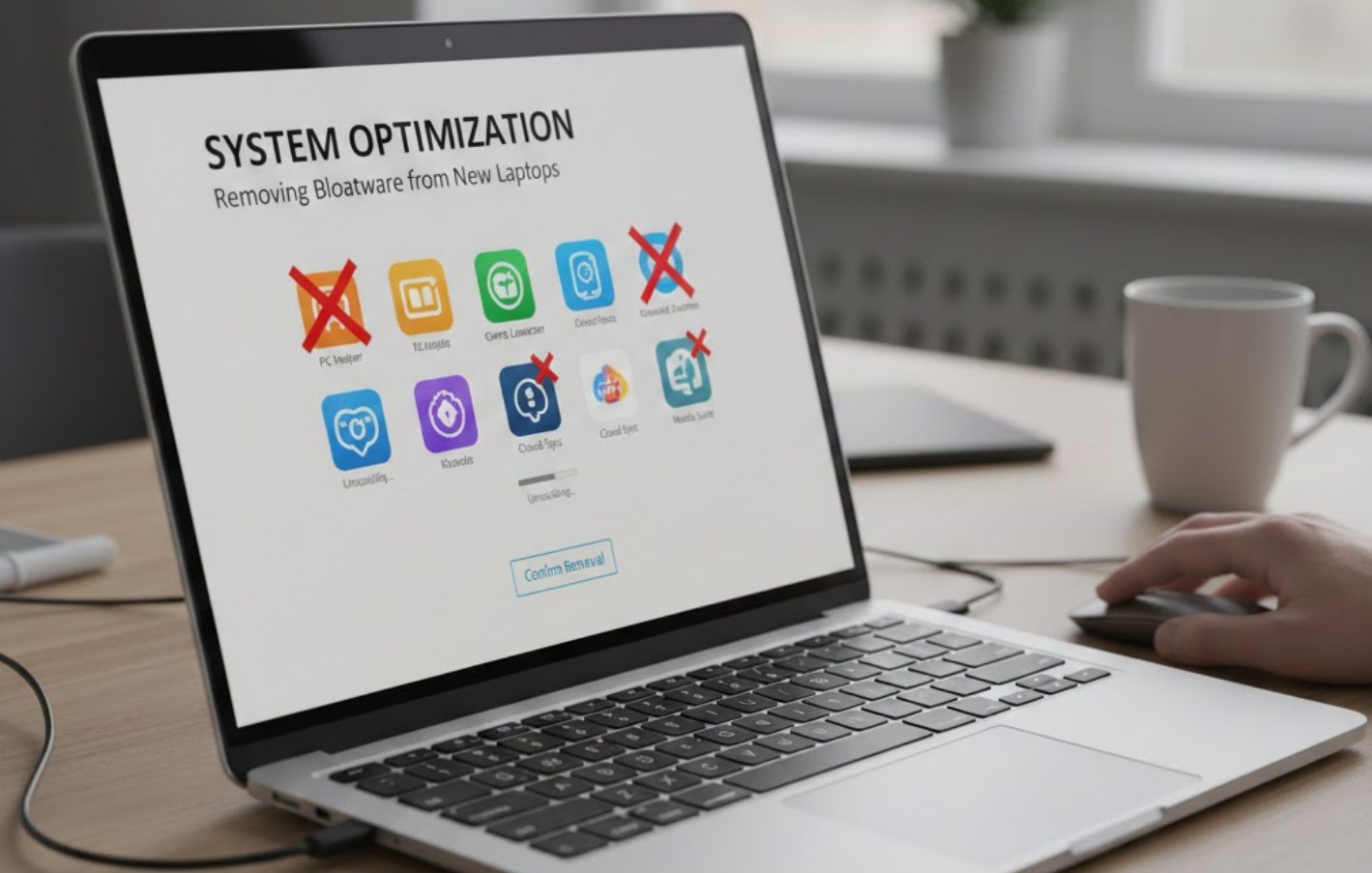
Why Is This Stuff on My Laptop?
You might wonder why a company would clutter a brand-new machine with junk. The answer, as it often is, is money. Software companies pay laptop manufacturers to pre-install their programs. By doing this, the manufacturer can lower the retail price of the laptop, making it more competitive in the store. However, the trade-off is that you, the user, end up with a “heavier” operating system.
Why You Should Care About Bloatware
It isn’t just about having a messy desktop. Bloatware affects your computer in several sneaky ways:
-
- Slower Boot Times: Many of these apps are set to start automatically the moment you turn on your computer. This means your laptop is working hard before you even open a single web browser tab.
- Reduced Battery Life: Background apps consume CPU power. If your laptop is constantly running a “security scanner” or a “weather widget” in the background, your battery will drain much faster during class.
- Storage Hogging: Even if you never click on them, these apps take up gigabytes of space on your Hard Drive or SSD—space that could be used for your photos, videos, or school projects.
- Privacy Concerns: Some pre-installed tools track your usage habits to send “personalized offers,” which is basically just a fancy way of saying they are showing you ads.
Identifying What to Keep and What to Kick
Before you start deleting everything in sight, it is important to know that not every pre-installed app is bad. Some are “drivers” that help your hardware—like your speakers, webcam, or touchpad—work correctly.
Common things you can safely delete:
-
- Trialware: This includes antivirus programs like McAfee or Norton that expire after 30 days and then start nagging you for a subscription.
- Manufacturer “Hubs”: Apps like “HP JumpStarts” or “Lenovo Vantage” (though some manufacturer tools are actually helpful for updates, most are just advertisements).
- Games: If you see Candy Crush or generic Solitaire clones, those are safe to go.
- Branded Browsers: Some laptops come with extra toolbars or customized browsers that are less secure than Chrome, Firefox, or the standard Microsoft Edge.
How to Clean Up Your System
Removing bloatware is usually a straightforward process. Here is the easiest way to do it on a Windows laptop:
-
- Open Settings: Click the Start menu and select the gear icon.
- Go to Apps: Click on “Apps” and then “Installed apps” (or “Apps & features”).
- Scan the List: Scroll through the list carefully. If you see something you recognize as junk, click the three dots next to it and select “Uninstall.”
- Restart: Once you’ve gone through the whole list, restart your computer to make sure all the changes take effect.
If you are dealing with a particularly stubborn piece of software that won’t uninstall through the normal menu, you might want to look into third-party tools. Programs like Bulk Crap Uninstaller or Should I Remove It? are great resources. They provide community ratings for apps, telling you exactly which ones are safe to delete and which ones are essential for your computer’s health.
The “Nuclear” Option: A Fresh Start
If your laptop feels hopelessly bogged down even after unrolling these steps, there is a more advanced move: a “Clean Install.” This involves downloading a fresh version of Windows directly from Microsoft and wiping your laptop’s drive completely. This removes everything—both the junk and your personal files—so you must back up your homework and photos first. It’s a bit of work, but it results in the fastest, cleanest version of your laptop possible.
Maintaining a Clean Machine
Once you have successfully purged the bloatware, the goal is to keep it that way. Be careful when downloading free software from the internet. Often, these programs include “bundled” software in the installer. If you just click “Next” rapidly during installation, you might accidentally agree to install a new search bar or a “PC cleaner” that you don’t need. Always choose the “Custom Installation” option to see exactly what is being added to your system.
Cleaning your laptop’s software is just as important as keeping the screen clean. By taking thirty minutes to remove the digital clutter, you ensure that your laptop stays fast, your battery lasts longer, and your hardware works exactly the way it was meant to.
