
Imagine waking up and your iPhone has already checked your first-period class schedule, looked up the weather to see if you need a jacket for the walk to the bus stop, and started playing your favorite “Wake Up” playlist—all without you touching a single button. In 2026, this isn’t science fiction; it is simply how we use Apple Shortcuts.
If you have an iPhone, you already have one of the most powerful productivity tools ever created sitting right in your pocket. However, most people just use it for TikTok or texting. The Shortcuts app is like a secret superpower that lets you program your phone to do boring tasks for you. It might look a little intimidating at first with its “if this, then that” logic, but once you get the hang of it, you’ll wonder how you ever lived without it.
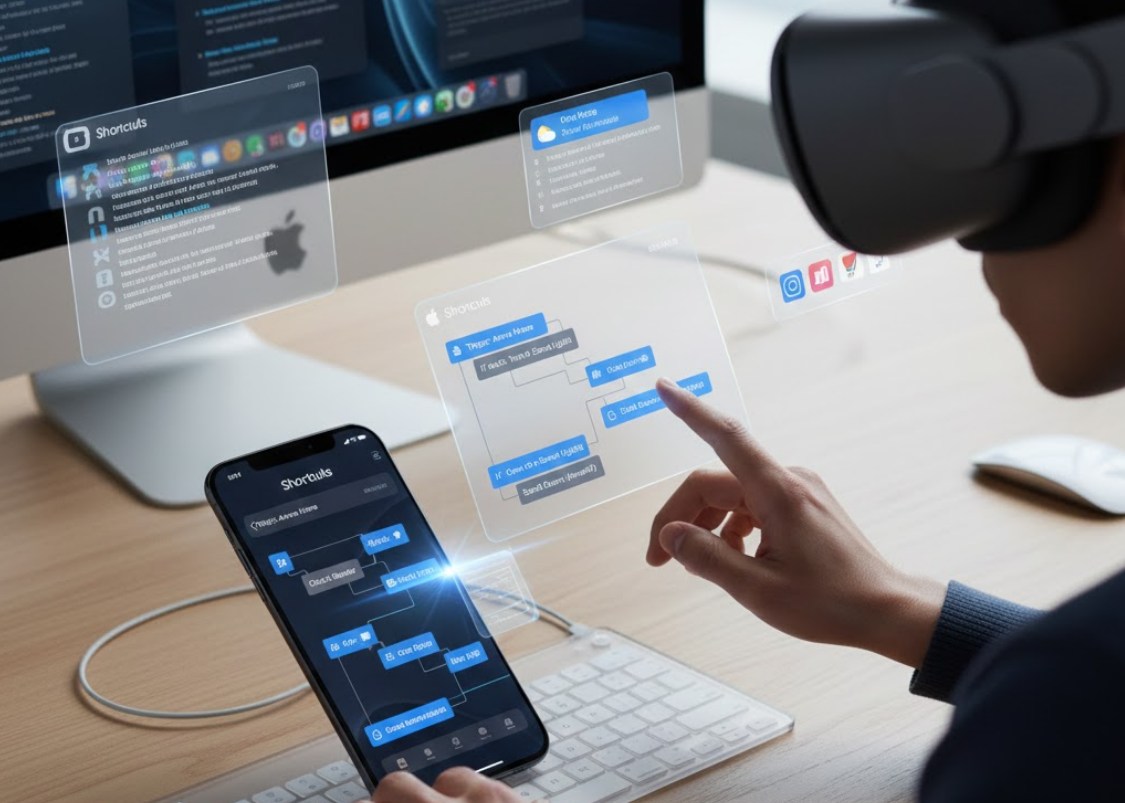
What Exactly is a Shortcut?
At its core, a shortcut is a way to get one or more tasks done with your apps. Instead of opening your camera, taking a photo, opening Instagram, and hitting upload, you can create a single button that does all of that in one go.
By 2026, Apple has integrated advanced AI—often called Apple Intelligence—deeply into the Shortcuts ecosystem. This means your phone is now better at understanding context. It doesn’t just follow strict rules; it understands what you are trying to achieve.
How to Build Your First Shortcut
Creating a shortcut is easier than writing an essay. You just need to follow a simple logical flow. Here is how you can build a basic “Study Mode” shortcut:
-
- Open the Shortcuts App: It’s the one with the overlapping colorful squares.
- Tap the Plus (+) Icon: This starts a new project.
- Add Actions: Search for “Set Focus.” Set it to “On” for “Study.”
- Add Another Action: Search for “Music” and select “Play Playlist.” Pick your favorite Lo-Fi or instrumental tracks.
- Add a Third Action: Search for “Open App” and choose your favorite note-taking or digital planner app.
- Name It: Call it “Grind Time” and give it a cool icon.
Now, whenever you tap that button or tell Siri, “Hey Siri, Grind Time,” your phone instantly silences your notifications, starts your music, and opens your homework notes.
The Magic of Personal Automations
While shortcuts are great because you trigger them yourself, Automations are even cooler because they run in the background based on “triggers.” A trigger is an event that tells your iPhone to start a sequence.
In the world of 2026, your iPhone is smarter about your environment. Here are a few ways you can use automations to make your life smoother:
-
- The Location Trigger: Set your phone to automatically switch to “Silent Mode” and open your digital ID card the moment you arrive at the school’s GPS coordinates.
- The Battery Trigger: Program your phone so that when the battery hits 20%, it automatically dims the brightness, turns on Low Power Mode, and sends a text to your parents saying, “Phone’s almost dead, I might not reply for a bit.”
- The Morning Alarm Trigger: You can set an automation so that when you stop your morning alarm, your phone reads out your calendar events for the day and tells you the current temperature.
Staying Creative with 2026 Features
The latest updates to the Shortcuts app have introduced “Smart Suggestions.” The app now looks at your daily habits and suggests “Multi-App Recipes.” For example, if it notices you always text your group chat after soccer practice, it might suggest a shortcut that sends your location and your estimated time of arrival (ETA) to the chat with just one tap.
Another massive leap forward is the “Visual Trigger.” You can now set shortcuts to run when your camera recognizes a specific object. Imagine pointing your camera at a math textbook, and your phone automatically opens a graphing calculator app and a website with tutorial videos. This kind of integration makes your device feel less like a distraction and more like a tool for success.
Why You Should Start Now
The jump from being a casual user to a “power user” happens the moment you decide to stop doing repetitive tasks manually. If you find yourself tapping the same five buttons every afternoon when you get home, there is a shortcut for that.
The best way to learn is to explore the “Gallery” tab inside the Shortcuts app. There, you can find pre-made shortcuts created by other people. You can download them, see how they are built, and then tweak them to fit your own life. Whether you are trying to stay organized, get through your chores faster, or just make your phone look cooler, automation is the key to mastering your tech in 2026. Don’t let your phone just be a screen you stare at—make it work for you.
