
Google Chrome is the most popular gateway to the internet, but most people only ever see the surface level. It’s a bit like driving a high-performance sports car but never shifting out of first gear. If you find yourself wishing your browser was faster, smarter, or more private, there is a hidden world you need to explore: Chrome Flags.
Flags are experimental features that Google is testing. They aren’t quite ready for the general public, but for “power users”—the people who want to push their tech to the limit—they are a goldmine. As we move through 2026, Chrome has integrated more artificial intelligence and efficiency tools than ever before. Here is how you can access the “secret lab” and which settings you should toggle to transform your browsing experience.
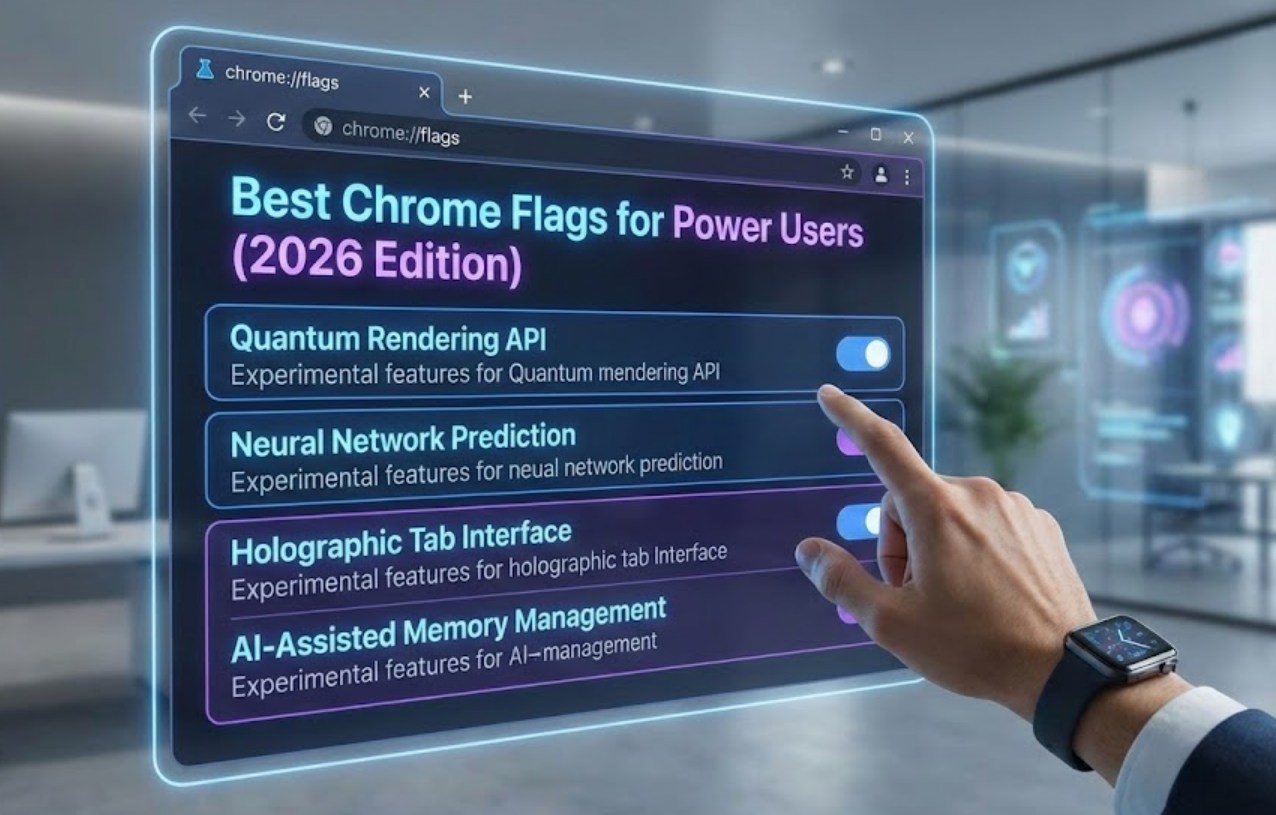
How to Enter the Secret Lab
Before we dive into the specific features, you need to know how to find them. It’s simpler than you might think. Open a new tab in Chrome and type chrome://flags into the address bar, then hit Enter. You’ll see a long list of options with a warning that these features are experimental.
Pro Tip: Don’t flip every switch at once. If your browser starts acting glitchy, you can always hit the “Reset all” button at the top of the page to go back to normal.
1. Turbocharging Your Downloads
If you are someone who downloads large files—whether they are video projects, game mods, or massive PDFs—waiting for the progress bar to move can be painful. One of the oldest but most effective flags is Parallel Downloading.
Usually, Chrome downloads a file in a single “stream.” When you enable Parallel Downloading, the browser breaks the file into several smaller pieces and downloads them all at once. It’s like opening four lanes on a highway instead of just one. In 2026, with the sheer size of web assets increasing, this flag is practically mandatory for anyone who values their time.
2. Mastering Your Tab Chaos with AI
By 2026, Chrome’s AI integration has become its biggest selling point. If you are the type of person who ends up with fifty tabs open until they are just tiny icons, you need to look for Tab Organizer AI.
Once enabled, this flag allows the browser to automatically categorize your tabs into groups.
-
- Schoolwork: All your research papers and library databases.
- Entertainment: YouTube, Twitch, and Netflix tabs.
- Shopping: Comparison sites and cart pages.
This isn’t just about visual neatness. By grouping tabs, Chrome can “hibernate” the ones you aren’t using, which saves a massive amount of RAM and keeps your computer from sounding like a jet engine taking off.
3. Enhancing Visual Performance
If you have a computer with a decent graphics card, Chrome might not be using it to its full potential. To fix this, look for GPU Rasterization.
Rasterization is the process the browser uses to turn website code into the images and text you see on your screen. By default, your main processor (CPU) often does this work. Enabling this flag shifts the heavy lifting to your graphics processor (GPU). This makes scrolling through image-heavy sites like Instagram or Pinterest feel butter-smooth, even on high-resolution displays.
4. Privacy and Security Tweaks
In the digital age of 2026, privacy is more than just a preference; it’s a necessity. There are several flags designed to keep your data under your own control.
-
- Biometric Authentication for Autofill: If your laptop has a fingerprint scanner or face recognition, this flag ensures that Chrome won’t auto-fill your credit card info or passwords unless it confirms it’s actually you.
- HTTPS-First Mode: This forces the browser to try to connect to the most secure version of a website. If a site is “unencrypted” (meaning it’s easier for hackers to see what you’re doing), Chrome will give you a full-page warning before you enter.
- Anonymized IP Protection: This experimental feature helps hide your specific IP address from some trackers, making it much harder for advertisers to follow you from one website to another.
5. The “Back-Forward” Cache
Have you ever clicked “Back” on a website only to wait three seconds for the previous page to reload? It’s a small delay, but it adds up. The Back-Forward Cache flag fixes this. It keeps a “snapshot” of the pages you just visited in your computer’s memory. When you click the back or forward button, the page appears instantly because the browser doesn’t have to download any new data. It makes the internet feel like a local app on your computer rather than something coming from a server thousands of miles away.
Final Thoughts for the Power User
Using Chrome Flags is about making the browser work for you, rather than you adapting to the browser. However, because these features are experimental, they can occasionally cause a website to look strange or make the browser crash.
The best strategy is to enable one or two flags at a time, restart Chrome, and see how it feels. If you notice a massive speed boost and your tabs are finally organized, you’ve just leveled up your digital life. Welcome to the future of browsing.
