
Let’s be honest: looking at the same fluorescent yellow folders and generic blue shortcuts every single day can get a bit stale. Windows 11 brought a sleek, modern look to our screens, and as we look toward future iterations like Windows 12, the design language is only getting cleaner. However, “clean” doesn’t always mean “personalized.” If you want your desktop to reflect your personality—whether that’s a minimalist aesthetic, a retro vaporwave vibe, or a high-tech futuristic layout—changing your icons is the fastest way to get there.
While Microsoft doesn’t make it as simple as clicking a single “Theme” button, customizing your icons is actually pretty straightforward once you know the ropes. Here is how you can transform your digital workspace from basic to brilliant.
1. The Manual Method: Changing Individual Icons
If you only want to change a few specific shortcuts—like your favorite game or a folder where you keep your creative projects—you don’t need any special software. Windows has a built-in feature for this.
Follow these steps to change a shortcut icon:
-
- Find your icon source: First, download some icons. Look for files with the
.icoextension. - Right-click the shortcut: Select the app or folder shortcut you want to change and right-click it.
- Open Properties: Click on “Properties” at the bottom of the menu.
- Change Icon: In the “Shortcut” tab (for apps) or “Customize” tab (for folders), click the button that says “Change Icon.”
- Browse: Click “Browse,” find the
.icofile you downloaded, and hit “Open.” - Apply: Click “OK” and then “Apply.” Your shortcut should now have its new look!
- Find your icon source: First, download some icons. Look for files with the
2. Customizing System Icons (This PC, Recycle Bin, etc.)
You might notice that the “Recycle Bin” or “This PC” doesn’t have the same property settings as a normal folder. To change these “System” icons, you have to dig a little deeper into the settings menu.
-
- Open your Settings app (Windows Key + I).
- Go to Personalization in the left sidebar.
- Click on Themes.
- Scroll down and select Desktop icon settings.
- A small window will pop up. Select the icon you want to change (like the Recycle Bin) and click Change Icon.
- Just like before, browse for your custom file and save your changes.
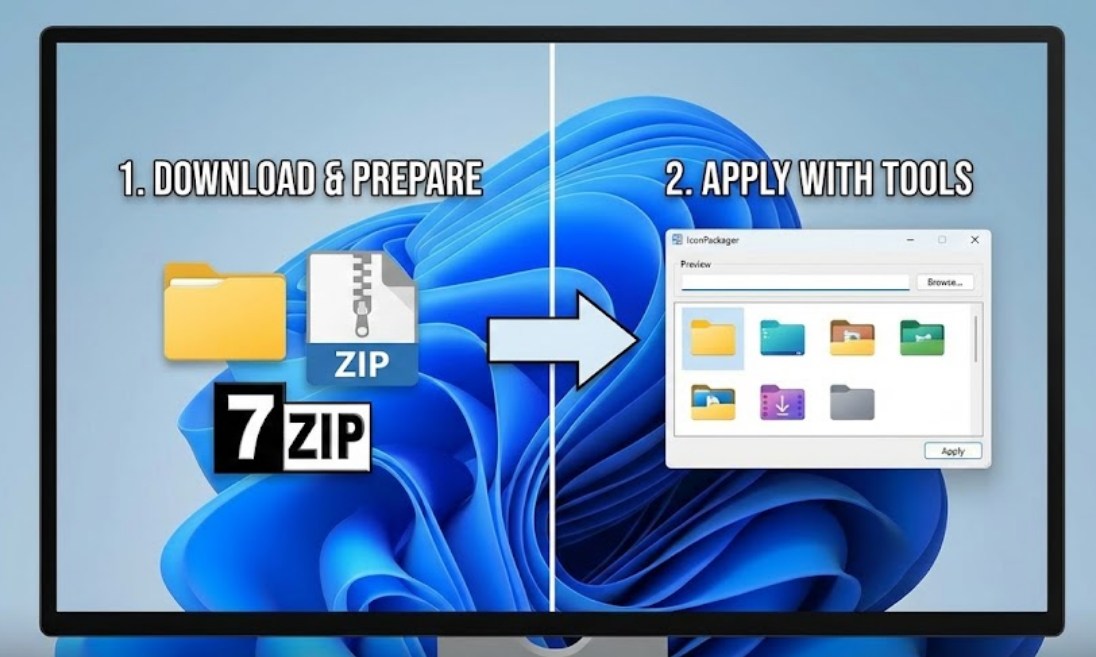
3. Using Third-Party Tools for a Total Overhaul
Changing every single folder manually would take hours. If you want a “system-wide” change where every folder on your hard drive turns into a custom design, you’ll want to use a third-party tool. One of the most popular and reliable tools for this is 7-Theme (or 7-Packager).
These tools allow you to download “Icon Packs” (often found on sites like DeviantArt) that come as a single installer. When you run the installer, it replaces the system’s internal library of icons with the new ones.
A few tips for using third-party installers:
-
- Create a Restore Point: Before running any software that modifies system files, type “Create a restore point” into your Windows search bar and follow the prompts. This is your “Undo” button if something goes wrong.
- Check Compatibility: Ensure the pack says it is compatible with Windows 11. Icons designed for Windows 7 or XP might not scale correctly on a modern high-resolution screen.
- Avoid .EXE files from unknown sites: Only download packs from reputable communities. If a site looks sketchy, it’s better to stay away.
4. Where to Find the Best Icons?
You don’t have to be a graphic designer to have cool icons. There are massive communities of artists who share their work for free. Here are the best places to start your search:
-
- DeviantArt: Search for “Windows 11 Icon Packs.” This is the gold mine for full-system replacements.
- Flaticon: Great if you are looking for specific, individual icons for apps. They offer millions of options in different styles (flat, 3D, line art).
- Icons8: Perfect for finding cohesive sets that follow a specific design language, like “iOS style” or “Fluent design.”
5. Troubleshooting: Why didn’t it change?
Sometimes, Windows is a bit stubborn. You might apply an icon, but the old one still shows up. This is usually because of the “Icon Cache”—a small database Windows uses to load icons faster.
If your icons aren’t updating, you can try “restarting” Windows Explorer. Press Ctrl + Shift + Esc to open the Task Manager, find “Windows Explorer” in the list, right-click it, and select Restart. This forces the system to refresh the visuals on your desktop and taskbar.
Final Thoughts
Customizing your PC is about more than just “looking cool.” It’s about making your environment feel comfortable. When you spend hours every day studying, gaming, or browsing on your computer, having a visual setup that inspires you can actually make the time more enjoyable. Whether you go for a sleek dark mode with neon icons or a bright, colorful theme, the power to change your Windows 11 (or future Windows 12) experience is right at your fingertips. Just remember to save your work, create that restore point, and have fun experimenting with your new look!
