
Imagine sitting at a small, cramped desk with nothing but a 13-inch laptop. You’re trying to write an essay, research five different sources, and keep a chat window open with your project partner. Your screen is a mess of overlapping tabs, and you find yourself constantly clicking back and forth, losing your train of thought every time.
Now, imagine putting on a pair of sleek goggles and suddenly being transported to a private office on a balcony overlooking a futuristic city. In front of you, three massive, 50-inch high-definition monitors are floating in thin air. You can glance to the left to see your research, look straight ahead to type your paper, and check your messages on the right—all without touching a single physical button.
This isn’t science fiction. With devices like the Apple Vision Pro and the Meta Quest 3, “spatial computing” is turning into a legitimate way to get work done. Here is how you can transform your headset into the ultimate portable workstation.
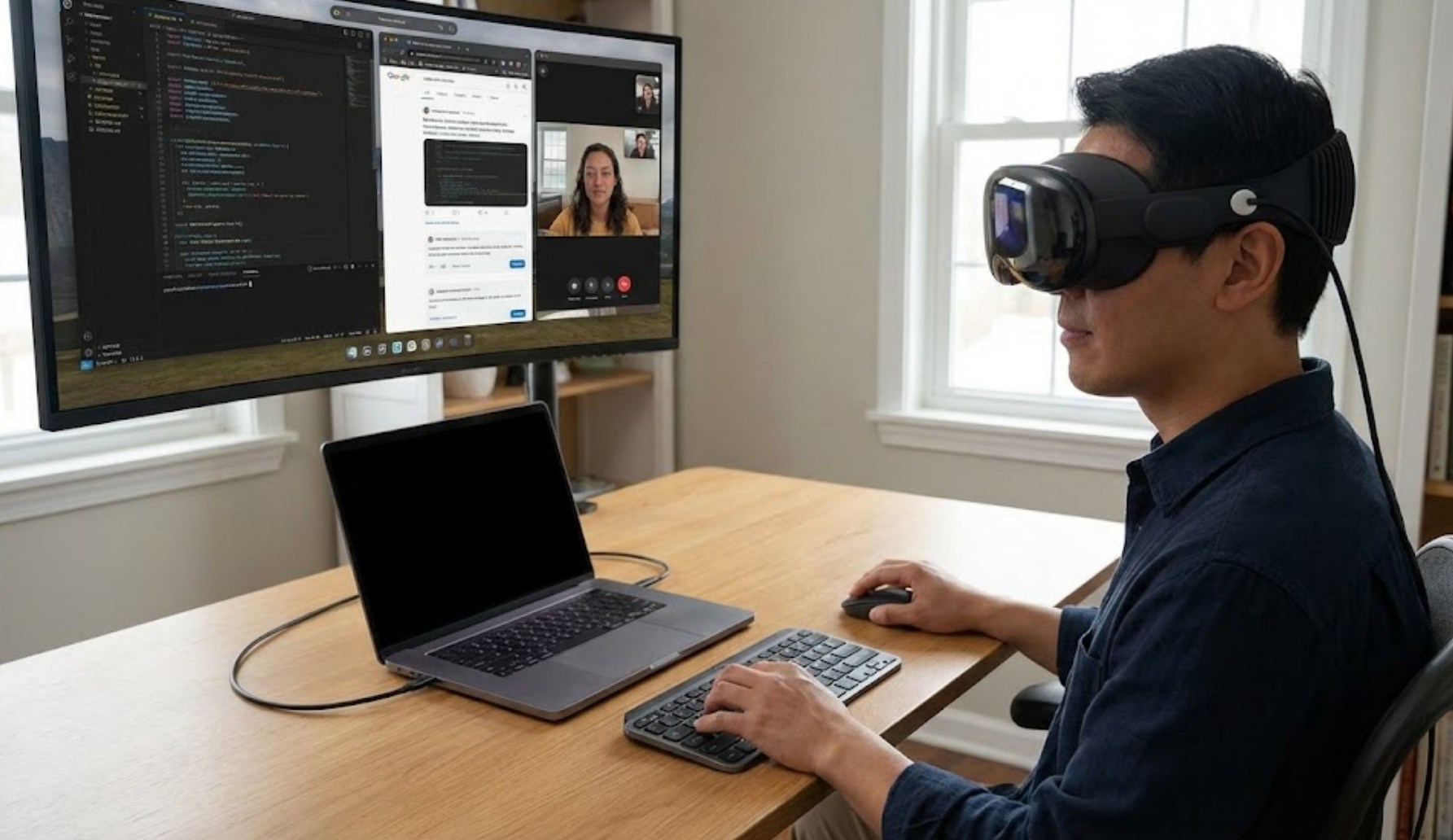
Why Trade Your Monitor for a Headset?
Before diving into the “how,” it is important to understand the “why.” Traditional monitors take up a lot of physical space and cost a lot of money if you want more than one. Headsets offer a few unique advantages that a standard desk setup simply can’t match:
-
- Infinite Screen Real Estate: You aren’t limited by the edges of a plastic frame. You can make your screen as big as a movie theater wall or as small as a tablet.
- Total Focus: If you are working in a noisy or distracting environment, you can swap your “real” room for a virtual one, like a quiet forest or a space station.
- Privacy: No one sitting next to you can see what you are working on. The screens only exist in your eyes.
- Portability: You can carry a triple-monitor setup in a backpack. Whether you are at a library or on a plane, your office goes with you.
Setting Up Your Virtual Office
The process for setting up your workstation depends on which headset you have. Both the Meta Quest 3 and the Apple Vision Pro have different strengths.
1. Using the Meta Quest 3
The Quest 3 is widely popular because it is affordable and versatile. To use it as a monitor, most people use an app called Immersed or Virtual Desktop.
-
- First, install the app on your Quest 3 and the companion “agent” software on your laptop or desktop.
- Ensure both devices are on the same Wi-Fi network (a 5GHz or 6GHz connection is best to prevent lag).
- Once connected, your computer screen will pop up in the air. You can then add “virtual” monitors—extra screens that don’t even exist in the real world—to expand your workspace.
2. Using the Apple Vision Pro
Apple makes the process incredibly seamless if you already own a Mac.
-
- Simply put on the headset and look at your open MacBook.
- A button labeled “Connect” will appear floating above your laptop screen.
- Once you tap it, your laptop screen goes dark, and a massive, crystal-clear 4K version of your desktop appears in your space. You can still use your Mac’s keyboard and trackpad to control everything.
Tips for a Comfortable Experience
Working in VR or AR (Augmented Reality) is different from sitting at a desk. If you don’t set things up correctly, you might end up with a headache or a sore neck. To get the most out of your session, keep these points in mind:
-
- Use Physical Peripherals: While you can type on a virtual keyboard by poking the air, it is slow and frustrating for real work. Keep your physical keyboard and mouse. Both the Quest and Vision Pro allow you to see your hands and your desk while you work, so you won’t lose track of your keys.
- Mind the Lighting: If you are using “passthrough” mode (where you see the real world around your virtual screens), make sure your room is well-lit. If it’s too dark, the cameras will struggle, and the image will look grainy.
- Adjust Your Ergonomics: The beauty of floating screens is that you can place them at eye level. This prevents the “tech neck” caused by looking down at a laptop. Set your main virtual screen high enough so that you are looking straight ahead.
The Reality Check: Is it Perfect?
While the idea of a virtual workstation is cool, it’s not without its challenges. Headsets have weight, and wearing one for eight hours straight can be tiring. The battery life is also a factor; most headsets only last about two to three hours on a single charge. If you plan on a long study session, you will need to stay plugged into a power outlet.
Furthermore, there is the “blur” factor. Even though the Quest 3 and Vision Pro have high-resolution lenses, text isn’t always as sharp as it is on a physical 4K monitor. You might find yourself needing to make the font size a little larger than usual to avoid eye strain.
Final Thoughts
Using a Quest 3 or Vision Pro as a workstation monitor is a glimpse into the future of how we will interact with technology. It breaks the boundaries of the traditional desk and allows for a level of customization that was impossible just a few years ago. Whether you’re trying to escape a distracting room or you just want the coolest desk setup in existence, spatial computing is ready to change the way you get things done. It takes a little bit of time to get used to the feeling of a computer on your face, but once you experience the freedom of a 100-inch workspace, it is very hard to go back to a tiny laptop screen.
