
Not long ago, creating a professional-looking poster, a sleek social media graphic, or an eye-catching presentation required years of training in complex software. You had to worry about layers, masks, and complex color theories. Fast forward to today, and the creative landscape has shifted dramatically. Canva, already a favorite for its user-friendly interface, has introduced Magic Studio, an all-in-one AI-powered creative suite that makes professional design accessible to everyone.
Whether you are working on a club flyer, a personal brand, or a classroom project, Magic Studio acts like a digital assistant that understands your vision. However, using AI is not just about clicking a button; it is about knowing how to direct it. Here is how you can master these tools to create designs that look polished and original.
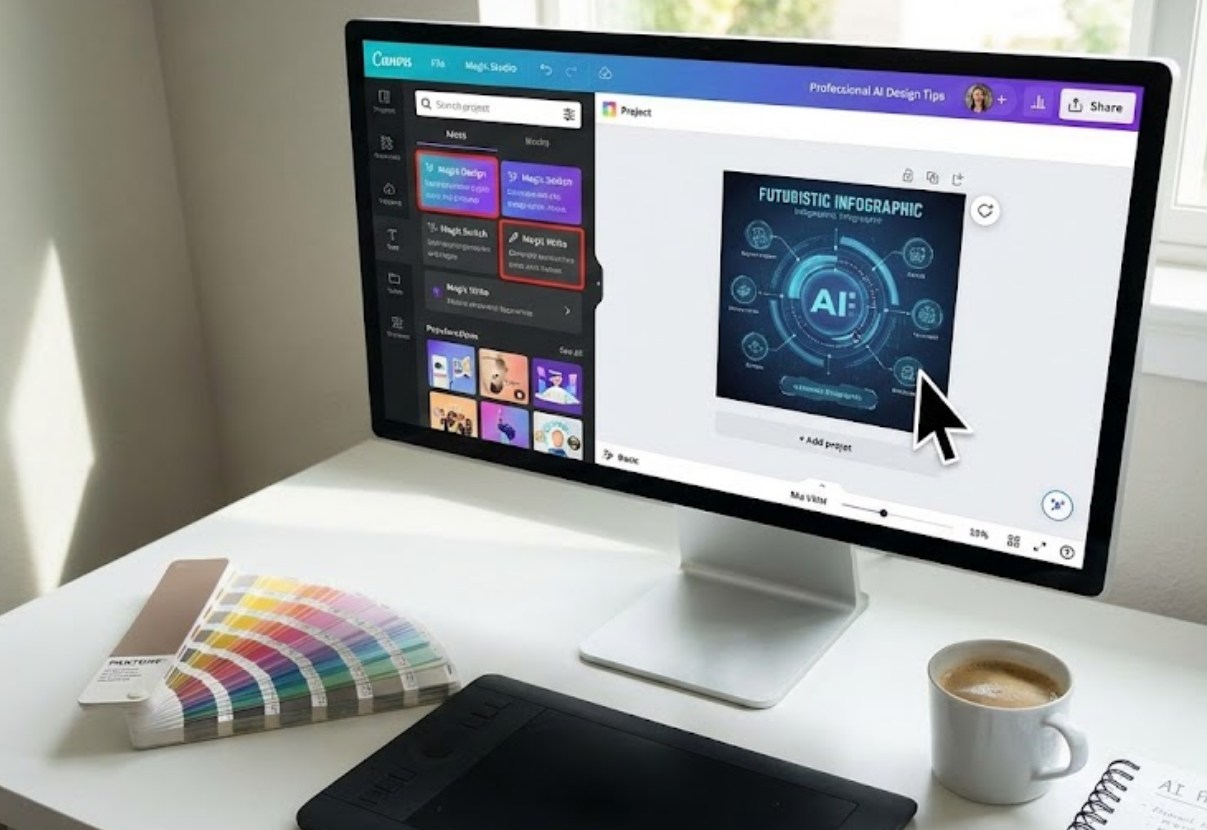
Transforming Ideas into Visuals with Magic Design
One of the biggest hurdles in design is the “blank canvas syndrome.” It is that moment when you stare at a white screen, unsure of where to place the first line. Magic Design solves this by turning your written prompts into full-blown layouts.
Instead of browsing through thousands of templates, you can simply type, “A minimalist blue poster for a beach clean-up event on Saturday.” The AI will instantly generate several options with relevant images, fonts, and color schemes. The trick to making this look professional is in the follow-up. Don’t just settle for the first result. Change the colors to match your specific theme and swap out generic icons for something more unique.
The Power of Magic Media
Have you ever looked for a very specific image—like a “cat wearing sunglasses eating pizza on the moon”—only to find that it doesn’t exist in any stock library? This is where Magic Media comes in. By using text-to-image technology, you can generate unique visuals from scratch.
To get the best results from Magic Media, follow these steps:
-
- Be Specific: Instead of typing “a dog,” try “a golden retriever sitting in a sunlit park, cinematic lighting, 4k.”
- Choose Your Style: Canva allows you to select styles like “Filmic,” “Watercolor,” or “Dreamy.” Matching the style to your project’s mood is key.
- Refine and Repeat: If the first image isn’t perfect, tweak your prompt. Adding words like “minimalist” or “vibrant” can change the entire feel.
Editing Like a Pro with Magic Edit and Grab
Sometimes you find the perfect photo, but there is one small thing wrong with it. Maybe you’re wearing a red shirt when the brand color is green, or there’s a stray water bottle on a table in the background.
-
- Magic Edit: This tool allows you to brush over an object and describe what you want to replace it with. You can turn a simple backpack into a futuristic jetpack or change a rainy sky into a sunset in seconds.
- Magic Grab: Have you ever wished you could move the person in a photo slightly to the left? Magic Grab treats elements in a flat photo like individual stickers. You can select a subject, move them around, or resize them without ruining the background.
- Magic Expansion: If you have a vertical photo but need it to be a horizontal banner, this tool uses AI to “fill in” what would be outside the frame, stretching your scenery naturally.
Streamlining Your Workflow
Professional design isn’t just about how things look; it’s about efficiency. Magic Studio includes tools that save hours of tedious work, allowing you to focus on the “big picture” of your creative project.
Magic Switch is perhaps the most impressive tool for those who create content for different platforms. With one click, you can turn a vertical Instagram Story into a horizontal YouTube thumbnail or even a formatted document. It automatically rearranges the elements to fit the new dimensions. Furthermore, it can translate your entire design into another language instantly, which is perfect for reaching a global audience.
Tips for Maintaining a Human Touch
While AI does the heavy lifting, the “professional” look comes from your personal input. To ensure your designs don’t look “too AI,” keep these tips in mind:
-
- Consistency is Key: Use the same font pairings and color palettes throughout your project. AI might suggest wild combinations, but sticking to a consistent “Brand Kit” makes your work look cohesive.
- Check the Details: AI sometimes struggles with small details, like the number of fingers on a hand or text within an image. Always zoom in and double-check the generated visuals.
- Less is More: Just because you can use every AI effect doesn’t mean you should. A clean, simple design usually carries more impact than one cluttered with too many AI-generated elements.
The true magic of Canva Magic Studio isn’t that it does the work for you—it’s that it removes the technical barriers between your imagination and the screen. By combining these smart tools with your own unique perspective, you can produce designs that truly stand out in a crowded digital world. Experiment, play with the prompts, and don’t be afraid to break the rules. After all, the best designs are the ones that have a bit of your own personality in them.
