
We’ve all been there. You’re trying to download a new game, install a massive software update for a school project, or save a high-definition video, and suddenly, the dreaded notification pops up: “Disk Space Low.” You look at your folders, delete a few old photos and a couple of PDFs, but the storage bar barely moves. It feels like your computer is holding onto a secret hoard of data that you simply cannot see.
The truth is, your hard drive is likely filled with “invisible” clutter. These aren’t just files you forgot about; they are system logs, temporary caches, old update installers, and hidden folders that the operating system hides to keep things looking neat. If you want to reclaim your digital space, you have to know where to look and which tools to use.
Starting with the Basics: Built-in Tools
Before downloading anything new, both Windows and macOS have built-in features designed to help you spot the biggest space-wasters.
On Windows:
-
- Storage Sense: Go to your Settings, click on “System,” and then “Storage.” Here, you can toggle on Storage Sense, which automatically gets rid of temporary files.
- Clean Up Recommendations: In the same Storage menu, Windows will often give you a list of “Large or unused files.” This is the quickest way to see if you have a 20GB installer from a game you uninstalled months ago still lurking in your downloads.
- Hidden Items: Open File Explorer, click the “View” tab at the top, and check the box that says “Hidden items.” This reveals folders like
AppData, which can sometimes swell to massive sizes because of apps like Discord or Spotify saving temporary data.
On a Mac:
-
- Click the Apple icon in the top left corner, select “About This Mac,” and go to the “Storage” tab. Click “Manage.”
- This tool categorizes your files. The “System Data” category is often the culprit for hidden bloat. While you can’t always delete everything here, clicking on “Documents” and then “Large Files” will show you exactly what is eating up your gigabytes.
Visualizing the Bloat
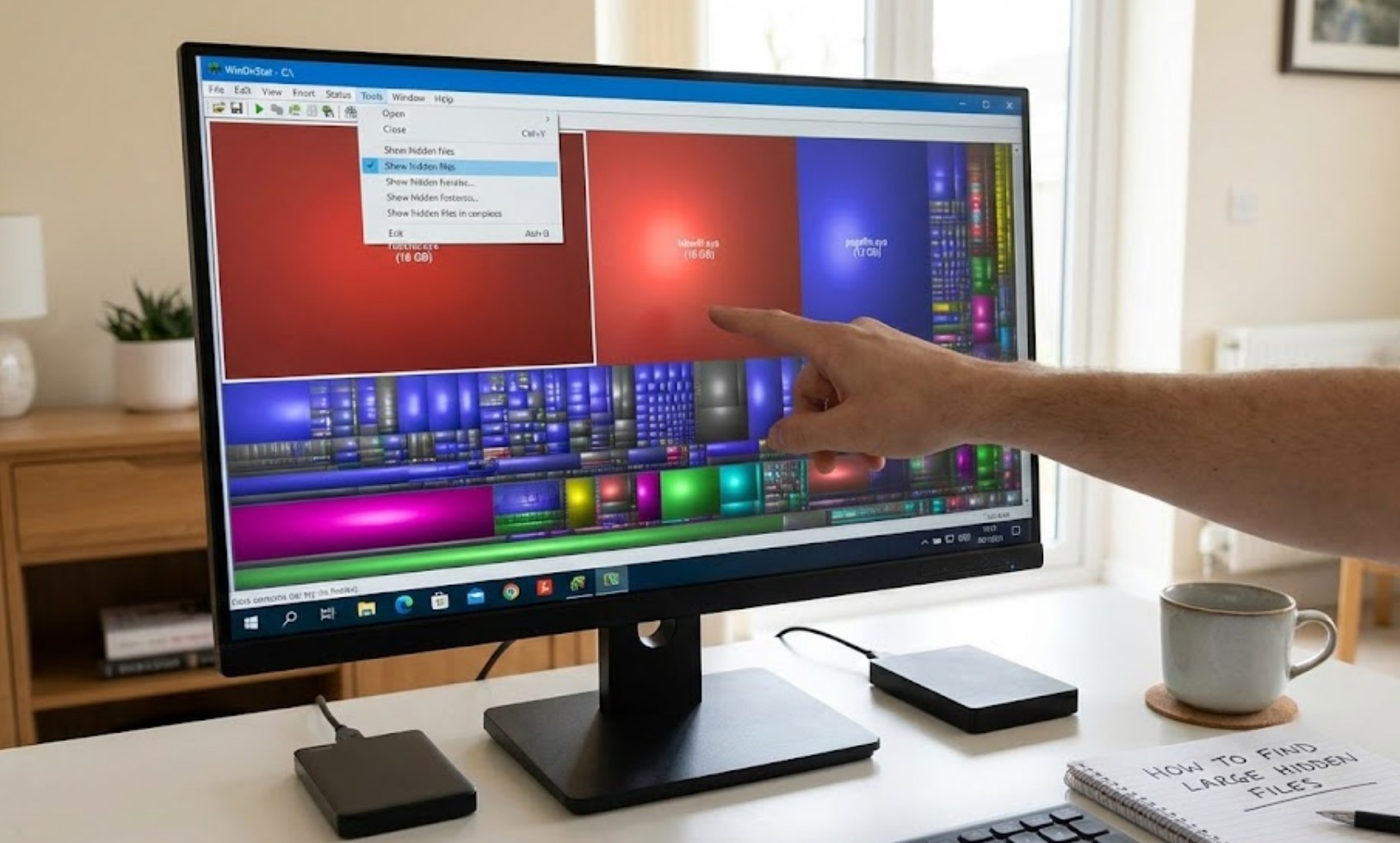
Sometimes, looking at a list of file names doesn’t help because “Size” is just a number. It’s much easier to find the problem when you can see it visually. There are free programs that create a “map” of your hard drive, where large files appear as large blocks.
If you are on Windows, WizTree or WinDirStat are life-savers. They scan your entire drive and present it as a colorful mosaic. If you see a giant purple square taking up half the screen, that’s your target. Usually, it’s a forgotten video file or a massive backup folder.
For Mac users, Disk Inventory X or GrandPerspective does the same thing. Seeing your drive as a visual landscape makes it incredibly obvious when a single “hidden” folder is taking up 40% of your space.
Common Culprits You Should Check
If your drive is still full after a basic cleanup, you need to hunt down the specific types of files that tend to grow over time.
-
- The Downloads Folder: This is the most common graveyard for large files. We download installers (.exe or .dmg files), use them once, and never delete them. Over a year, this can easily account for 50GB of wasted space.
- Browser Cache: Every time you watch a video or scroll through social media, your browser saves bits of data to make things load faster next time. Over months, this cache can grow to several gigabytes.
- Game Launchers: Programs like Steam, Epic Games, or Riot Games often keep “redistributables” or old update data. Even if you delete a game, sometimes the “Mod” folders or save files stay behind in your Documents or AppData folders.
- Trash/Recycle Bin: It sounds simple, but many people forget that moving a file to the Trash doesn’t actually delete it. It just moves it to a different folder. You haven’t actually saved any space until you “Empty” the bin.
Safe Deletion: What Not to Touch
While it’s tempting to start deleting every large folder you find, you have to be careful. You should never delete anything inside the “Windows” folder on a PC or the “System” folder on a Mac. These files are the “brain” of your computer. If you delete them, your computer might not turn on again.
Stick to deleting files in your user folders (Downloads, Desktop, Documents) or using the official “Disk Cleanup” tools provided by your computer. If you find a massive file and you aren’t sure what it is, a quick web search of the file extension or the folder name will tell you if it’s safe to remove.
Keeping It Clean
Finding hidden files once is great, but the clutter will eventually come back. To prevent your drive from clogging up again, try to make it a habit to empty your trash once a week and clear your downloads folder at the end of every month. Digital hygiene isn’t the most exciting task, but it ensures that your computer stays fast and ready for the next big game or project you actually care about.
