
For the longest time, WhatsApp was strictly a “one phone, one account” platform. If you wanted to use your messages on a different device, you were usually stuck using WhatsApp Web on a bulky laptop or trying to navigate a cramped browser window on a tablet. But things have changed. Thanks to a major update known as “Companion Mode,” WhatsApp now allows you to link your account to up to four additional smartphones simultaneously.
Whether you have a backup phone, use a separate device for a side project, or just want to stay connected while your main phone is charging in another room, this feature is a game-changer. Here is everything you need to know about setting up and mastering WhatsApp across multiple phones.
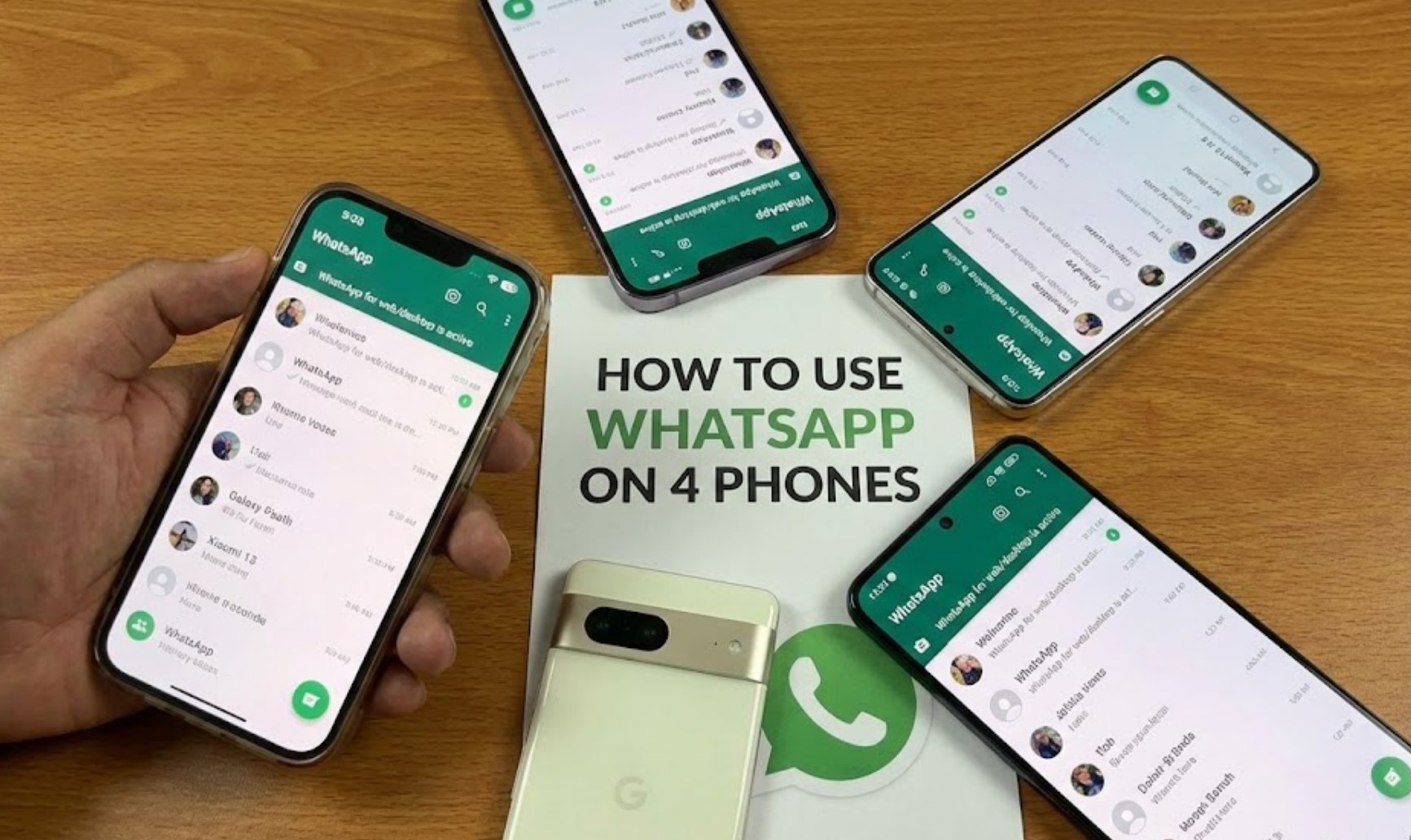
What Exactly is Companion Mode?
In the past, linking WhatsApp to another device meant your primary phone had to stay connected to the internet. If your main phone died or lost its signal, the connection on your computer would drop too. Companion Mode fixes this. Now, each linked phone connects to WhatsApp independently. This means your messages, media, and calls are synced across all devices while maintaining the end-to-end encryption that keeps your conversations private.
You can now have your main smartphone and up to four “companion” phones all running the same account at the same time. This is perfect for people who juggle different devices throughout the day.
How to Link Your WhatsApp to a Second Phone
Setting this up is surprisingly simple, but the steps are slightly different from the traditional login process. Instead of typing in your phone number on the new device, you will be using a QR code.
Follow these steps to get started:
-
- Prepare the Secondary Phone: Download and install WhatsApp on the second phone you want to use.
- Open the App: Open the app and select your language. When it asks for your phone number, do not type it in.
- Find the Link Option: Tap the three dots (overflow menu) in the top right corner of the screen. Select the option that says “Link as companion device.” A unique QR code will appear on the screen.
- Go to Your Primary Phone: Open WhatsApp on your main phone (the one that already has your account logged in).
- Access Linked Devices: On Android, tap the three dots in the top right. On iPhone, go to “Settings” at the bottom right. Select “Linked Devices.”
- Scan the Code: Tap “Link a Device” and use your primary phone’s camera to scan the QR code displayed on the secondary phone.
- Wait for Syncing: Give it a moment to download your recent chat history. Once finished, you’re ready to go!
Why Use WhatsApp on Multiple Phones?
You might wonder why someone would need four phones for one WhatsApp account. While it might seem like overkill, there are several practical reasons why this feature is incredibly useful:
-
- Battery Management: If your main phone is low on battery, you can switch to a secondary device without missing a beat.
- Safety and Backups: If you are traveling, you might want to leave your expensive primary phone in a hotel safe and carry a cheaper backup phone while still staying in touch with family.
- Small Businesses: If you run a small online shop, you and a partner can both access the same business WhatsApp account on your individual phones to respond to customers faster.
- Convenience: You can leave a phone in your gym bag or in your car and still be able to check your messages without hunting for your “main” device.
Important Things to Keep in Mind
While this feature is incredibly helpful, there are a few technical details and limitations you should be aware of to ensure your account stays active and secure.
-
- The 14-Day Rule: Your primary phone is still the “anchor” of your account. If you do not use WhatsApp on your primary phone for more than 14 days, the app will automatically log you out of all your companion devices for security reasons.
- Feature Parity: Most features work perfectly on companion phones, including messaging, voice notes, and video calls. However, some niche features, like managing “Status” updates or “Live Location,” might still be restricted to the primary device depending on your operating system.
- Message Syncing: When you first link a device, it will download a portion of your message history. Very old messages might not appear on the companion phone, but everything from the moment of linking onwards will be perfectly synced.
Privacy and Security
A common concern with using one account on multiple devices is security. If your messages are everywhere, are they still safe? WhatsApp ensures that end-to-end encryption remains active across all linked devices. This means that even though your messages are being sent to four different phones, they are encrypted individually for each device. Not even WhatsApp or Meta can read your texts.
If you ever lose one of your companion phones or suspect someone else is accessing your account, you can instantly log out that specific device using your primary phone. Just go back to the “Linked Devices” menu, tap on the device you don’t recognize, and hit “Log Out.”
Final Thoughts
The ability to use one WhatsApp account on up to four phones is a massive step forward in making the app more flexible for our busy lives. It removes the stress of being tethered to a single piece of hardware and allows for a more seamless communication experience. By following the simple QR code setup, you can turn any spare smartphone into a fully functional communication hub, keeping you connected wherever you go.
