
You just unboxed a shiny new laptop or finished a fresh install of Windows 11. It’s 2026, and while hardware has become incredibly fast, Windows has become a bit… crowded. Between the integrated AI assistants, pre-installed social media apps, and background “telemetry” services that track your usage, your PC might feel slower than it should.
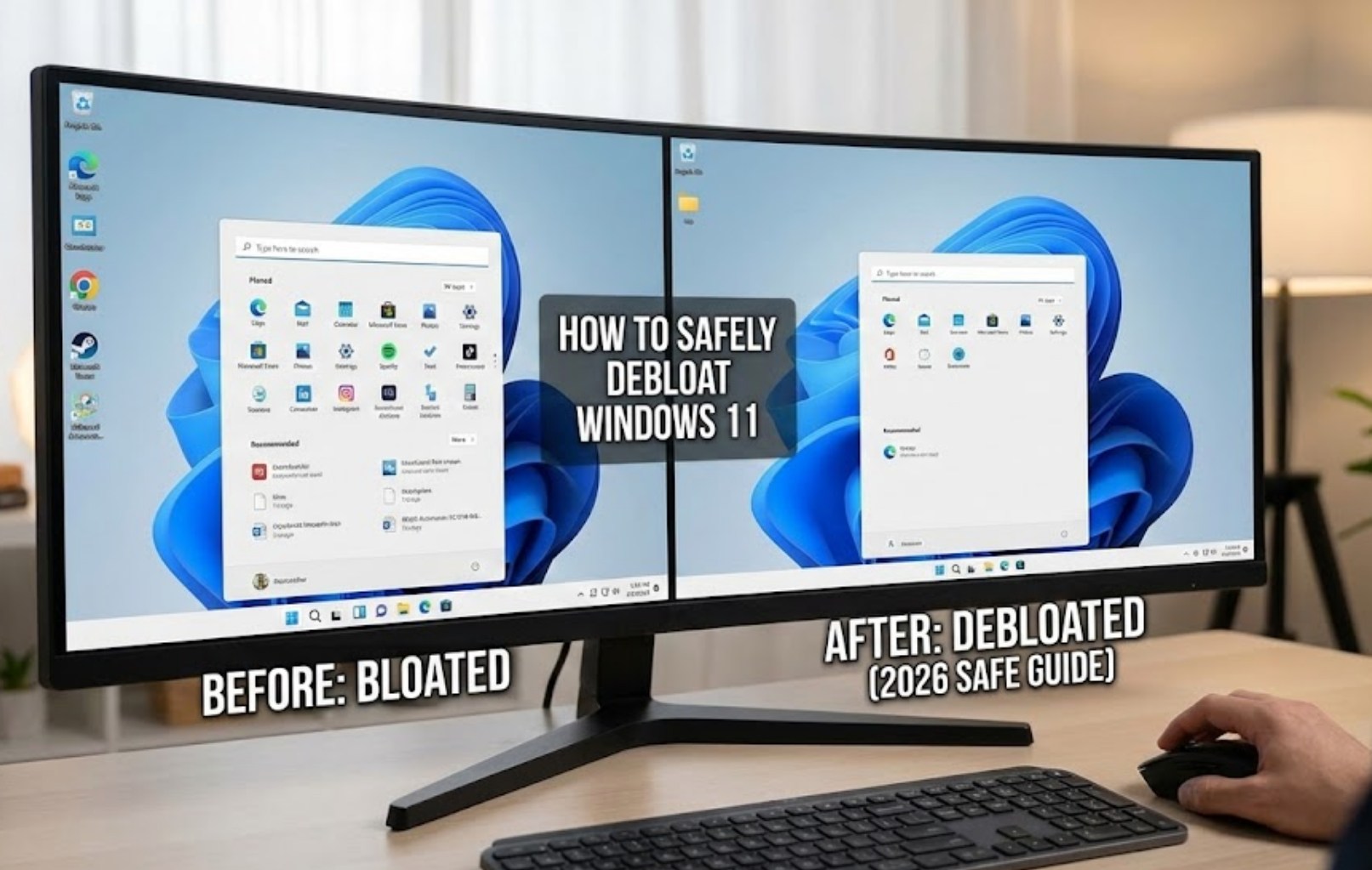
This is what tech enthusiasts call “bloat.” It’s the digital equivalent of buying a new backpack but finding it already stuffed with brochures and heavy rocks you didn’t ask for. “Debloating” is the process of removing this extra weight to make your computer run faster, stay cooler, and protect your privacy.
However, there is a right way and a wrong way to do this. In the past, people used aggressive scripts that deleted core parts of the system, leading to the “Blue Screen of Death.” To keep your system stable, follow this safe guide to streamlining Windows 11 in 2026.
1. The “Uninstall” Sweep
Before touching any advanced settings, start with the most obvious culprits. Microsoft often bundles third-party apps like trial antivirus software, mobile games, and streaming services.
-
- Open Settings by pressing
Win + I. - Navigate to Apps > Installed Apps.
- Scroll through the list. If you see something you didn’t install and don’t need (like Disney+, Instagram, or Trial Security Suite), click the three dots and select Uninstall.
- Pro Tip: If you see “Microsoft AI Search” or similar 2026-specific features you don’t use, check if they can be disabled here first.
- Open Settings by pressing
2. Clean Up Your Startup
One reason your PC might take a long time to “wake up” in the morning is that too many programs are trying to start at the exact same time. You don’t need Spotify, Steam, and Discord all launching the second you log in.
-
- Press
Ctrl + Shift + Escto open the Task Manager. - Click on the Startup apps tab (usually an icon that looks like a speedometer).
- Look at the “Startup impact” column.
- Right-click and Disable anything you don’t need immediately. Don’t worry; this doesn’t delete the app; it just prevents it from starting until you actually click on it.
- Press
3. Using the Power of “Winget”
In 2026, the Windows Package Manager (Winget) is the safest and most efficient tool for managing software. It’s a command-line tool, but don’t let that scare you—it’s like a secret cheat code for your PC.
To see everything you have installed in a clean list, right-click the Start button and select Terminal (Admin). Type the following:
winget list
If you want to uninstall something quickly without hunting through menus, type:
winget uninstall [App Name]
This is often more effective at removing “stubborn” apps that don’t have an uninstall button in the standard Settings menu.
4. Taming the AI and Telemetry
By 2026, Windows 11 is heavily integrated with AI features like Copilot+. While these can be helpful, they use a lot of RAM and constantly send data to the cloud. If you prefer a leaner experience, you should adjust your privacy settings.
-
- Privacy & Security: Go to
Settings > Privacy & Security > General. Turn off all the toggles, especially “Let apps show me personalized ads.” - Diagnostic Data: Under
Privacy & Security > Diagnostics & feedback, turn off “Send optional diagnostic data.” This stops your PC from constantly “talking” to Microsoft’s servers about your clicking habits. - Search Permissions: Disable “Cloud Content Search” to prevent Windows from searching the web every time you are just trying to find a file on your hard drive.
- Privacy & Security: Go to
5. Why You Should Avoid “One-Click” Debloaters
You might find videos or websites offering “Ultimate Windows 11 Debloater” scripts. These are tempting because they promise to do everything in one second. However, they are often dangerous because:
-
- They might disable the Windows Store, making it impossible to update your apps.
- They can break Windows Update, leaving your computer vulnerable to hackers.
- They often delete “dependencies,” which are small files that other apps need to run.
The “Safe Way” described in this article might take ten minutes instead of ten seconds, but it ensures your computer won’t crash when you’re in the middle of an important project or a gaming session.
6. Storage Sense: The Automatic Janitor
Windows 11 has a built-in feature that acts like a digital janitor. Instead of you having to manually delete temporary files, Storage Sense does it for you.
-
- Go to Settings > System > Storage.
- Toggle Storage Sense to On.
- Click on it to configure the schedule. Set it to delete files in your Recycle Bin after 30 days and clear out temporary setup files.
The Result
Once you’ve followed these steps, your 2026 Windows 11 experience will feel significantly snappier. You’ll notice fewer background processes in the Task Manager, more available RAM for your games and apps, and a cleaner Start menu that only shows what you actually care about.
A clean PC isn’t just about speed; it’s about focus. By removing the digital clutter, you turn your computer back into what it was meant to be: a powerful tool that works for you, rather than a billboard for pre-installed software.
