
We’ve all been there. You have a hilarious video, a high-score gaming moment, or a set of great vacation photos on your iPhone, and you want to show them to everyone in the room. Passing around a small phone is fine for one person, but if you’re hanging out with a group, you want that content on a bigger screen.
If you have a Mac, this is easy. But if you’re one of the millions of people using a Windows 11 PC, you might feel like you’re stuck behind a wall. Since Apple and Microsoft are different companies, they don’t always make their devices talk to each other perfectly. However, by 2026, the “bridge” between these two worlds has become much sturdier.
Here is everything you need to know about getting your iPhone screen onto your Windows 11 computer.
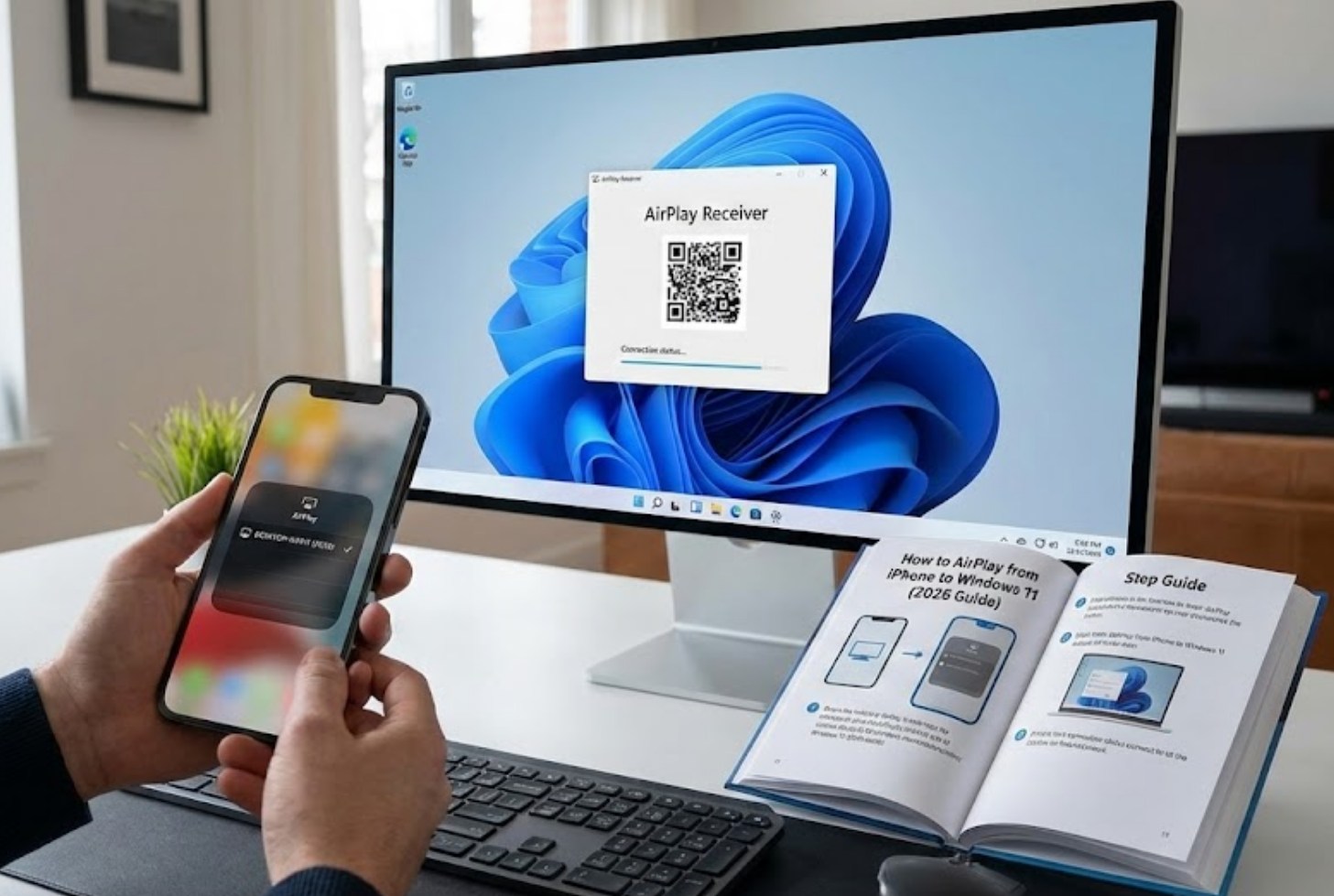
Why Doesn’t it Work Automatically?
AirPlay is Apple’s proprietary wireless streaming technology. It’s designed to work flawlessly with Apple TVs and Macs. Windows 11, on the other hand, uses its own system called Miracast. Because these two technologies use different “languages,” your Windows PC won’t show up in your iPhone’s AirPlay menu by default.
To fix this, we have to teach your Windows PC how to understand AirPlay signals. This is usually done through a third-party application that acts as a translator.
Top Software Solutions for 2026
To get started, you’ll need to download a “receiver” app on your PC. Here are the most reliable options currently available:
-
- AirServer: This is widely considered the gold standard. It’s incredibly stable and allows you to mirror your screen in high definition. It’s a paid app, but they often offer a free trial so you can see if it works for your setup.
- Reflector 4: This is a favorite for people who want to record their screens. If you’re a budding YouTuber or just want to capture gameplay, Reflector makes it easy to add frames around your mirrored phone screen to make it look professional.
- 5KPlayer: If you’re looking for a free option, 5KPlayer is a solid choice. It doubles as a media player and an AirPlay receiver. While the interface can feel a bit cluttered, it gets the job done without costing a dime.
- LetsView: Another fantastic free tool that has gained a lot of popularity. It’s lightweight and doesn’t require a complicated setup, making it perfect for quick sharing sessions.
Step-By-Step: How to Mirror Your Screen
Once you have chosen and installed your preferred receiver app on Windows 11, the actual connection process is fairly simple. Follow these steps to get connected:
-
- Connect to the same network: Ensure that both your iPhone and your Windows 11 PC are connected to the same Wi-Fi network. This is the most important step; if they aren’t on the same network, they won’t “see” each other.
- Launch the app: Open the receiver app (like AirServer or LetsView) on your PC. You might see a small window or a notification in your taskbar letting you know the service is running.
- Open Control Center: On your iPhone, swipe down from the top-right corner of the screen.
- Tap Screen Mirroring: Look for the icon that looks like two overlapping rectangles. Tap it.
- Select your PC: You should see the name of your computer appear in the list. Tap it, and within a second or two, your iPhone screen will pop up on your Windows monitor.
Troubleshooting Common Issues
Even in 2026, technology can be a little moody. If you’re having trouble seeing your PC in the AirPlay list, check these common fixes:
-
- The Firewall Block: Sometimes, the Windows 11 Firewall thinks the AirPlay app is a security threat. Go to your Windows Settings, search for “Firewall,” and make sure your receiver app is “Allowed” to communicate through the network.
- Wi-Fi Frequency: Most modern routers have two bands: 2.4GHz and 5GHz. Sometimes, devices won’t see each other if the phone is on the 5GHz band and the PC is on the 2.4GHz band. Try to get them both on the same one.
- Update Everything: Make sure your iPhone is running the latest version of iOS and your PC app is up to date. Small bugs are fixed in these updates all the time.
Beyond Mirroring: Why Use AirPlay on Windows?
You might wonder if it’s worth the effort. For many, it’s a game-changer for productivity and entertainment. Students can mirror a textbook app to a larger monitor to take notes more easily. Gamers can show off their mobile skills on a big screen for friends to watch. You can even use it to give a presentation directly from your phone without needing to transfer files to a thumb drive.
By using these tools, you break down the walls between your devices, making your Windows 11 PC feel like a natural extension of your iPhone. It’s fast, efficient, and—once you have the right software—completely seamless.
