
If you have ever tried to play a high-quality 4K video on your computer only to have it turn into a slideshow of frozen frames and stuttering audio, you know how frustrating it can be. VLC Media Player, the famous app with the orange traffic cone icon, is usually the go-to solution for any video file. It’s free, it’s powerful, and it plays almost everything. However, 4K video files are massive. They contain four times the detail of a standard 1080p video, which means your computer has to work four times as hard to process them.
Sometimes, even a decent laptop struggles with these files. But before you go out and buy a brand-new graphics card, you should look under the hood of VLC. There are several hidden settings that can help your computer handle the heavy lifting of Ultra HD content.
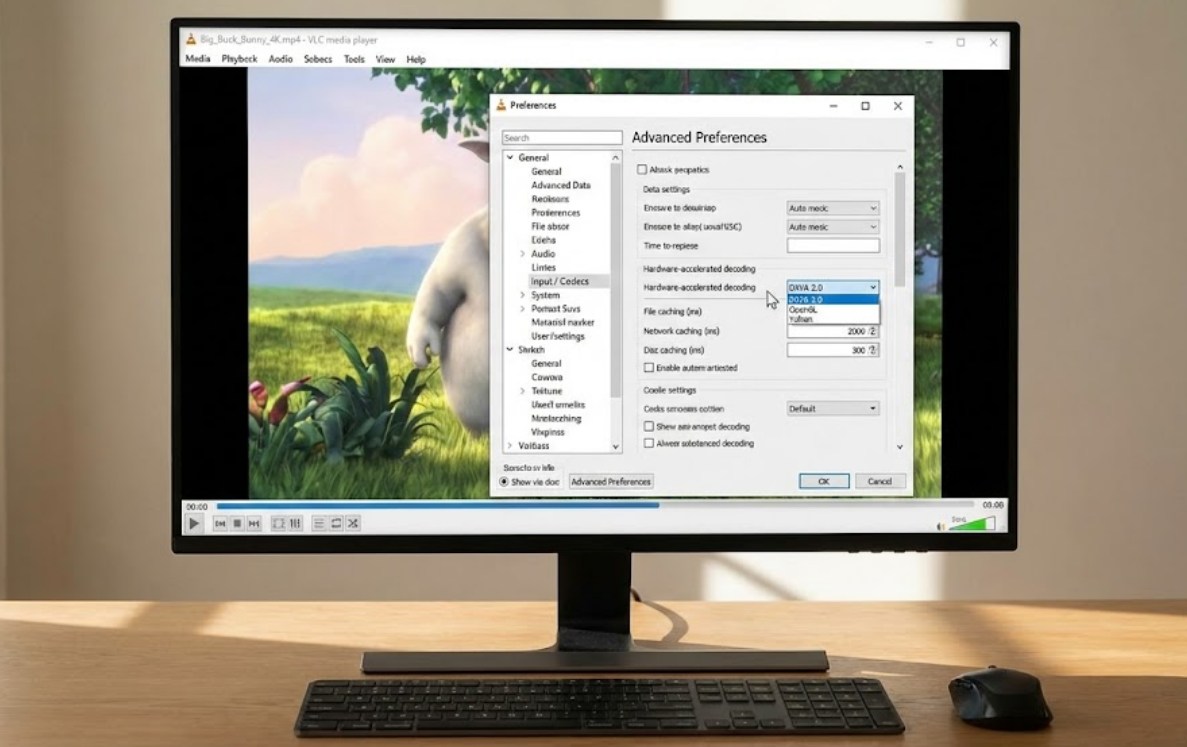
1. Enable Hardware-Accelerated Decoding
By default, VLC tries to use your computer’s processor (CPU) to decode video. While your CPU is smart, it isn’t always the fastest at handling 4K video streams. Your graphics card (GPU) is actually designed specifically for this task.
To turn this on:
-
- Open VLC and go to Tools > Preferences.
- Click on the Input / Codecs tab.
- Look for the “Hardware-accelerated decoding” dropdown menu.
- Change it from “Disable” or “Automatic” to DirectX Video Acceleration (DXVA) 2.0.
- Click Save and restart VLC.
2. Boost the File Caching
When you play a video, VLC doesn’t read it frame-by-frame in real-time. Instead, it “pre-reads” a bit of the video into a buffer (a temporary waiting room) so that it’s ready to play smoothly. For 4K files, the default buffer is often too small.
To increase this:
-
- Go to Tools > Preferences.
- At the bottom left, under “Show settings,” select All.
- Navigate to Input / Codecs.
- Scroll down to the “Advanced” section and find File caching (ms).
- Change the value from 300 to 1000 or even 2000. This gives VLC a two-second head start on the data.
3. Change the Video Output Module
VLC tries to guess which method is best for displaying video on your screen. Sometimes it picks “Automatic,” which isn’t always the most efficient for 4K. On Windows machines, forcing VLC to use a specific output can reduce lag significantly.
In the Tools > Preferences > Video tab, look for the Output dropdown. Instead of “Automatic,” try selecting DirectX (DirectDraw) video output or OpenGL video output. You might have to experiment to see which one works better for your specific computer hardware.
4. Adjust the Skip H.264 In-Loop Deblocking Filter
This sounds like a bunch of techno-gibberish, but it’s actually a shortcut for your computer. This filter is responsible for smoothing out the edges of blocks in a video. While it makes things look slightly better, it takes up a lot of processing power. For 4K playback, you might not even notice if this filter is off because the resolution is already so high.
In the Input / Codecs section (Simple view), find the setting labeled Skip H.264 in-loop deblocking filter. Change this from “None” to All. This tells VLC to skip the extra smoothing step, freeing up resources to keep the video moving.
5. Increase the Number of Threads
Modern computers have multiple “cores” or “threads” in their CPUs. By default, VLC might only use one or two to decode a video. If you have a powerful processor, you want VLC to use every bit of it.
-
- Go to Tools > Preferences and select All at the bottom.
- Go to Input / Codecs > Video codecs > FFmpeg.
- Look for the Threads setting.
- Change it from 0 (which is automatic) to 4 or 8, depending on how many cores your CPU has.
6. Disable Deinterlacing
Interlacing is an old technology used for broadcast TV, but almost all 4K content is “progressive” (the ‘p’ in 2160p). Sometimes VLC keeps the deinterlacing engine running in the background just in case, which wastes energy. Go to the Video tab in Preferences and make sure Deinterlacing is set to Off.
7. Update Your Graphics Drivers
While this isn’t a setting inside VLC, it’s the most important setting for your computer. 4K technology is constantly evolving. If your graphics drivers are two years old, they might not know how to efficiently handle the newest video compression formats. Check the website of your computer manufacturer or your GPU maker (Nvidia, AMD, or Intel) to ensure you are up to date.
8. Use the “Fast” Scaling Filter
When you resize a VLC window, the program has to “scale” the pixels. If you are watching 4K on a screen that is only 1080p, VLC is doing a massive amount of math to shrink those pixels down. In the Advanced Settings (All) under Video > Swscale, change the “Scaling mode” to Fast Bilinear. It’s much less demanding than the high-quality “Bicubic” or “Lanczos” options.
9. Disable Hardware-to-RGB Conversions
If you are still seeing “stuttering,” there is a deep setting in the Video preferences called “Hardware-to-RGB conversion.” Sometimes the process of converting the video colors to work with your monitor creates a bottleneck. Unchecking this box can sometimes bypass a laggy step in the processing chain.
10. The Power Plan Check
Finally, if you are on a laptop, make sure your computer is not in “Power Saver” mode. Go to your Windows or Mac settings and ensure you are on “High Performance.” VLC can’t play 4K effectively if your computer is trying to save battery by slowing down the processor.
By tweaking these ten areas, you can transform VLC from a lagging mess into a 4K powerhouse. You don’t need to be a computer scientist to fix these issues; you just need to know which switches to flip. Give these a try, and you’ll finally be able to enjoy that ultra-crisp footage the way it was meant to be seen.
