
For decades, the world of laptops was pretty predictable. You either had a Mac or a PC, and almost all of them ran on processors made by Intel or AMD. These are known as x86 chips. But recently, a massive shift has happened. If you’ve looked at the newest MacBooks or the latest “Copilot+” Windows laptops, you’ve met Arm architecture.
Arm processors are the cousins of the chips inside your smartphone. They are incredibly power-efficient, meaning they stay cool and keep your battery alive for a remarkably long time. However, for those of us who love the freedom of Linux, these new machines present a bit of a puzzle. Installing Linux on an Arm-based laptop isn’t quite as “plug-and-play” as it is on an old Dell or ThinkPad, but it is becoming one of the most exciting projects a tech enthusiast can take on.
Why the Arm Transition Matters
Before we dive into the “how,” let’s talk about the “why.” Traditional laptops use a lot of power because their processors are designed to handle complex instructions in a specific way that has existed since the 1980s. Arm flips the script by using a “Reduced Instruction Set.” This makes the hardware simpler and much better at managing energy.
When you combine that efficiency with Linux—an operating system known for being lightweight and customizable—you get a potential superpower. Imagine a laptop that runs a fully open-source desktop environment, stays silent because it doesn’t need fans, and lasts 15 hours on a single charge. That is the dream driving the developers working on Arm Linux.
The Challenge: It’s Not Just a Different CPU
On a standard PC, there is a standardized way for the software to talk to the hardware (usually through something called UEFI). Arm devices are a bit more like the “Wild West.” Every manufacturer designs their chip slightly differently. This means that a version of Linux that works on a Raspberry Pi won’t necessarily work on a MacBook or a Lenovo Yoga Slim.
The biggest hurdles usually involve:
-
- The Bootloader: Getting the laptop to even recognize the Linux USB drive.
- Graphics Acceleration: Making sure the screen looks smooth and doesn’t lag.
- Proprietary Drivers: Getting things like Wi-Fi, Bluetooth, and built-in speakers to work when the manufacturer hasn’t released the code for them.
Preparing for the Journey
If you have a modern Arm laptop and want to give Linux a shot, you shouldn’t just jump in blindly. You need a plan. Here is what you should have ready before you start:
-
- A Backup of Everything: This is non-negotiable. Installing a new OS on Arm often requires messing with disk partitions that could wipe your data.
- An External Mouse and Keyboard: Sometimes the laptop’s built-in trackpad or keyboard won’t work until you install specific drivers inside Linux.
- A Second Device: You’ll need a phone or another computer to look up tutorials if you get stuck on a black screen.
- Patience: You are essentially an explorer in a new digital territory. Things will break, and that’s part of the fun.
Which Version of Linux Should You Use?
You can’t just download the standard version of Ubuntu and expect it to work perfectly. You need a “distro” (distribution) specifically tuned for Arm hardware.
-
- Asahi Linux: If you are using an Apple Silicon Mac (M1, M2, or M3), this is the gold standard. The developers are literally reverse-engineering Apple’s hardware to make Linux run natively.
- Fedora or Debian: These are great choices for Windows-based Arm laptops (like those using Snapdragon chips). They have dedicated teams working on “Aarch64” (the 64-bit Arm architecture) support.
- Arch Linux ARM: Best for those who want to build their system from the ground up and don’t mind spending time in the command line.
The Typical Installation Process
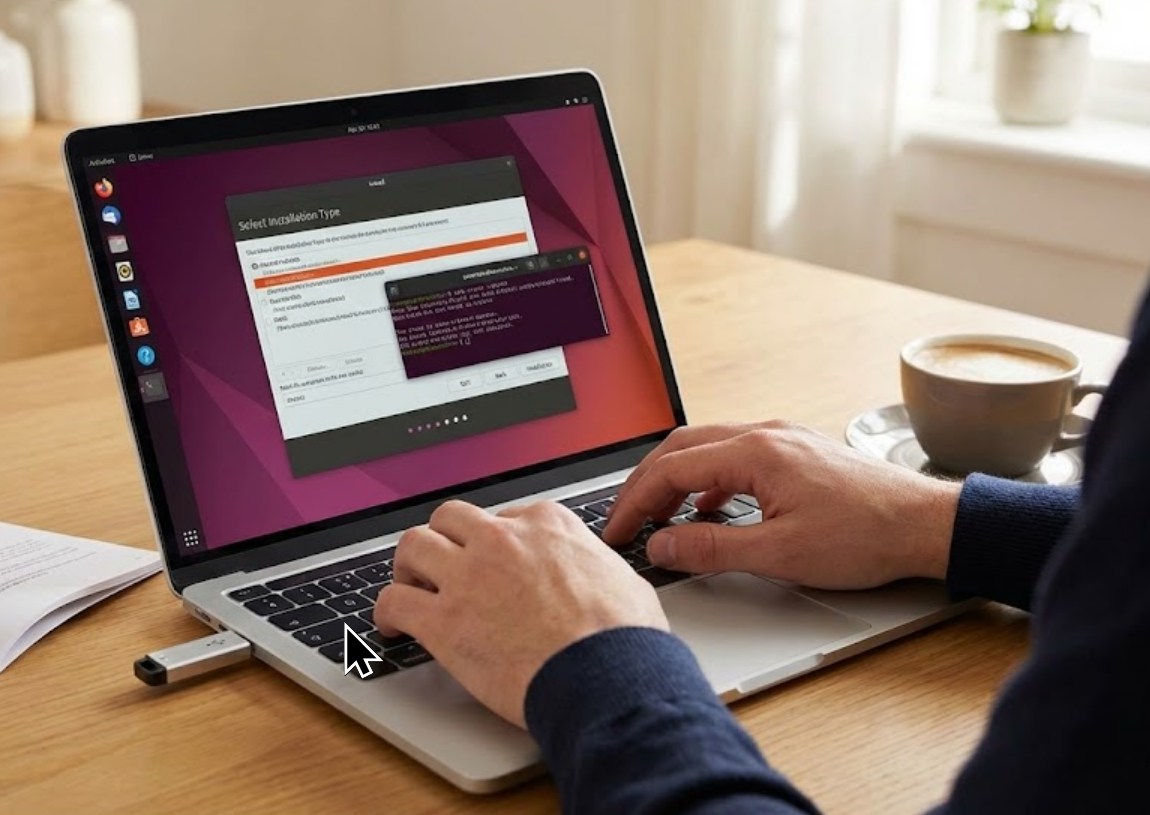
While every laptop is different, the general workflow for installing Linux on these machines usually looks like this:
-
- Disable Secure Boot: Most laptops have a security setting in the BIOS/UEFI that prevents “unauthorized” operating systems from loading. You’ll need to turn this off.
- Flash the Image: Use a tool like BalenaEtcher to put your chosen Linux ISO onto a USB drive.
- Partition the Drive: You’ll need to shrink your Windows or macOS partition to make room for Linux.
- The Initial Boot: Restart the laptop and hold the key (usually F12, F2, or Option) to boot from the USB.
- The “Kernel” Update: Once Linux is installed, you often have to install a very specific “kernel” (the core of the OS) that contains the latest fixes for Arm hardware.
What to Expect After Installation
It’s important to be realistic. On a brand-new Arm laptop, everything might not work on day one. It is very common for the built-in speakers to remain silent or for the webcam to be unrecognized. This happens because those components require specialized software that the Linux community is still writing.
However, the “basics” usually work quite well. Web browsing, coding, and writing are often lightning-fast. Because Linux doesn’t have the background bloat of other operating systems, your Arm laptop will feel even snappier than it did when you first took it out of the box.
Is It Worth It?
Installing Linux on an Arm laptop is more than just a technical chore; it’s a way to future-proof your tech. As the world moves away from old, power-hungry processors, having the skills to navigate the Arm landscape is a huge advantage. Plus, there is a unique satisfaction in seeing a “Tux” penguin logo pop up on a device that was never meant to run anything but proprietary software. It’s your hardware—you should be the one who decides how it runs.
