
In the modern world of school projects, gaming, and creative hobbies, many of us find ourselves living in a “dual-OS” household. You might have a beefy Windows desktop for gaming and video editing, but a sleek MacBook for taking to class and working at coffee shops. While both systems are great at what they do, getting them to talk to each other can sometimes feel like trying to host a conversation between two people who speak completely different languages.
Gone are the days when you had to hunt for a USB flash drive, pray it had enough space, and physically plug it back and forth between machines. Syncing your files wirelessly is not only possible; it’s actually quite easy once you know which tools to use. Here is how you can bridge the gap between Windows and Mac without ever reaching for a cable.
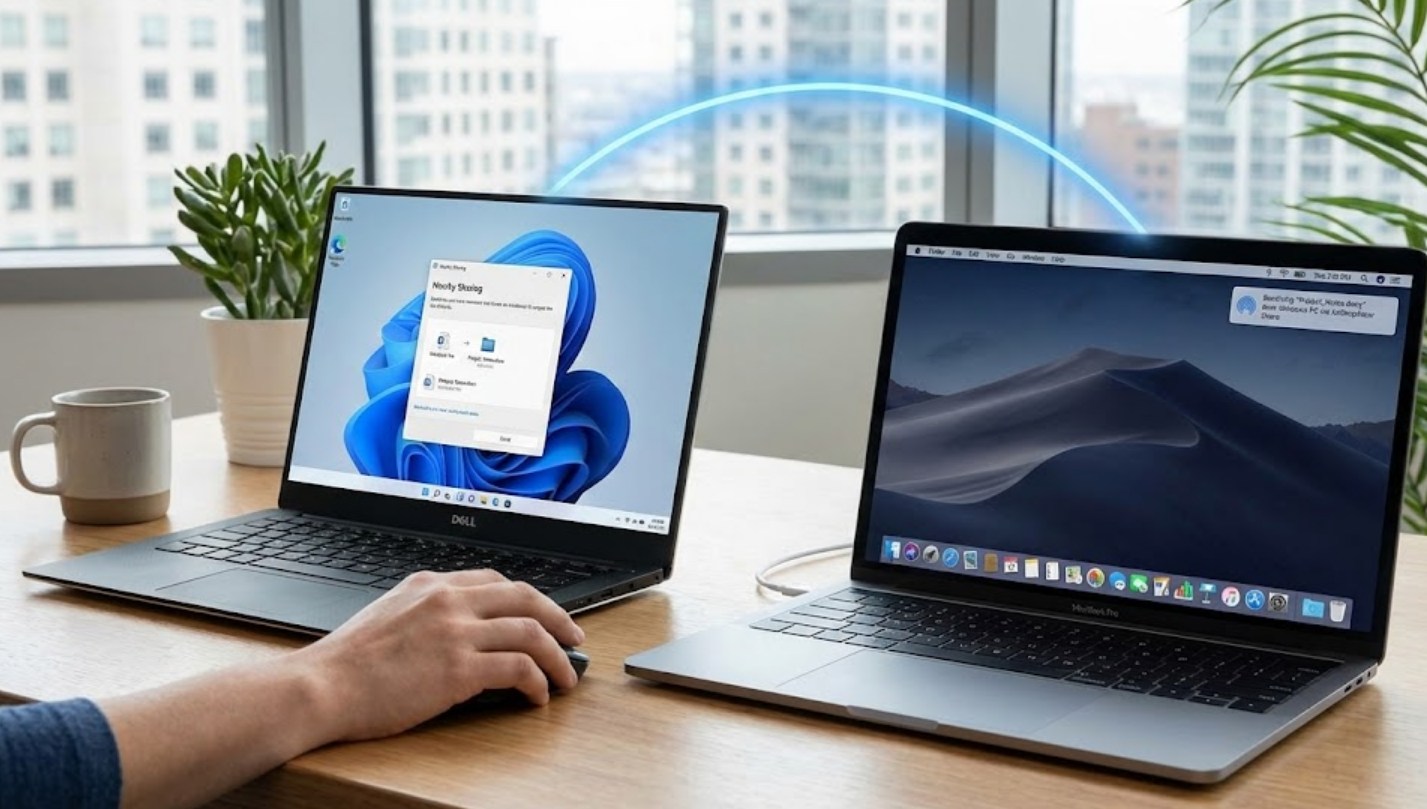
1. The Cloud: Your Invisible Bridge
The most common and user-friendly way to sync files is through cloud storage. This method doesn’t just “send” a file; it creates a mirror image of your folder on both computers. If you change a sentence in an essay on your Mac, that change appears on your Windows PC seconds later.
Google Drive and OneDrive are the heavy hitters here. Since Windows comes with OneDrive pre-installed, it’s a natural choice. However, Google Drive is often preferred by students because of its integration with Google Docs.
-
- Pros: Access files from anywhere (even your phone), automatic backups, and very easy setup.
- Cons: Limited free storage (usually 5GB to 15GB) and requires a stable internet connection.
- Best for: Documents, school assignments, and small photo collections.
To get started, simply download the “Desktop” version of the app on both machines. Log in with the same account, choose a folder to sync, and you’re done. Anything you drop into that folder on one computer magically appears on the other.
2. Local Network Sharing (The “Pro” Way)
What if you have a massive 10GB video project? Uploading that to the cloud and downloading it again would take forever. Instead, you can use your home Wi-Fi to send files directly from one computer to the other. This is called SMB (Server Message Block) sharing.
To set this up, you need to tell your Windows computer that it’s allowed to share folders:
-
- On Windows, right-click the folder you want to share and go to Properties > Sharing.
- Click Share and select your username or “Everyone.”
- On your Mac, open Finder and press Command + K.
- Type
smb://followed by your Windows computer’s IP address (you can find this in your Wi-Fi settings). - Enter your Windows login credentials, and the folder will pop up on your Mac desktop like an external hard drive.
This method is incredibly fast because the data stays inside your house—it doesn’t have to travel to a server in another state and back.
3. The “AirDrop” Alternatives
One of the most frustrating things about owning both a PC and a Mac is that you can’t use AirDrop between them. Apple keeps that feature locked inside its own “walled garden.” Luckily, several clever developers have created web-based tools that mimic the AirDrop experience.
Snapdrop and LocalSend are two fantastic options. Snapdrop is a website (snapdrop.net) that you open in the browser on both computers. As long as both devices are on the same Wi-Fi, they will see each other. You simply drag a file onto the screen, and the other computer receives a notification to download it.
LocalSend is a dedicated app that works similarly but is more stable for larger files. It’s open-source, free, and doesn’t contain annoying ads. These tools are perfect for those “one-off” transfers, like sending a single PDF or a funny meme to your other device.
4. Choosing the Right Tool for the Job
Deciding which method to use depends entirely on your specific needs at the moment. You don’t have to stick to just one!
- Use Cloud Storage if you are working on a long-term project and want to make sure your progress is saved automatically.
- Use Network Sharing if you are moving massive files like raw 4K video or high-resolution photo albums.
- Use Snapdrop if you just need to send one quick file and don’t want to install any new software or mess with settings.
A Quick Tip on File Formats
Before you start syncing, keep in mind that while the files will move across easily, the software might not always play nice. For example, if you use Apple Pages on your Mac, a Windows computer won’t be able to open that file unless you export it as a Word Doc or a PDF. Stick to universal formats like .docx, .jpg, .png, and .pdf to ensure that your work looks exactly the same on both screens.
By setting up these wireless workflows, you turn your Windows and Mac machines into a powerhouse team. No more “the file is on my other computer” excuses—just seamless, instant access to your digital life.
