
When you back up your iPhone via iTunes or Finder, you have the option to “Encrypt local backup.” While this adds a vital layer of security for sensitive data like saved passwords, Wi-Fi settings, and health data, it can become a major obstacle if you forget the password. Without that password, the backup is virtually a digital brick.
If you find yourself locked out of your own data, don’t panic. Here is a comprehensive guide on how to recover data from encrypted iPhone backups or regain access to your backup functionality.
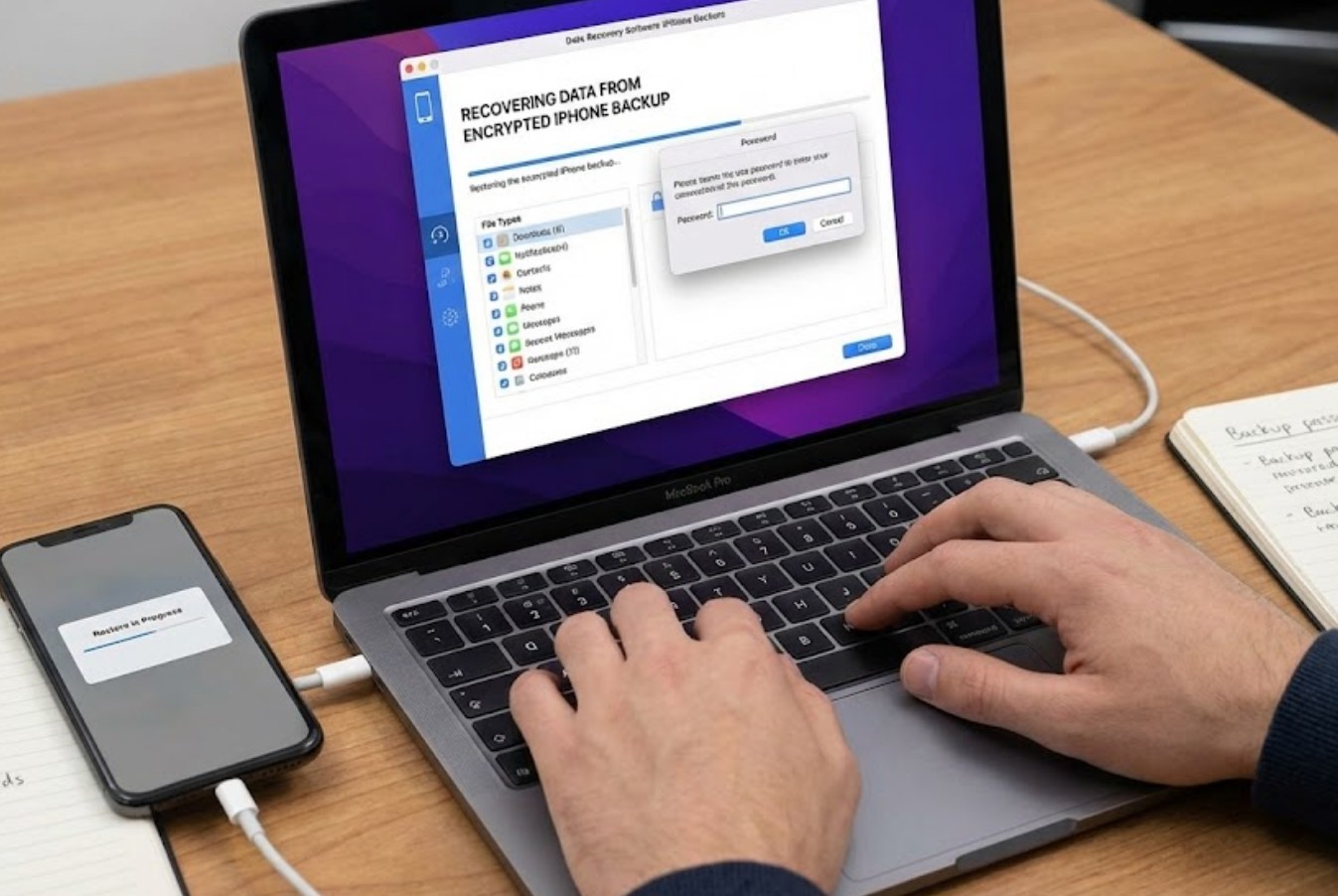
1. Search for the Forgotten Password
Before trying technical workarounds, try to recall the password. iPhone backup passwords are often different from your Apple ID or device passcode. Common passwords people use include:
-
- Your computer login password.
-
- Your Apple ID password.
-
- A simple “1234” or “0000.”
-
- An old iPhone passcode.
-
- A password used for a common app or email account.
2. Reset the Backup Password (iOS 11 and Later)
If you cannot remember the password and simply want to create a new backup, Apple allows you to reset the backup encryption settings. Note that this will not allow you to use your old encrypted backup, but it will allow you to create a new one with a new password.
-
- On your iPhone, go to Settings > General > Transfer or Reset iPhone.
-
- Tap Reset.
-
- Select Reset All Settings and enter your device passcode.
-
- This will reset settings like wallpaper and Wi-Fi passwords, but it also clears the encryption password for backups.
-
- Reconnect your iPhone to your computer and create a new backup with a new password.
3. Recover Data via iCloud
If your local iTunes/Finder backup is encrypted and the password is lost, check if you have an iCloud Backup. iCloud backups are stored on Apple’s servers and are tied to your Apple ID rather than a local encryption password.
-
- Go to Settings > [Your Name] > iCloud > iCloud Backup to see the date of your last backup.
-
- If a recent backup exists, you can erase your iPhone and choose “Restore from iCloud Backup” during the initial setup process.
4. Use Third-Party Decryption Tools
If you absolutely must access the data inside an old encrypted backup and you don’t have the password, you may need to use third-party “iPhone Backup Unlocker” software. Tools like Tenorshare 4uKey, iMyFone KeyGenius, or PhoneRescue use brute-force or dictionary attacks to try and crack the password.
Keep in mind:
-
- These tools can take anywhere from a few minutes to several days depending on the complexity of your password.
-
- Most reputable tools are paid software.
-
- Success is not 100% guaranteed if your password is extremely long and complex.
5. Extracting Data with Backup Explorers
Once you have either recovered the password or if you managed to bypass the encryption, you can use “iPhone Backup Extractors” to view individual files (like photos or messages) without performing a full restore to your phone. Tools like iMazing or Reiboot allow you to browse the contents of a backup and save specific items to your desktop.
Conclusion
Losing an encrypted backup password is frustrating because Apple’s encryption is intentionally robust. Your best bet is always to check your Keychain or try to reset the settings to create a fresh backup. Moving forward, consider using a password manager to store your backup password so you never find yourself locked out of your data again.
