
By 2026, the boundary between local computing and Artificial Intelligence will have effectively vanished. Whether you are using the refined Windows 11 or the highly anticipated AI-centric Windows 12, staying productive means mastering the tools that automate the mundane. Here are 15 hacks to reclaim your time and dominate your workflow.
1. Master the “Copilot” Action Recall
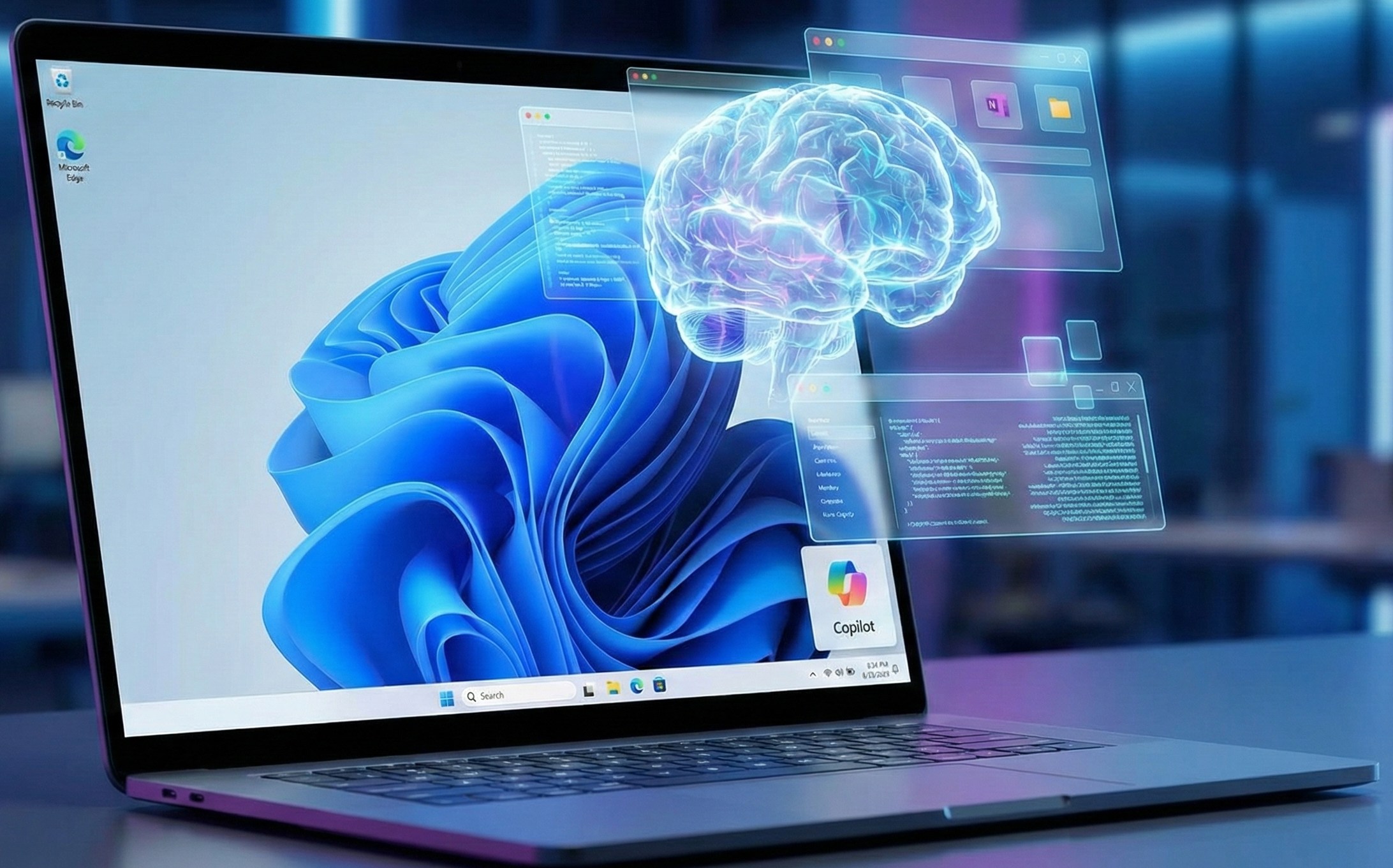
In 2026, the Windows Copilot is no longer just a chatbot; it’s a temporal search engine. Use the Win + C shortcut to ask Copilot to “Find that spreadsheet I was working on last Tuesday that had the blue chart.” It uses semantic indexing to find files based on context rather than just file names.
2. Custom Snap Groups for Recurring Projects
Don’t waste time resizing windows every morning. Hover over a window’s “maximize” button to see Snap Layouts. Once you have your ideal layout (e.g., Teams on the left, browser in the middle, OneNote on the right), Windows now remembers these as Snap Groups in your taskbar. One click restores your entire workspace.
3. Use Neural Search in File Explorer
Stop digging through folders. Use the File Explorer search bar to search by content description. Typing “Invoices from the coffee shop” will pull up PDFs even if they are named “Scan_001.pdf,” thanks to integrated OCR and AI vision.
4. Advanced Focus Sessions 2.0
Accessed through the Clock app or the Notification Center, Focus Sessions now integrate with Spotify and Microsoft To-Do. By 2026, Focus Mode can automatically “hush” non-essential apps and even dim distracting parts of your UI to keep your eyes on your primary task.
5. The Universal “Copy-Paste” Cloud Clipboard
Enable Clipboard History via Win + V. In 2026, this works seamlessly across your Windows PC, Android phone, and tablet. You can copy a tracking number on your phone and paste it directly into your PC’s browser without opening a messaging app.
6. Live Captions for Global Meetings
Press Win + Ctrl + L to toggle system-wide Live Captions. This doesn’t just transcribe; it now translates in real-time. You can be on a call with a partner in Tokyo and see English subtitles instantly, regardless of which meeting software you are using.
7. Voice Access for Hands-Free Navigation
Windows 12/11 features robust Voice Access. Beyond dictation, you can say “Click File,” “Open Edge,” or “Numbers show” to interact with every UI element. This is a game-changer for avoiding repetitive strain injuries (RSI).
8. PowerToys: FancyZones
If the built-in Snap Layouts aren’t enough, install Microsoft PowerToys. Use “FancyZones” to create complex, pixel-perfect layouts. Hold Shift while dragging a window to snap it into a custom-defined zone.
9. Automate Tasks with “Power Automate Desktop”
Standard in 2026, Power Automate allows you to record “flows.” For example, you can create a shortcut that automatically downloads email attachments, renames them with today’s date, and uploads them to a specific OneDrive folder.
10. Virtual Desktop Theming
Use Win + Tab to create separate desktops for “Work,” “Gaming,” and “Personal.” In the latest updates, you can set different wallpapers and taskbar pins for each, helping your brain switch contexts instantly.
11. Quick Settings Customization
Click the battery/Wi-Fi icon in the corner and click the “pencil” icon. Remove the toggles you never use (like Airplane mode) and add the ones you do (like Mobile Hotspot or Night Light) to save seconds every day.
12. Efficiency Mode in Task Manager
If a background app is hogging resources, open Task Manager (Ctrl + Shift + Esc), right-click the process, and select Efficiency Mode. This limits the CPU priority for that app, ensuring your active work remains lag-free.
13. Instant Text Extraction (OCR)
Use the Snipping Tool (Win + Shift + S). After taking a screenshot of a document or a video frame, click the “Text Actions” button to instantly copy all text from the image. No more re-typing data from un-copyable PDFs.
14. Phone Link App Streaming
Don’t pick up your phone to check Instagram or a banking app. Use Phone Link to stream your mobile apps directly onto your Windows desktop. You can interact with them using your mouse and keyboard as if they were native PC apps.
15. The “God Mode” Folder
For the ultimate power user, create a new folder on your desktop and name it exactly:
GodMode.{ED7BA470-8E54-465E-825C-99712043E01C}
This gives you a single, searchable list of every single setting and tweak available in the Windows OS.
Final Thoughts
The key to productivity in 2026 is leverage. Use the AI to find information, use Snap Groups to organize your space, and use automation to handle repetitive tasks. Mastering these 15 hacks will ensure you spend less time “using” your computer and more time getting your work done.
